
How to Transfer Data from Android to iPhone: Contacts, Photos, WhatsApp and More
You can transfer data from Android to iPhone with Apple’s free Move to iOS app, your Google account, a USB cable or a computer. This guide shows each method step by step for contacts, photos, videos, messages and WhatsApp chats, and tells you what does not transfer.
Note: the pictures in this guide are AI-generated illustrations to show the steps. They are not screenshots from a real phone.
Quick answer: The easiest way to move data from Android to iPhone is Apple’s free Move to iOS app. While you set up the iPhone, tap From Android, enter the code on your Android phone and choose what to move: contacts, photos, messages, calendars and WhatsApp. If the iPhone is already set up, sync with your Google account or use a computer instead of erasing it.
Key Takeaways
- Apple’s free Move to iOS app moves contacts, messages, camera photos, bookmarks and WhatsApp chats wirelessly
- Your iPhone must be on the Hello setup screen, so an already set-up iPhone needs a reset first
- WhatsApp transfer needs the same phone number on both phones
- If you do not want to reset, sync with your Google account or copy files with a computer
- Keep both phones charging during a long transfer
AI-generated illustration
Tap any picture in this guide to zoom.
Before You Start
Complete this checklist first to avoid the most common transfer errors:
- Charge both phones. Keep both plugged in, or above 50% battery.
- Use stable Wi-Fi. Keep the Wi-Fi password handy.
- Check free space. The iPhone needs enough storage for everything on the Android phone.
- Update Android. Open Settings, tap System update (or Software update) and install anything pending.
- Update WhatsApp on the Android phone from the Google Play Store if you plan to move chats.
- Check the iPhone state. Move to iOS only works on an iPhone showing the Hello setup screen.
What Transfers From Android to iPhone (and What Does Not)
Apple says Move to iOS can copy the items below. Anything marked manual needs another method from this guide.
| What you want to move | How it moves |
|---|---|
| Contacts and calendars | Move to iOS, or sync your Google account (Method 2) |
| Messages, SMS and call history | Move to iOS |
| Photos, videos and albums | Move to iOS, Google Photos (Method 2) or a computer (Method 4) |
| Files and folders | Move to iOS, or a computer (Method 4) |
| WhatsApp chats and media | Move to iOS, same phone number on both phones (Method 3) |
| Bookmarks, mail accounts and settings | Move to iOS (update Chrome first if you want bookmarks) |
| Apps | Only some free apps that exist on both stores come across. Download the rest from the App Store. Paid apps must be bought again. |
| Music, books and PDFs | Manual: copy them with a computer or use a streaming or reading app |
| Phone number and SIM or eSIM | Does not transfer. Activate your number on the iPhone with your carrier. |
How to transfer contacts from Android to iPhone: use Move to iOS during setup (Method 1) or switch on Google contacts sync (Method 2). How to transfer photos from Android to iPhone: Move to iOS, Google Photos (Method 2) or a computer (Method 4). A USB-C cable between the two phones is faster than Wi-Fi for Move to iOS.
Method 1: Move to iOS App (Official Wireless Method)
This is the easiest official way to move contacts, messages, photos, videos, bookmarks, mail accounts and free apps directly from Android to iPhone.
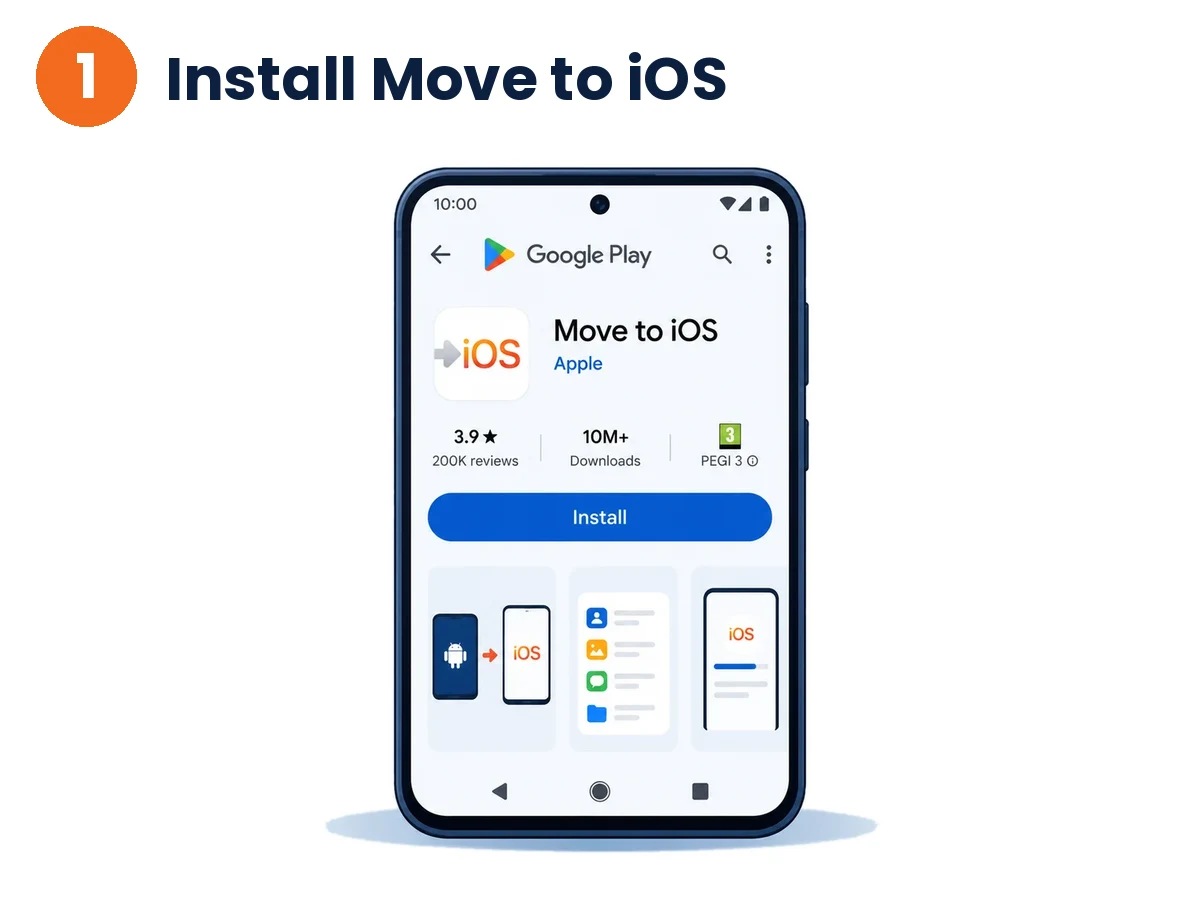
Step 1: Install Move to iOS on Android
Open the Google Play Store on your Android phone, search for Move to iOS (made by Apple) and tap Install.
AI-generated illustration
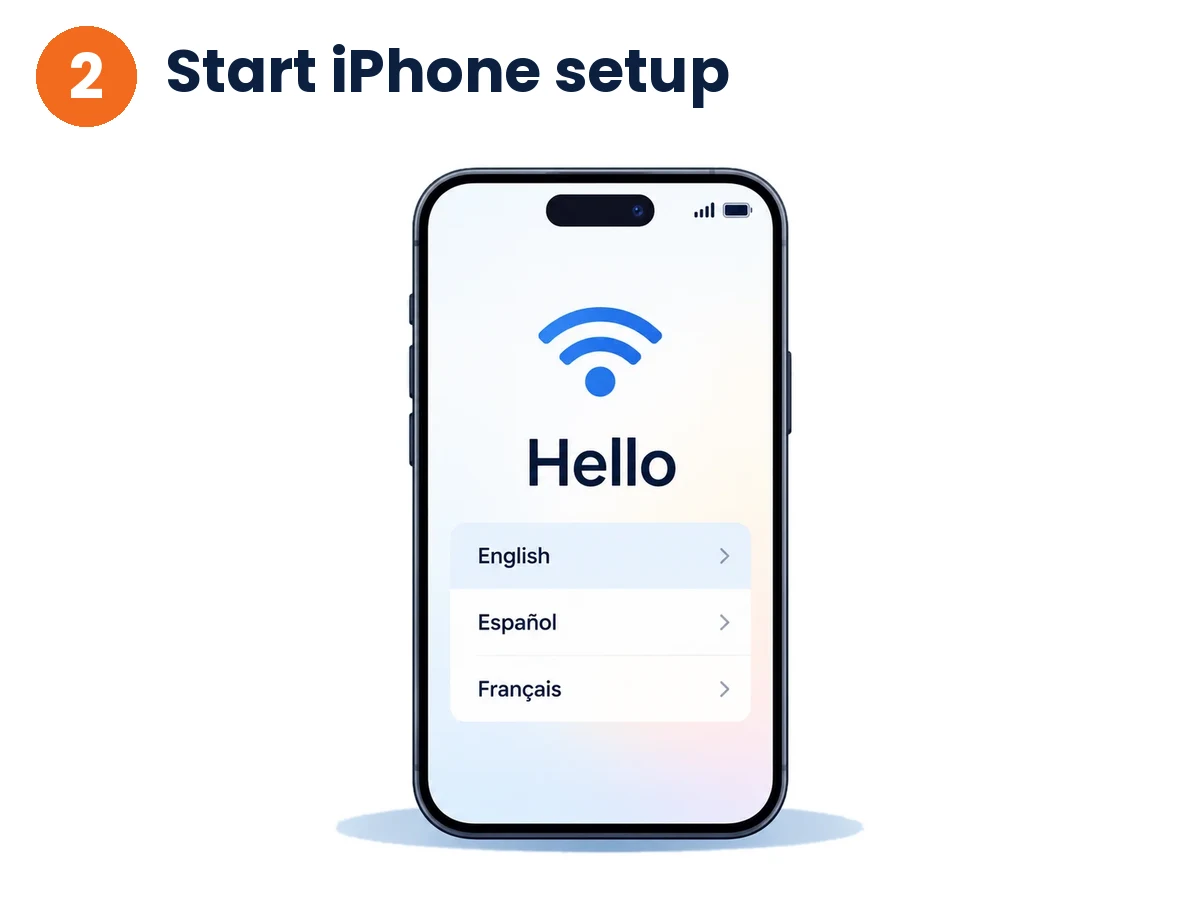
Step 2: Turn on the iPhone and start setup
Turn on the iPhone. On the Hello screen, swipe up (or press Home), choose your language and region, and connect to Wi-Fi.
AI-generated illustration
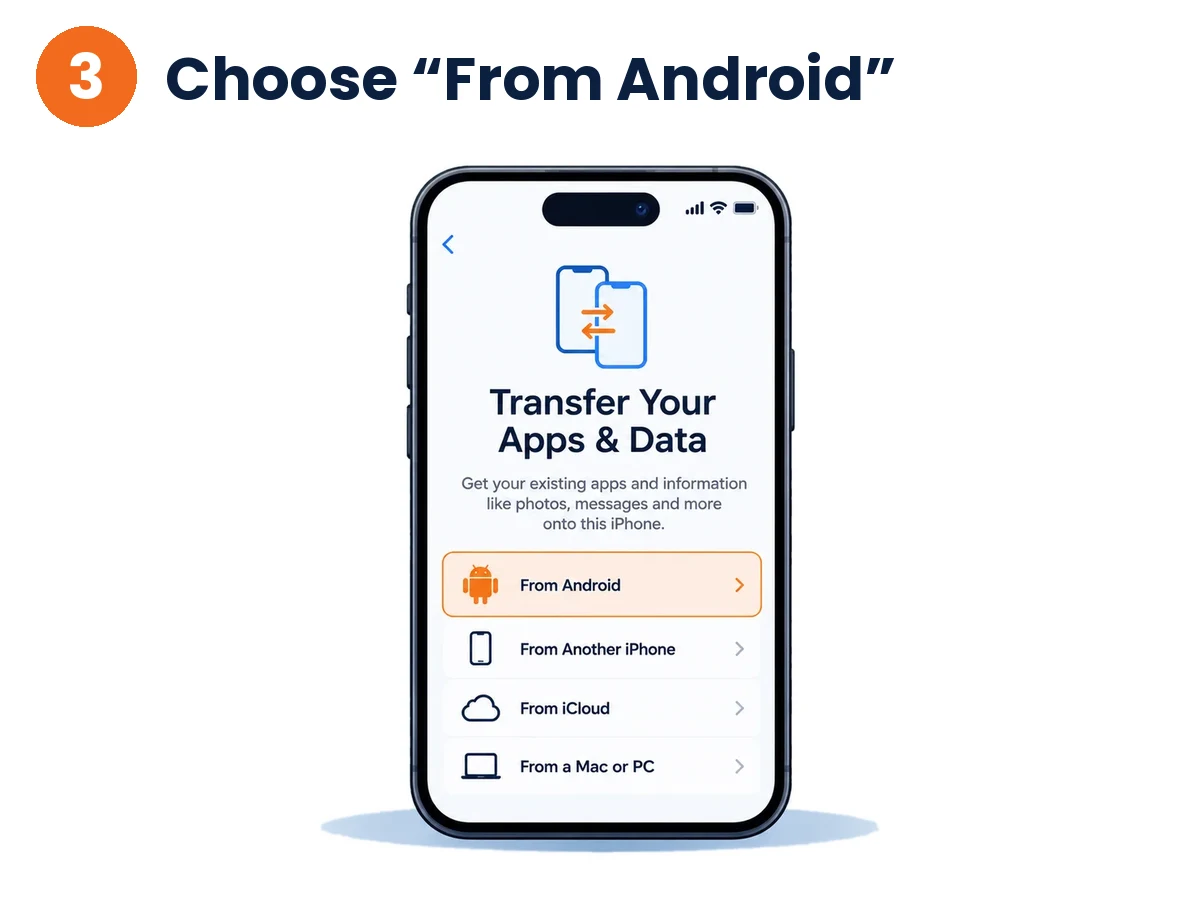
Step 3: Choose “From Android”
Continue setup until you reach the Transfer Your Apps & Data screen and tap From Android.
AI-generated illustration
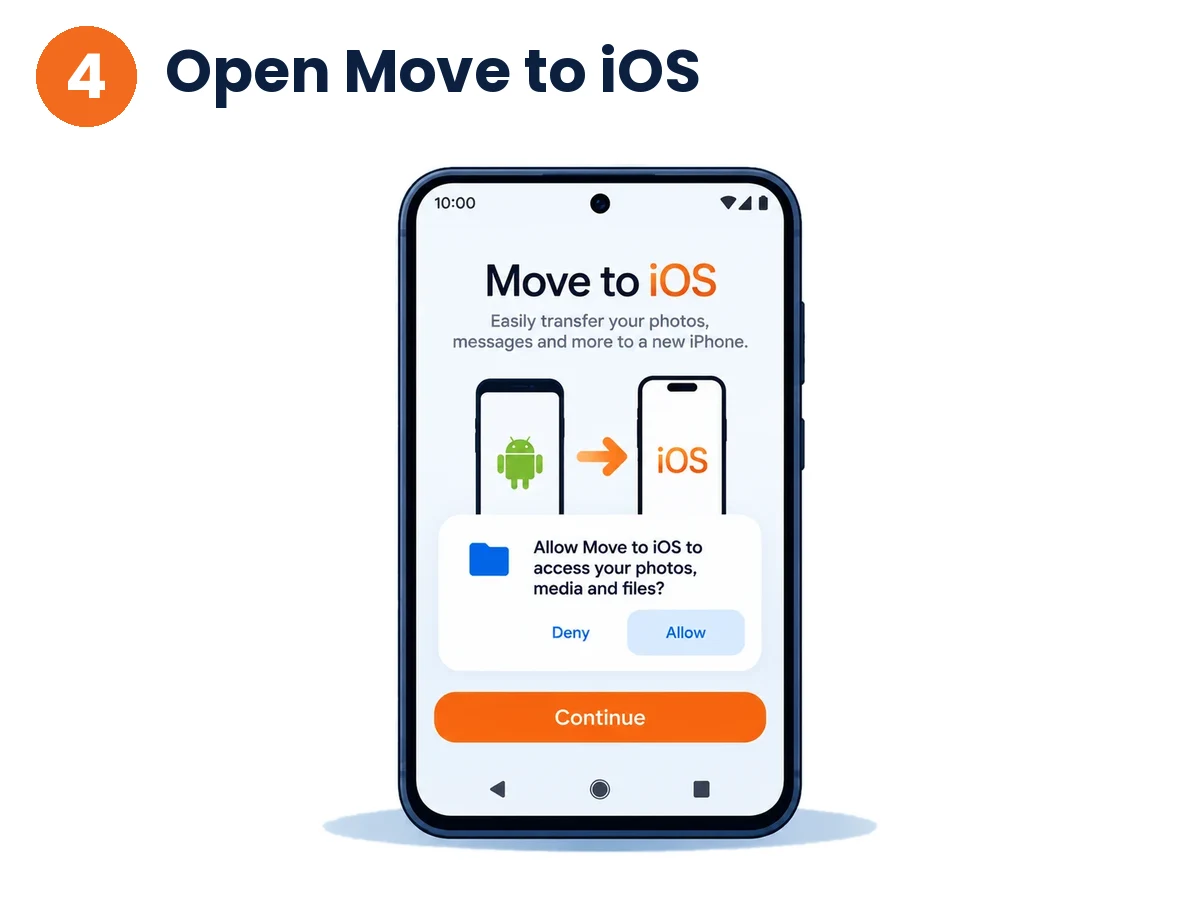
Step 4: Open Move to iOS and accept the terms
Open Move to iOS on the Android phone, tap Continue, agree to the terms and allow the permissions it asks for.
AI-generated illustration
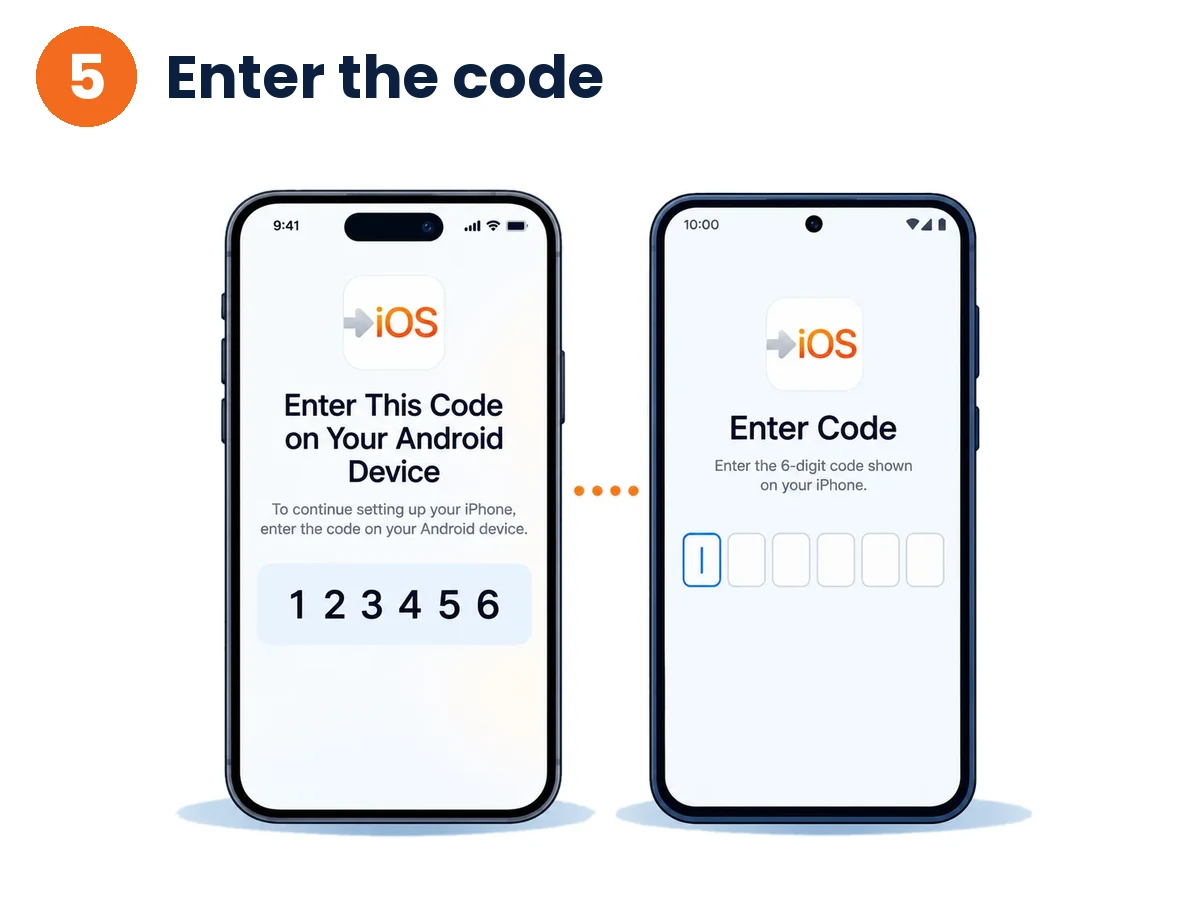
Step 5: Enter the one-time code
A 6-digit or 10-digit code appears on the iPhone. Enter that exact code in the Move to iOS app on the Android phone.
AI-generated illustration
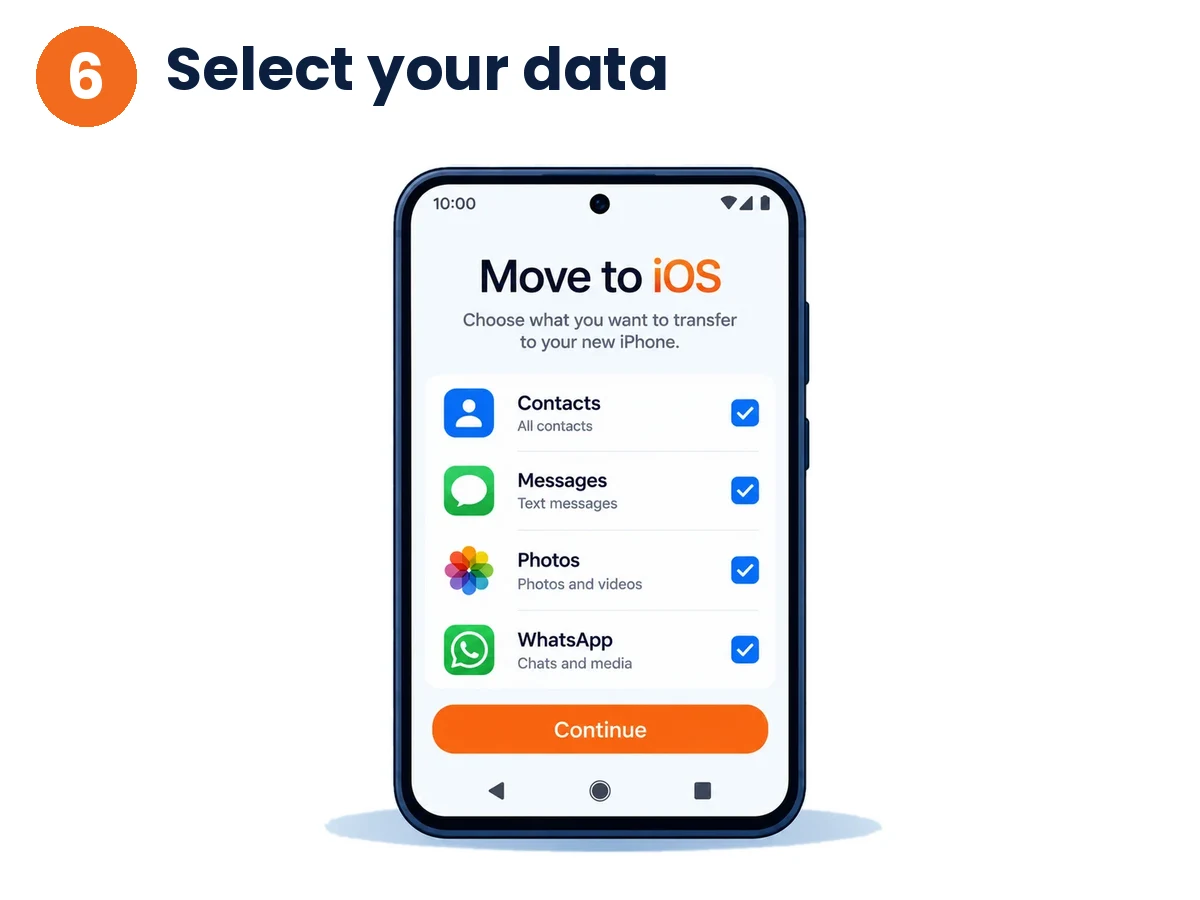
Step 6: Select the data and start the transfer
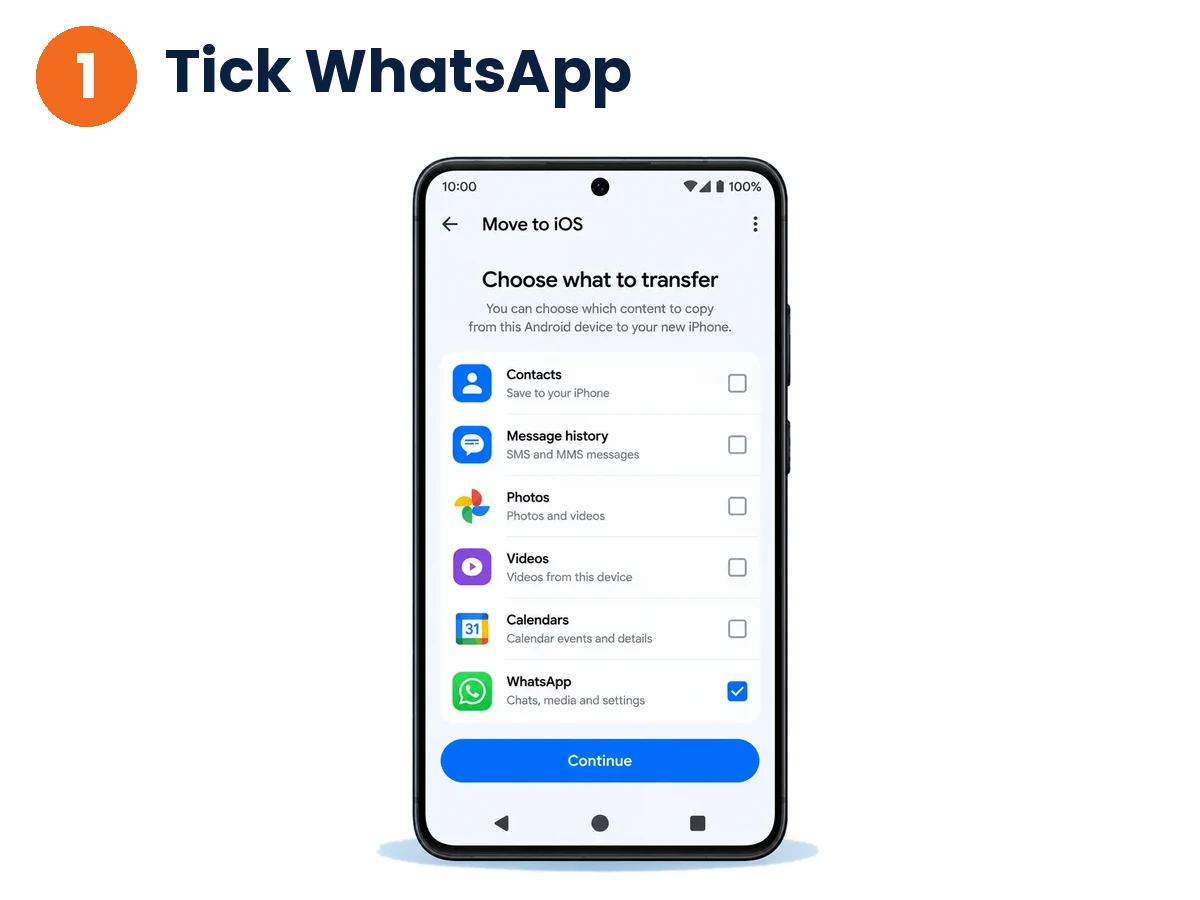
On the Android phone, tick what you want to move: Contacts, Messages, Photos, WhatsApp, Display settings and so on. Tap Continue and wait until the loading bar on the iPhone fills completely. Keep both phones side by side until the iPhone says the transfer is complete.
AI-generated illustration
Method 2: Google Account (Contacts, Photos, Calendar)
If your iPhone is already set up and you do not want to erase it, you can sync contacts, calendars and photos with the Google account you use on Android.
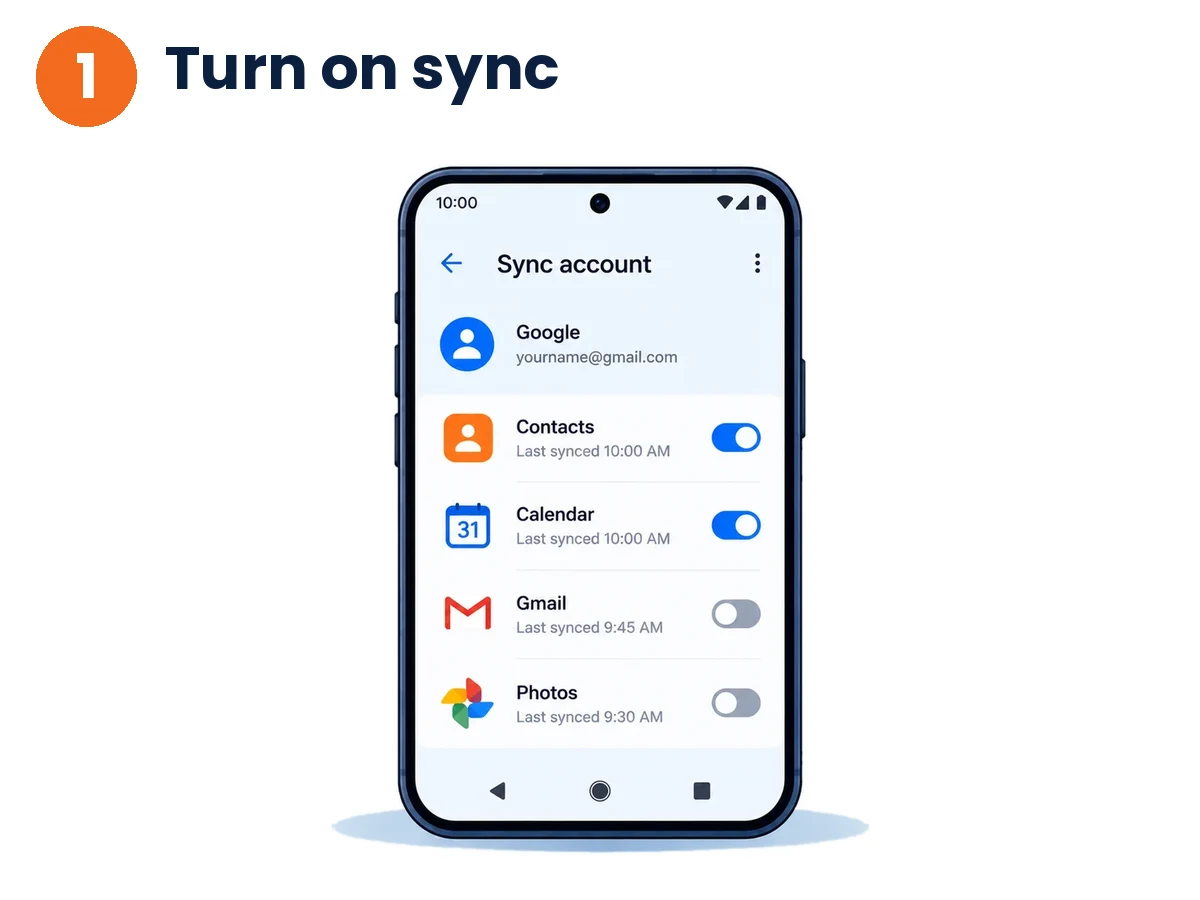
Step 1: Turn on sync on Android
- Open Settings on your Android phone.
- Tap Google (or Accounts & sync).
- Open your account sync settings and make sure Contacts and Calendar are switched on.
AI-generated illustration
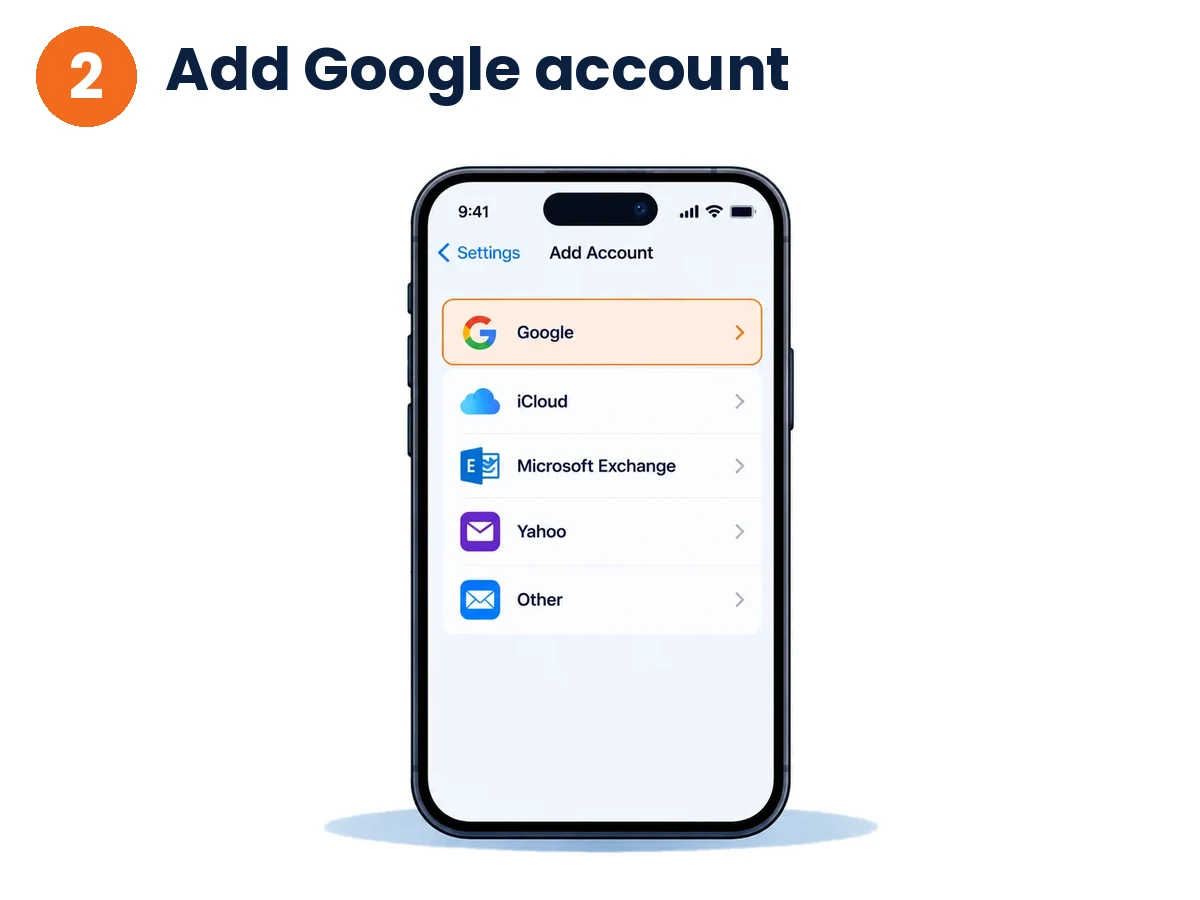
Step 2: Add your Google account to the iPhone
- On the iPhone, open Settings.
- Tap Apps > Contacts > Contacts Accounts (on older iOS, Contacts or Mail > Accounts).
- Tap Add Account, choose Google and sign in with the same Gmail address used on Android.
AI-generated illustration
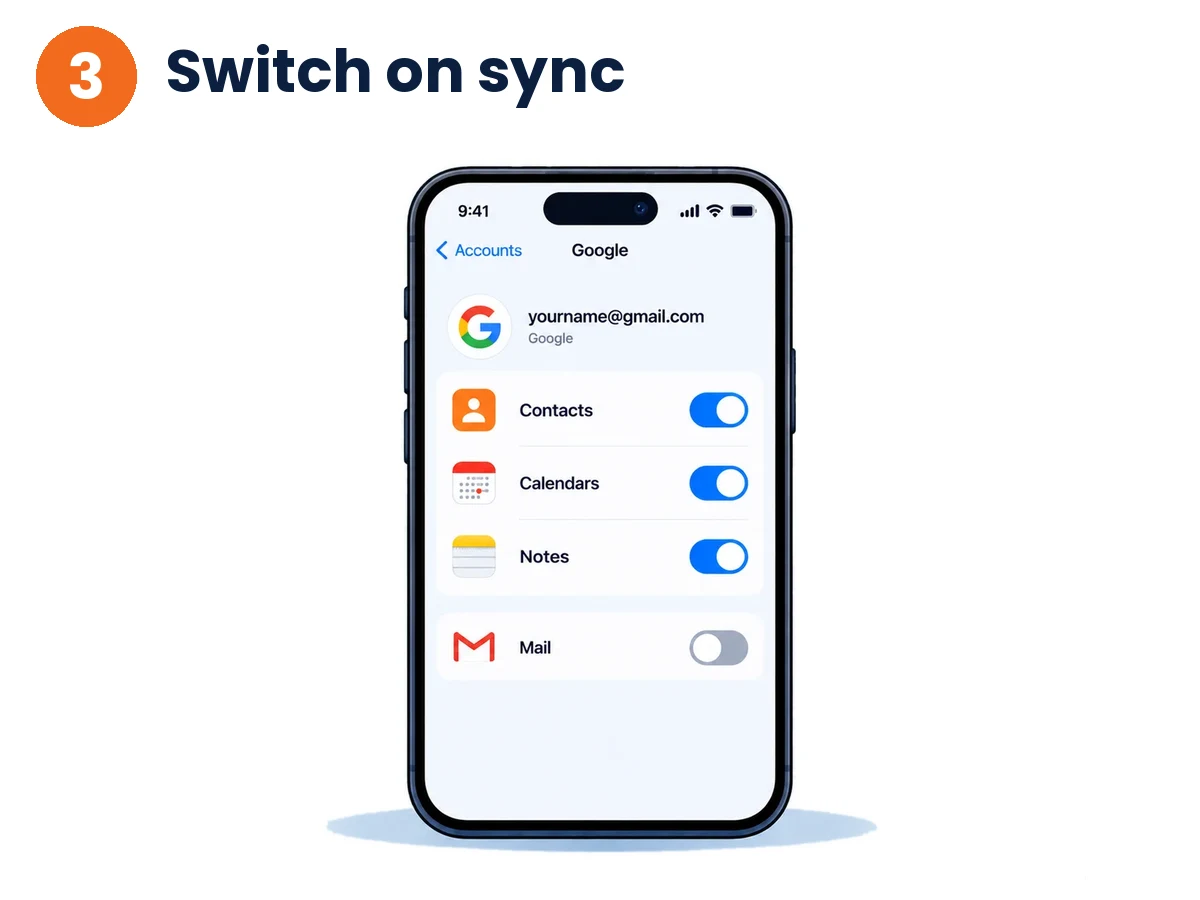
Step 3: Switch on the sync toggles
Turn on Contacts, Calendars and Notes. Contacts saved in your Google account then appear in the iPhone Contacts app.
AI-generated illustration
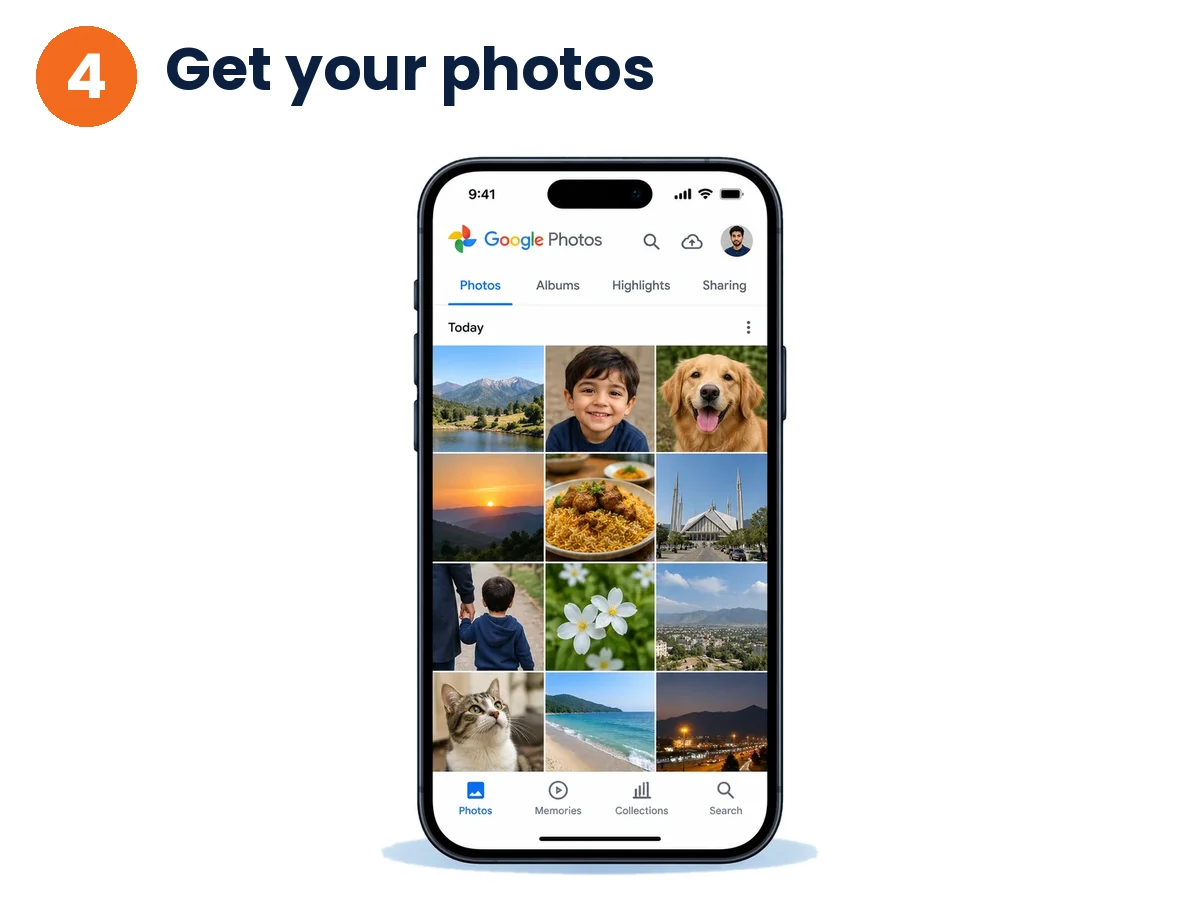
Step 4: Get your photos with Google Photos
- Install Google Photos from the App Store on the iPhone.
- Sign in with the same Google account.
- Photos that were backed up from your Android phone show up in the app.
Photos that were never backed up will not appear, so check the backup status on Android first.
AI-generated illustration
Method 3: Transfer WhatsApp Chats
Officially, WhatsApp chats move from Android to iPhone through Move to iOS during the iPhone’s first setup. A normal Google Drive backup cannot be restored directly into WhatsApp on iPhone.
Step 1: Tick WhatsApp inside Move to iOS
On the data-selection screen in Method 1 (Step 6), check the box labelled WhatsApp.
AI-generated illustration
Step 2: Start the export on Android
Tap Start when the WhatsApp export screen appears. WhatsApp prepares your chats, voice notes and media. When it finishes, WhatsApp signs out on the Android phone.
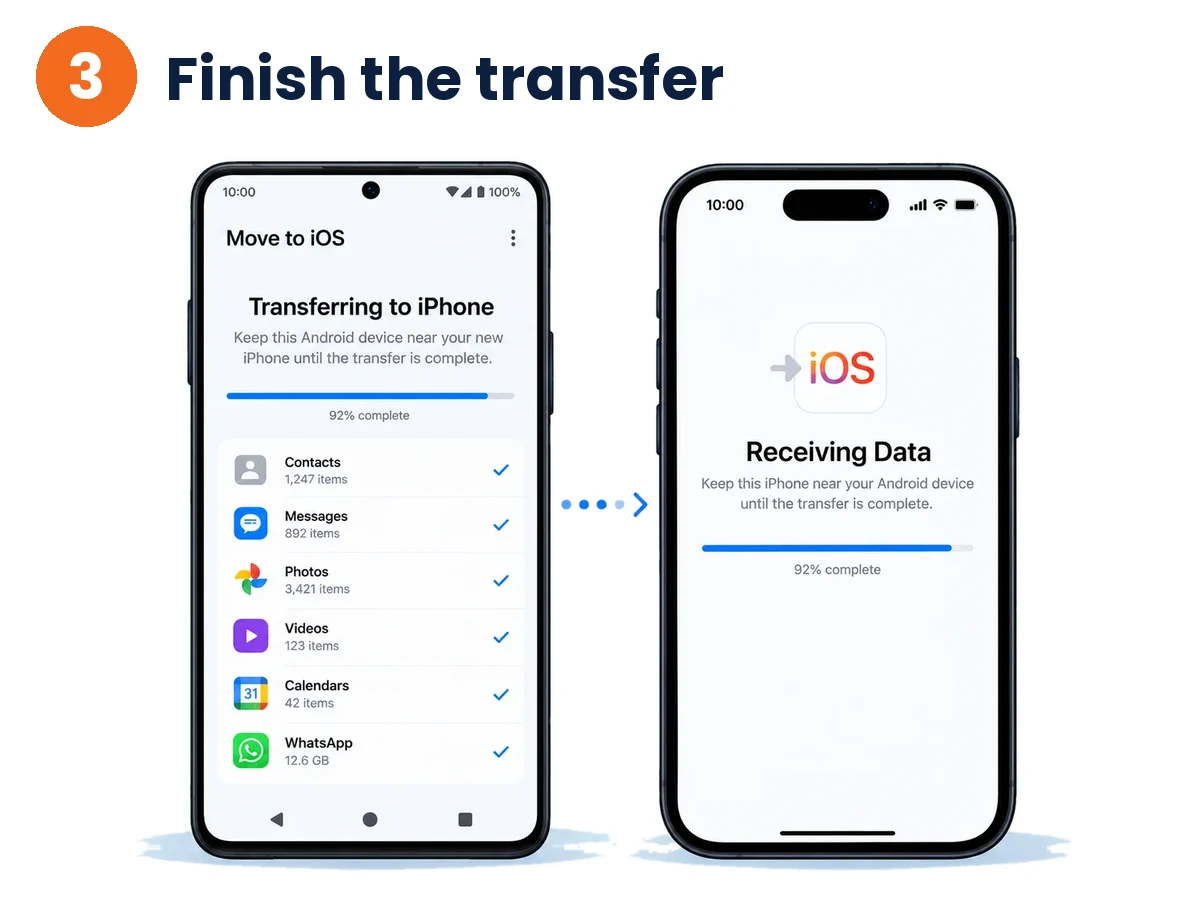
Step 3: Finish the Move to iOS transfer
Tap Next to return to Move to iOS and let the rest of the selected data finish moving to the iPhone.
AI-generated illustration
Step 4: Install WhatsApp on the iPhone and import
- When iPhone setup is done, install WhatsApp from the App Store.
- Open it and sign in with the exact same phone number you used on Android.
- Verify the number with the code WhatsApp sends.
- Tap Start when it offers to move chats from Android, and allow the permissions. Your chats, groups and media are restored.
Method 4: Manual Transfer by Computer (Photos, Videos, Files)
If your internet is slow, or you have large files such as 4K videos, a Windows PC or Mac is often faster than Wi-Fi.
Step 1: Copy files from Android to the computer
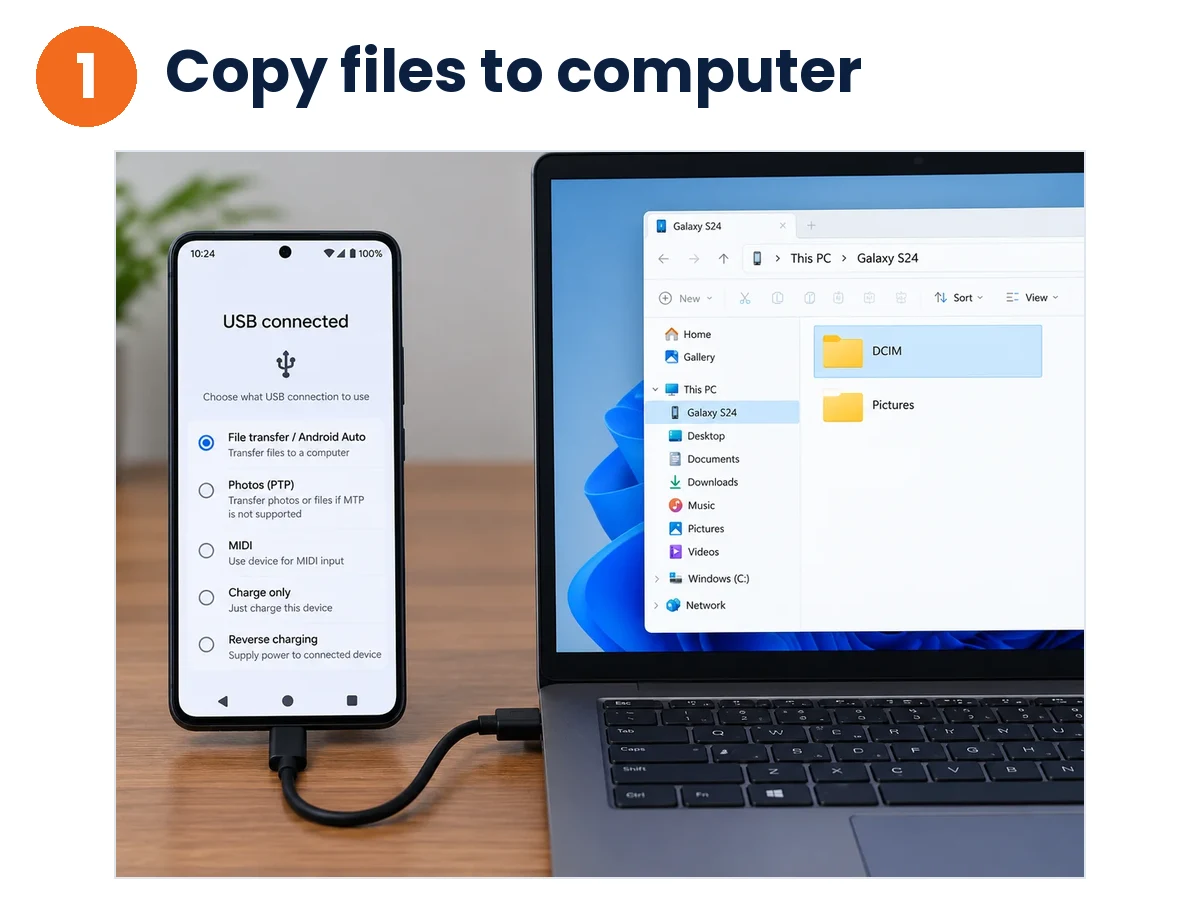
- Connect the Android phone to the computer with a USB cable.
- In the Android notification panel, tap the USB option and choose File transfer.
- Open the phone’s storage on the computer and copy the DCIM (camera photos), Documents or Download folders to your desktop.
AI-generated illustration
Step 2: Move the files to the iPhone
- Option A, no cable: open iCloud.com in a browser, sign in with your Apple Account, open Photos or iCloud Drive and drag your files in.
- Option B, with a cable (Windows): install Apple’s Apple Devices app (or iTunes), connect the iPhone, open the Photos or Files tab, choose the folder and click Sync. On a Mac, use Finder.
If Move to iOS Gets Stuck, Is Slow or Disconnects
These fixes come from Apple’s support page. Try them in order:
- Do not touch either phone. Keep the Move to iOS app open on Android. Using other apps or taking a call can stop the transfer.
- Watch the iPhone. Trust the loading bar on the iPhone, not the one on Android.
- Plug both phones in and try a USB-C cable between them, which Apple lists as a faster option than Wi-Fi.
- Remove Wi-Fi interference. Turn off apps or settings that affect Wi-Fi, forget saved Wi-Fi networks on the Android phone and turn off cellular data on Android.
- Restart both phones and start again.
- Storage full? If the iPhone runs out of space, erase it, check that your Android content fits and start again.
- No code on the iPhone? Apple says to reset the iPhone to generate a code.
How to Check That It Worked
Before you reset or sell the old Android phone, check the new iPhone:
- Contacts: open the Phone app, tap Contacts and compare the total with your old phone.
- WhatsApp: check recent chats, pinned groups and media inside conversations.
- Photos and videos: open Photos > Library and check that your camera roll and dates are there.
- Messages: open Messages and confirm older text messages arrived.
- Bookmarks and notes: check Safari bookmarks and the Notes app.
Frequently Asked Questions (FAQs)
Can I transfer data from Android to iPhone after setup?
Move to iOS only works on the iPhone’s first setup screens, so an iPhone that is already set up must be erased first. If you do not want to erase it, add your Google account for contacts and calendars, use Google Photos for photos, or copy files with a computer.
What does not transfer from Android to iPhone?
Apple lists music, books and PDFs (move them manually), paid apps and apps that have no match on the App Store (download them again), and your phone number or SIM or eSIM, which you activate on the iPhone with your carrier. Call history, messages, photos, contacts and WhatsApp chats do transfer with Move to iOS.
Does Move to iOS transfer SIM card contacts?
No. It moves contacts stored in phone memory or in your Google account. To bring SIM contacts, put the SIM in the iPhone, go to Settings > Contacts and tap Import SIM Contacts.
Can I transfer WhatsApp chats later without resetting my iPhone?
No. The official WhatsApp move only appears during the first setup of a new or erased iPhone through Move to iOS, and you must use the same phone number on both phones.
Why is Move to iOS stuck or slow?
Keep the Move to iOS app open on Android and do not use either phone. Plug both in, try a USB-C cable, turn off cellular data on Android, forget saved Wi-Fi networks and restart both phones. See the fixes section above for the full list.
Can I transfer apps from Android to iPhone?
Not directly. Move to iOS only brings some free apps that exist on both Google Play and the App Store. Search for the rest in the App Store, sign in again and buy paid apps again, because licences do not move between platforms.
How long does it take to transfer data from Android to iPhone?
Apple gives no fixed time. A small phone can finish in minutes, but a large photo and video library can take an hour or more over Wi-Fi. A USB-C cable between the phones is faster. Leave both phones alone until the iPhone says the transfer is complete.
Can I transfer data from a Samsung Galaxy or Pixel to an iPhone?
Yes. Move to iOS works from any Android phone, including Samsung Galaxy and Google Pixel. The steps are the same, but menu names can differ slightly between brands and Android versions.
Final Thoughts
Switching from Android to iPhone is easy once you pick the right way to transfer data. For a fresh iPhone, Move to iOS is the most complete option for contacts, photos and WhatsApp history. If your iPhone is already set up, Google account sync and the computer method let you move your data without erasing anything.
Related MobiCircuit Guides
Sources for technical verification: Apple Support: Move from Android to iPhone or iPad, Apple Support: Move content from Android to iOS, WhatsApp Help Center: How to migrate your WhatsApp data from Android to iPhone. Steps and menu names can differ slightly between phone brands and software versions.