
How to Clear Safari Cache on iPhone (Step by Step)
If a website keeps showing outdated information, Safari refuses to load a page, or your iPhone is running low on storage, you might be wondering whether clearing the cache will help. The short answer is yes, sometimes. But it depends on which cache you are clearing.
Quick answer
To clear the Safari cache on your iPhone (also called clearing Safari website data), open Settings, tap Apps, tap Safari, then tap Clear History and Website Data, choose a time range and confirm. This removes cached files, cookies and your browsing history. To clear cache but keep your history, go to Safari, then Advanced, then Website Data, and remove the sites you want.
Key Takeaways
- Clears Safari browsing history, cookies and cached data
- Helps fix website loading issues
- Can free up some storage space
- Does not delete your photos or personal files

AI-generated illustration
Quick Steps: Clear Safari Cache on iPhone
Tap any picture in this guide to zoom.
What Is Cache on an iPhone?
A cache is a collection of temporary files that helps websites and apps load more quickly.
For example, when you visit a website, Safari may save certain images and other resources. The next time you visit, it can reuse some of those files instead of downloading everything again.
Normally, that is helpful. Occasionally, though, cached files become outdated or cause display problems. You might notice a website showing old information, refusing to load properly or behaving differently than expected. Clearing the relevant cached data can help resolve these issues.
Safari stores temporary website files, while individual apps can store their own downloaded images, videos and other data. Your iPhone also manages temporary system files automatically.
How to Clear Safari Cache on iPhone
Safari is Apple’s built-in browser. You can clear its history, cookies and cached website data directly from Settings.
Step 1: Open Settings
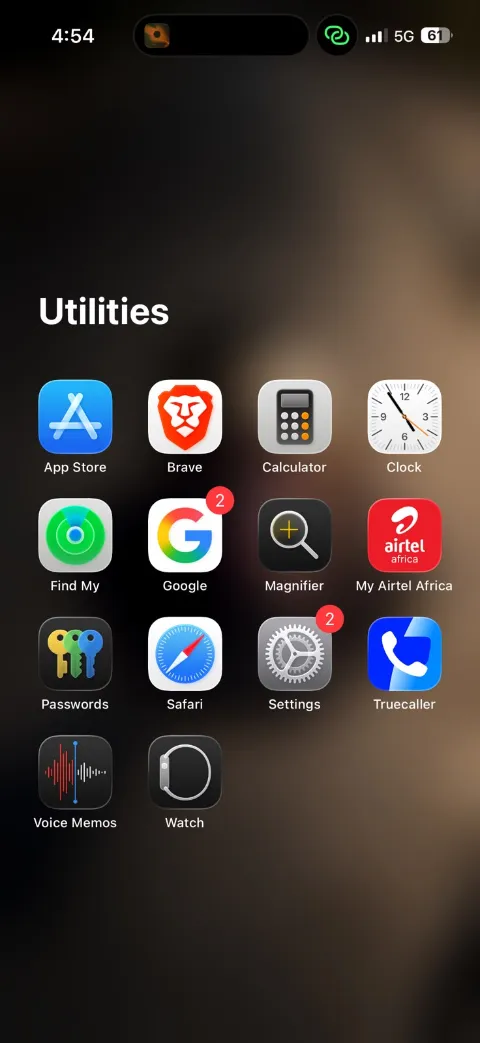
Find the Settings app on your iPhone and open it.
Step 2: Go to Apps
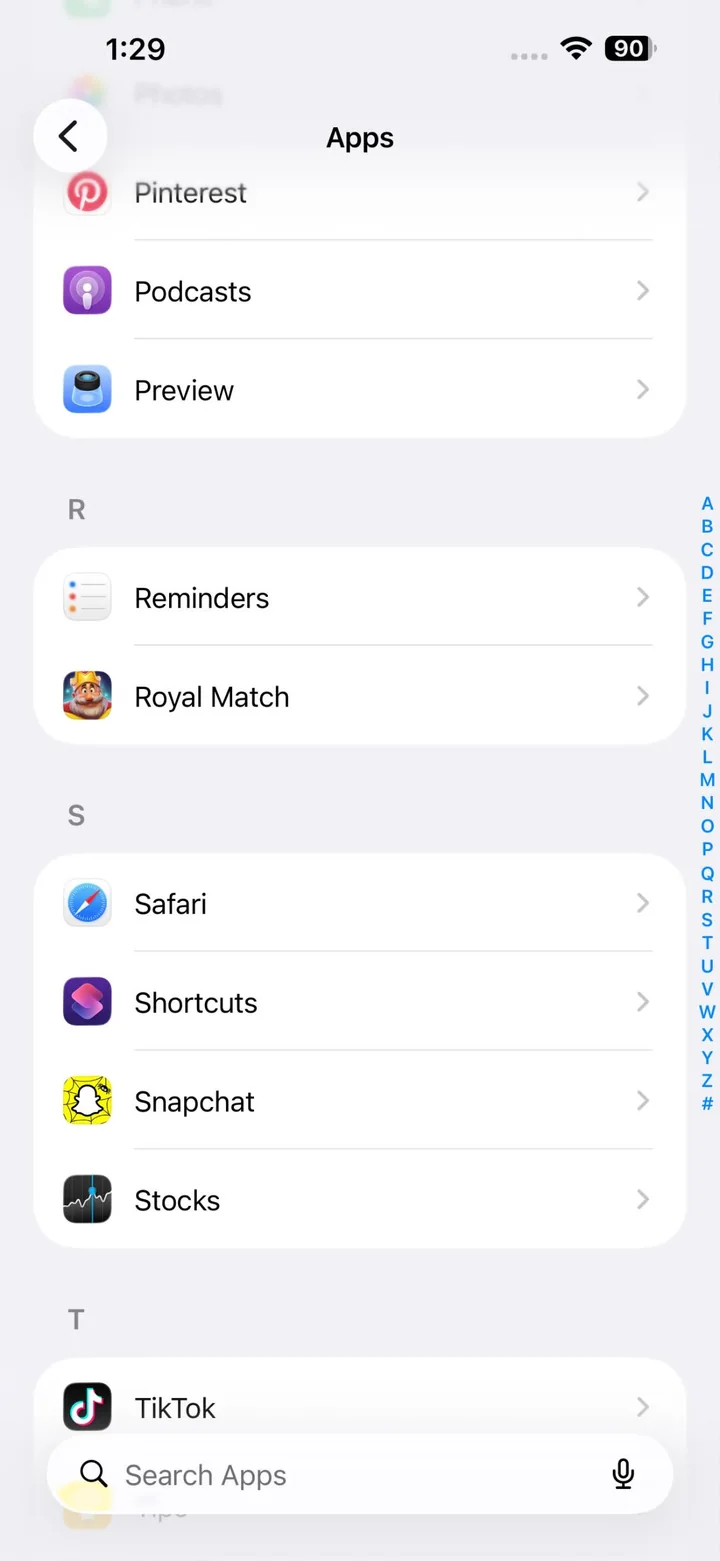
On recent iOS versions, scroll down and tap Apps. On older iOS versions, you may find Safari directly in the main Settings menu, so you can skip to Step 3.

Step 3: Go to Safari
In the Apps list, find and tap Safari.
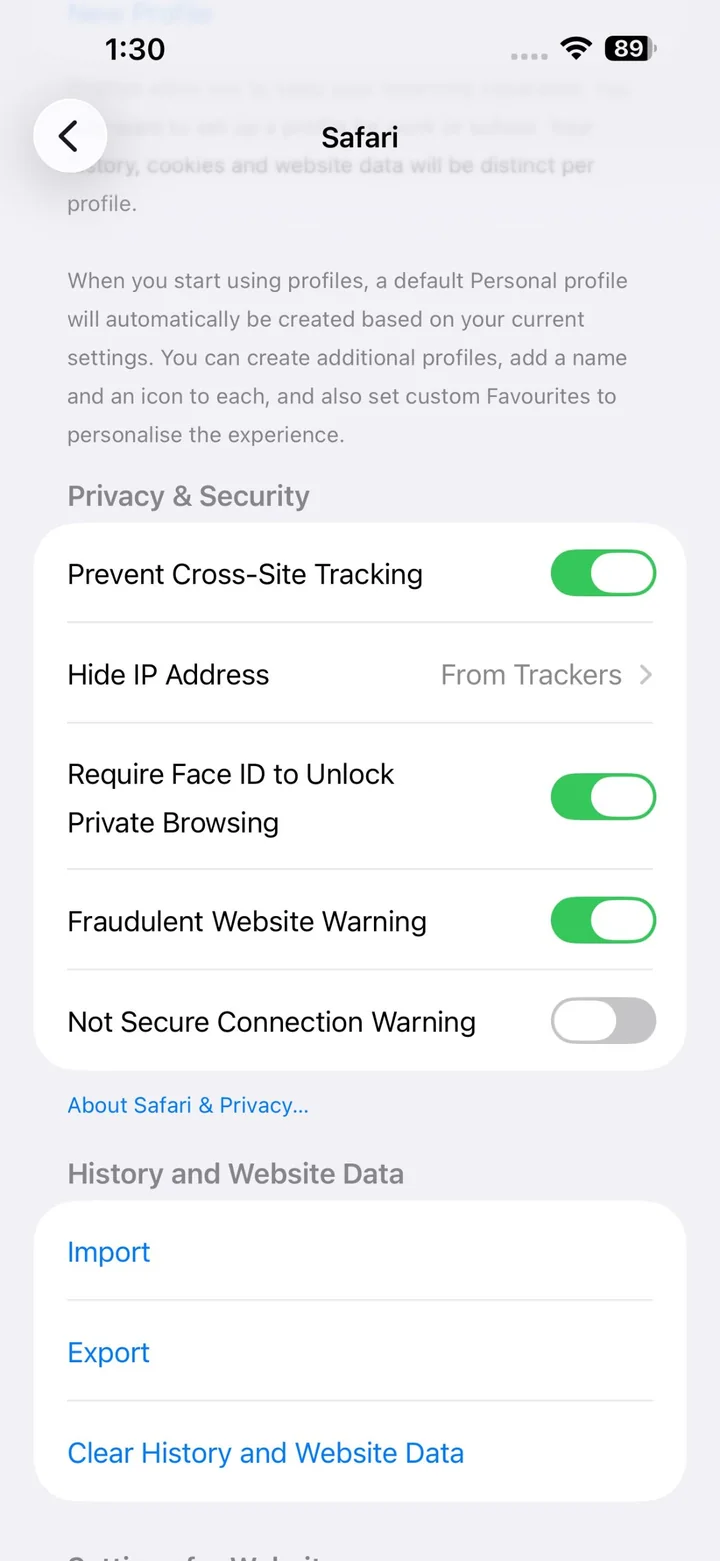
Step 4: Select Clear History and Website Data
Scroll down the Safari settings page until you see Clear History and Website Data. Tap that option.
Step 5: Choose a time range
Your iPhone may ask how much browsing history you want to clear. Depending on your iOS version, options can include:
- Last hour
- Today
- Today and yesterday
- All history
Choose All history if you want to remove the available browsing history and associated website data for the entire period.

Step 6: Confirm
Tap Clear History to finish. Safari will clear the selected browsing data. If you open websites afterward, some pages may take a little longer to load initially because Safari needs to download their resources again.
How to Clear Safari Website Data Without Clearing History
What if you want to keep your browsing history? Apple provides another option for removing website data.
- Open Settings.
- Select Apps, then Safari.
- Scroll down and tap Advanced.
- Open Website Data.
- Select Remove All Website Data.
- Confirm the action.


This removes stored website data without using the main history-clearing option. However, cookies and other website information may be removed, so some sites might ask you to log in again.
This option is useful when you are troubleshooting a website but do not want to clear your list of previously visited pages.
How to Clear Safari Cookies on iPhone
Cookies are small files that websites save so they can remember your login and settings. If you only want to delete cookies on Safari for one site, or remove them without clearing your browsing history, use Website Data.
- Open Settings, then tap Apps and Safari.
- Scroll down and tap Advanced, then Website Data.
- To remove one site, swipe left on it and tap Delete.
- To remove everything, tap Remove All Website Data and confirm.
Removing cookies usually signs you out of the websites you were logged in to, so you may need to sign in again.
How to Clear Safari Cache on iPad
The steps to clear Safari cache on an iPad are the same as on an iPhone. Open Settings, tap Apps, then Safari, tap Clear History and Website Data, choose a time range and confirm. On older iPadOS versions, Safari may be in the main Settings list instead of under Apps.
How to Clear Cache from iPhone Apps
Many Android phones provide a dedicated Clear Cache button for individual apps. On an iPhone, things work differently.
There is not one universal button that clears the cache of every installed app. Some apps include their own cache management features, while others require you to manage storage through iOS. Here is where to start.
Check which apps are using storage
- Open Settings.
- Tap General.
- Select iPhone Storage.
- Wait for your iPhone to calculate storage usage.
- Choose an app from the list.

You will see information about the space used by the app and its associated documents and data. Depending on the app, you may also see these options:
Offload App
This removes the app itself while retaining its documents and data. It is useful for apps you rarely open, especially when you want to reclaim the space occupied by the app without losing its saved information. However, offloading does not guarantee that all cached files will be removed.
Delete App
This removes the app and its associated local data. Deleting and reinstalling an app can sometimes resolve storage or performance problems, but it can also permanently remove information that has not been backed up or synchronized.
Before deleting an app, check whether your important data is stored in an account, cloud backup or another safe location.
How to Free Up More Storage on iPhone
If your main problem is low storage, clearing Safari’s cache might not make a noticeable difference. Photos, videos, downloaded files, offline media and large apps often occupy considerably more space.
Go to Settings, then General, then iPhone Storage and review the recommendations displayed on your device. You can also check:
- Photos and videos: Large video recordings can use substantial storage. Review unwanted files and check your Recently Deleted album when appropriate.
- Downloaded media: Offline movies, music, podcasts and streaming downloads may occupy several gigabytes.
- Messages: Conversations containing large video attachments and other files can increase storage usage.
- Unused apps: Consider offloading apps you have not opened for months.
Avoid deleting unfamiliar files or app data just because they are taking up space. First check whether you still need them.
Will Clearing Cache Make Your iPhone Faster?
Not necessarily. Cache is designed to improve loading speed, so removing it does not automatically make an iPhone faster.
However, clearing outdated website data may help when Safari is displaying broken pages, failing to load certain content or repeatedly showing an old version of a website.
If your entire iPhone feels slow, investigate other possible causes:
- Very little available storage
- An outdated iOS version
- A specific app behaving incorrectly
- Background activity after an update
- Battery-related performance management
Restarting your iPhone and checking for available software updates may also help. There is no need to clear Safari’s cache every day or every week unless you have a particular reason.
Why Is Clear History and Website Data Greyed Out?
Sometimes the Clear History and Website Data button appears grey and cannot be selected. Two possible reasons are:
There is no history or website data available to clear. If Safari has no relevant browsing data, the option may be unavailable.
Screen Time restrictions are enabled. Web content restrictions configured through Screen Time can prevent the option from being used.
If this happens, review the relevant Screen Time settings. On a managed or family-controlled device, you may need help from the person responsible for those restrictions.
Does Clearing Safari Cache Delete Anything Important?
Here is what you should know before confirming.
| Data | What happens? |
|---|---|
| Safari browsing history | Removed for the selected period |
| Safari cookies and cached website data | Cleared as part of the operation |
| Saved AutoFill information | Generally retained |
| Photos and videos in Photos | Not deleted |
| Contacts and messages | Not deleted |
| Downloaded documents | Not deleted |
| Website login sessions | Some may be signed out |
If you are trying to solve a problem with only one website, consider removing its website data rather than clearing everything.
Frequently Asked Questions (FAQs)
How do I clear cache on my iPhone?
To clear Safari cache, open Settings → Apps → Safari → Clear History and Website Data. Confirm your selection. For other apps, check their built-in cache settings or manage their storage through iPhone Storage.
Can I clear all app cache on my iPhone at once?
No. iOS does not provide a universal button to clear the cache of every installed app. You can clear Safari website data and manage other apps individually.
Will clearing cache on my iPhone delete photos or contacts?
No. Clearing Safari cache does not delete photos, contacts or installed apps. However, deleting an app to remove its stored data may also delete locally saved files and settings.
Does clearing cache make an iPhone faster?
Sometimes. Clearing problematic cached data may fix website loading issues, and freeing storage can help when your iPhone is nearly full. However, clearing cache regularly does not guarantee better performance.
How do I clear Safari cache without deleting browsing history?
Go to Settings → Apps → Safari → Advanced → Website Data and select Remove All Website Data. This removes stored website data while keeping your browsing history, although you may be signed out of websites.
How do I clear app cache without deleting the app?
Some apps provide a cache-clearing option within their settings. If an app does not offer this feature, iOS may not provide a way to clear its cache without deleting the app. Offloading an app preserves its documents and data and is not equivalent to clearing its cache.
Why is “Clear History and Website Data” greyed out on my iPhone?
The option may be unavailable because there is no relevant browsing data to clear or because restrictions, such as Screen Time settings, are enabled. Check your Safari and Screen Time settings.
How often should I clear cache on my iPhone?
There is no fixed schedule. Clear cache when a website or app is not working correctly, or when you need to troubleshoot a storage issue. Routine daily cache clearing is generally unnecessary.
How do I clear Safari cache and cookies on iPhone?
Open Settings, tap Apps, then Safari, and tap Clear History and Website Data. Choose a time range and confirm. This removes cached files, cookies and your browsing history together. To remove only website data and keep your history, go to Safari, then Advanced, then Website Data.
How do I delete cookies on Safari on iPhone?
Go to Settings, Apps, Safari, Advanced, then Website Data. Swipe left on a site and tap Delete to remove its cookies, or tap Remove All Website Data to remove them for every site.
How do I clear Safari cache on iPad?
The steps are the same as on iPhone: Settings, Apps, Safari, then Clear History and Website Data. Choose a time range and confirm.
What is the difference between Safari cache and cookies?
The cache stores page files such as images and scripts so sites load faster. Cookies store small pieces of information such as logins and preferences. Clear History and Website Data removes both.
Does clearing Safari cache sign me out of websites?
Usually yes. Login information is kept in cookies, so clearing website data signs you out of most sites and you will need to sign in again. Your photos, contacts and apps are not affected.
Final Thoughts
Clearing Safari’s cache is a simple troubleshooting step, particularly when a website is not loading or displaying correctly.
But if you are trying to recover storage space, do not assume cached browser files are the main problem. Check iPhone Storage first to see what is actually occupying space.
Start with the least disruptive option, and always check that important app data is backed up before deleting an app.
Related MobiCircuit Guides
Sources for technical verification: Apple Support 105082, Apple Support 108429.
Editorial note: iOS menu names and appearance can change between software versions.