
How to Transfer WhatsApp from Android to iPhone (2026 Step-by-Step Guide)
Switching from an Android phone to an iPhone does not mean you have to leave your WhatsApp conversations behind. With Apple’s Move to iOS app, you can transfer supported WhatsApp chat history and media to your new iPhone.
Key Takeaways
- Uses Apple’s free Move to iOS app
- Works during iPhone setup (new or factory-reset iPhone)
- You need the same phone number on the iPhone
- Check your chats before erasing the Android phone
AI-generated illustration
However, the transfer process has some important requirements. In particular, the official method is designed for an iPhone that has not yet completed its initial setup.
This MobiCircuit guide explains the process step by step, what transfers, and how to avoid common problems.
Tap any picture in this guide to zoom.
What You Need Before Starting
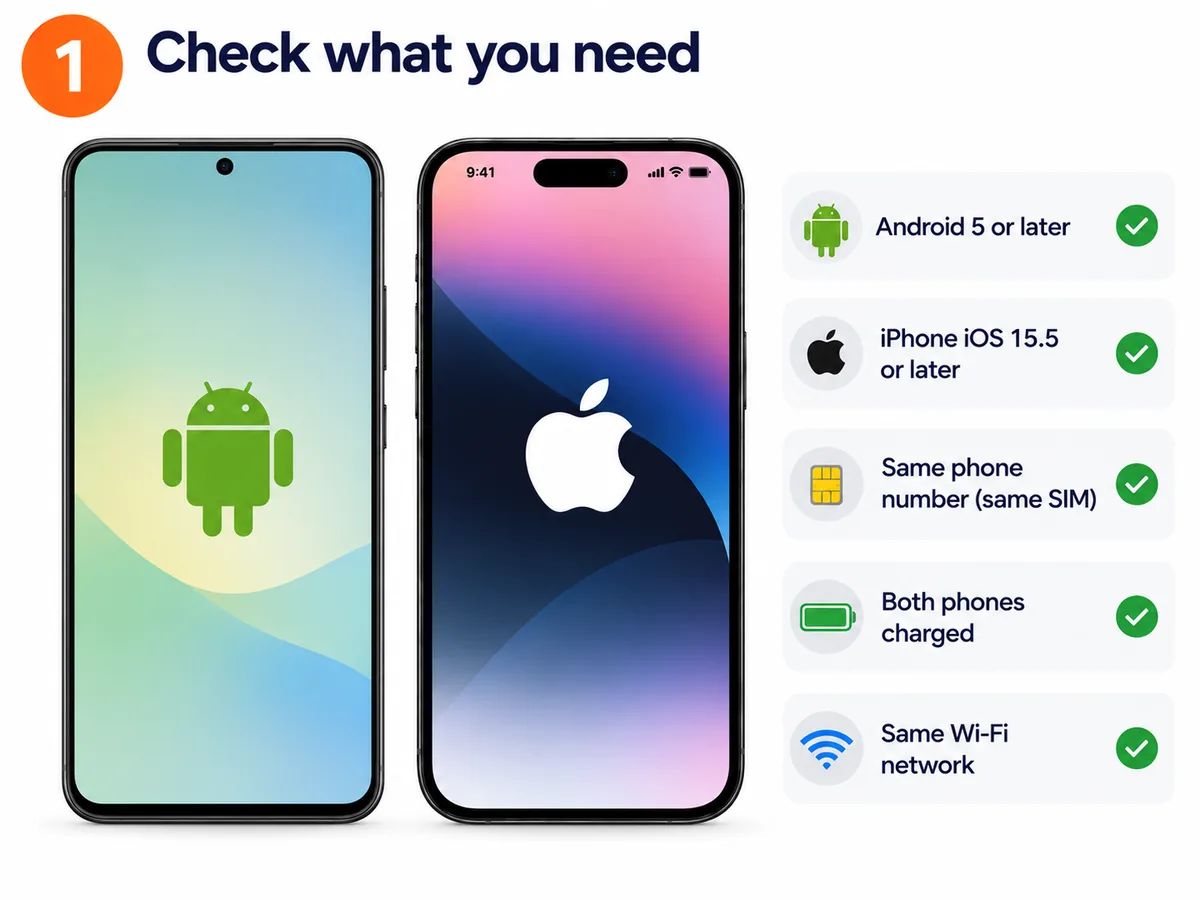
Step 1: Check what you need
Before transferring WhatsApp, check the following:
- Your Android phone has Android 5 or later.
- Your iPhone has iOS 15.5 or later.
- Both devices have a compatible, updated version of WhatsApp (Android 2.22.7.74 or later, iPhone 2.22.10.70 or later).
- You can use the same phone number on the iPhone. Move the SIM card from your Android phone to the iPhone.
- Both phones have sufficient battery and available storage.
- Both phones have Wi-Fi turned on and can stay connected during the transfer.
- Your iPhone is new or has been factory-reset.
AI-generated illustration
Step-by-Step Transfer
Step 2: Install Move to iOS on Android
On your Android phone, open the Google Play Store, search for Move to iOS by Apple, and install the application. Open it and follow the initial instructions. Keep your Android phone nearby.

AI-generated illustration
Step 3: Start setting up your iPhone
Turn on your new or factory-reset iPhone. Follow the initial setup instructions until you reach the Apps and Data screen for transferring apps and data. Choose Move Data from Android (it may be called From Android, depending on the iOS version).

AI-generated illustration
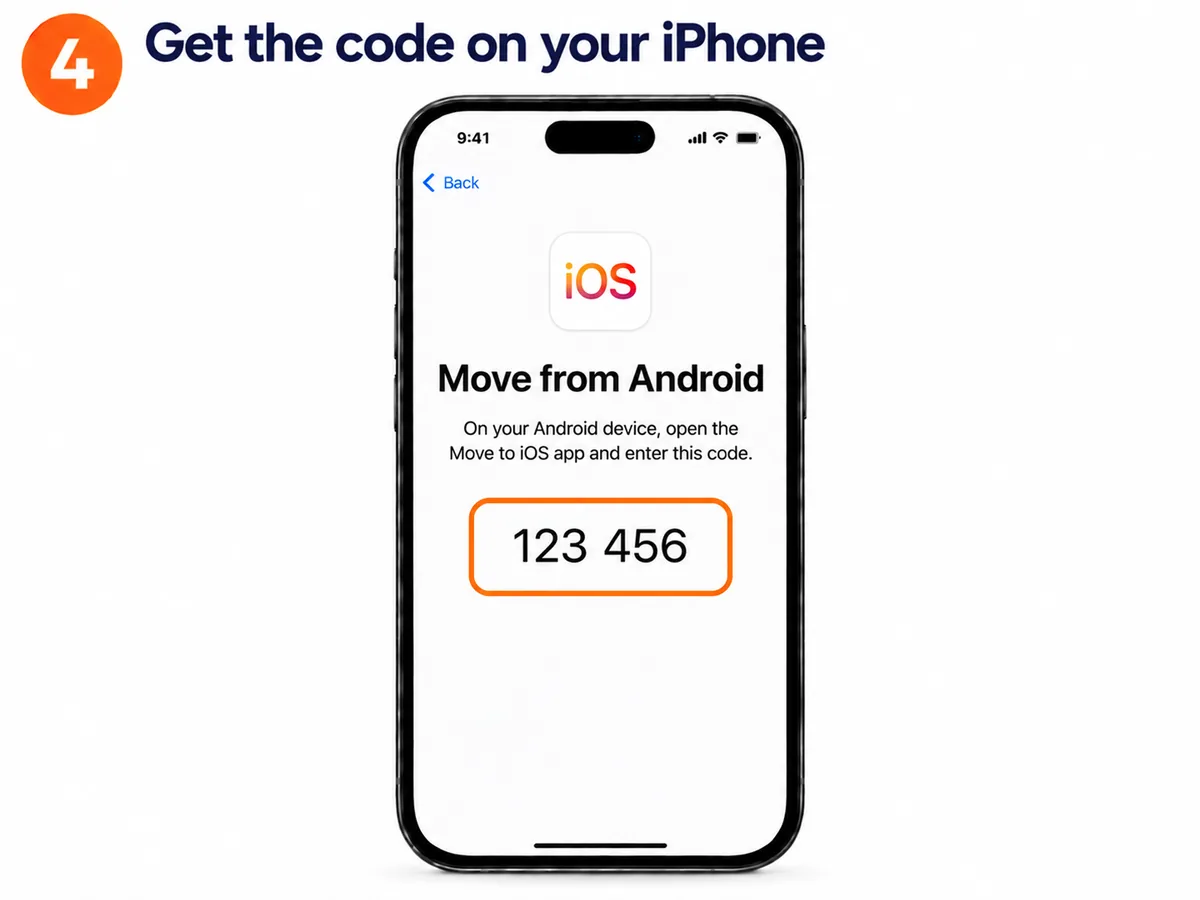
Step 4: Get the code on your iPhone
Your iPhone will display a code and instructions for connecting to the Android phone. Keep the code on screen.
AI-generated illustration
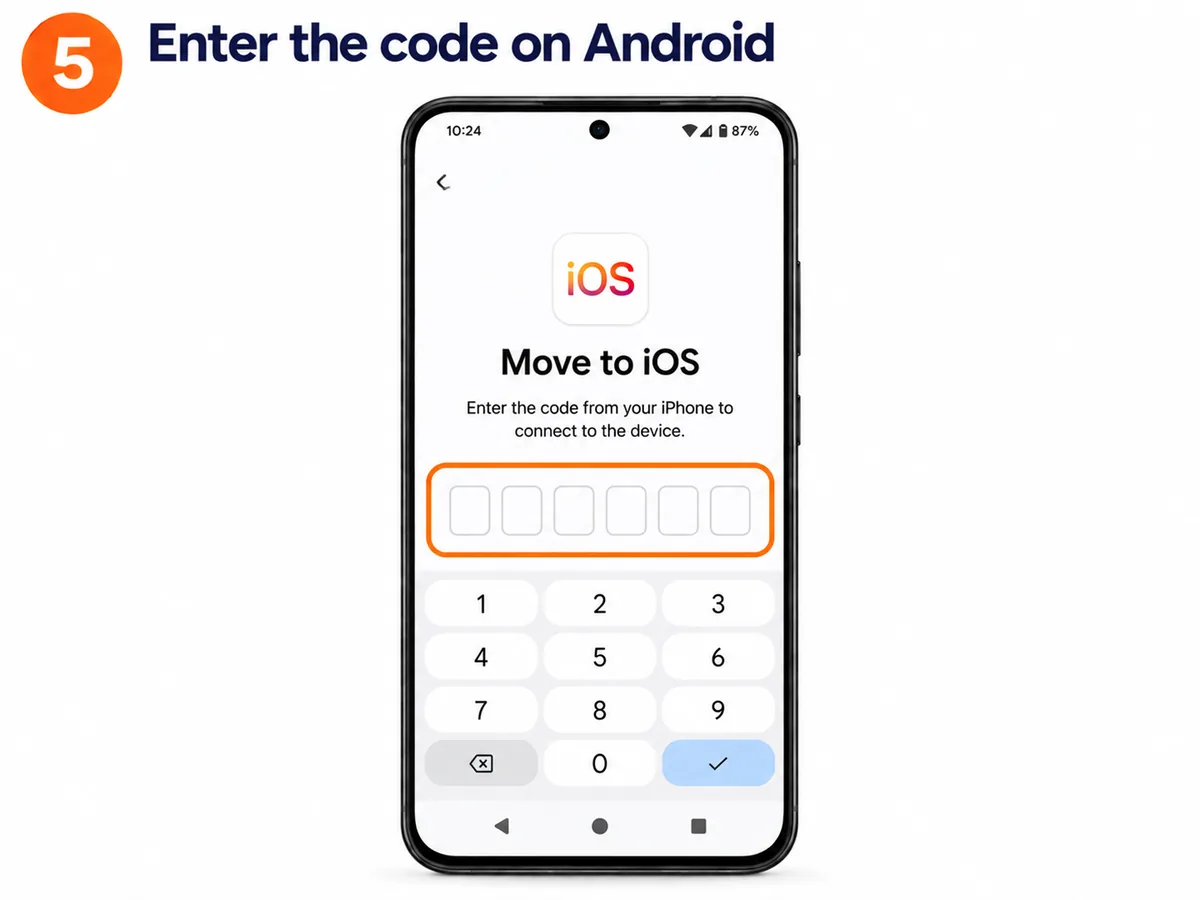
Step 5: Enter the code on Android
On your Android phone, open Move to iOS, follow the instructions and grant the necessary permissions. Then enter the code displayed on your iPhone and allow the devices to connect.
The two phones connect to each other, and your iPhone may create a temporary Wi-Fi connection for the transfer. Keep both devices close together and avoid switching to other apps during the process.
AI-generated illustration
Step 6: Select WhatsApp
When the Transfer Data screen appears on your Android phone, select WhatsApp and tap Continue.

AI-generated illustration
Step 7: Start the export in WhatsApp
Tap Start if prompted and wait while WhatsApp prepares the data for export. When WhatsApp asks you to log out on your Android phone, do so. Then return to Move to iOS when instructed and continue the transfer.
Do not uninstall WhatsApp or erase your Android phone yet.

AI-generated illustration
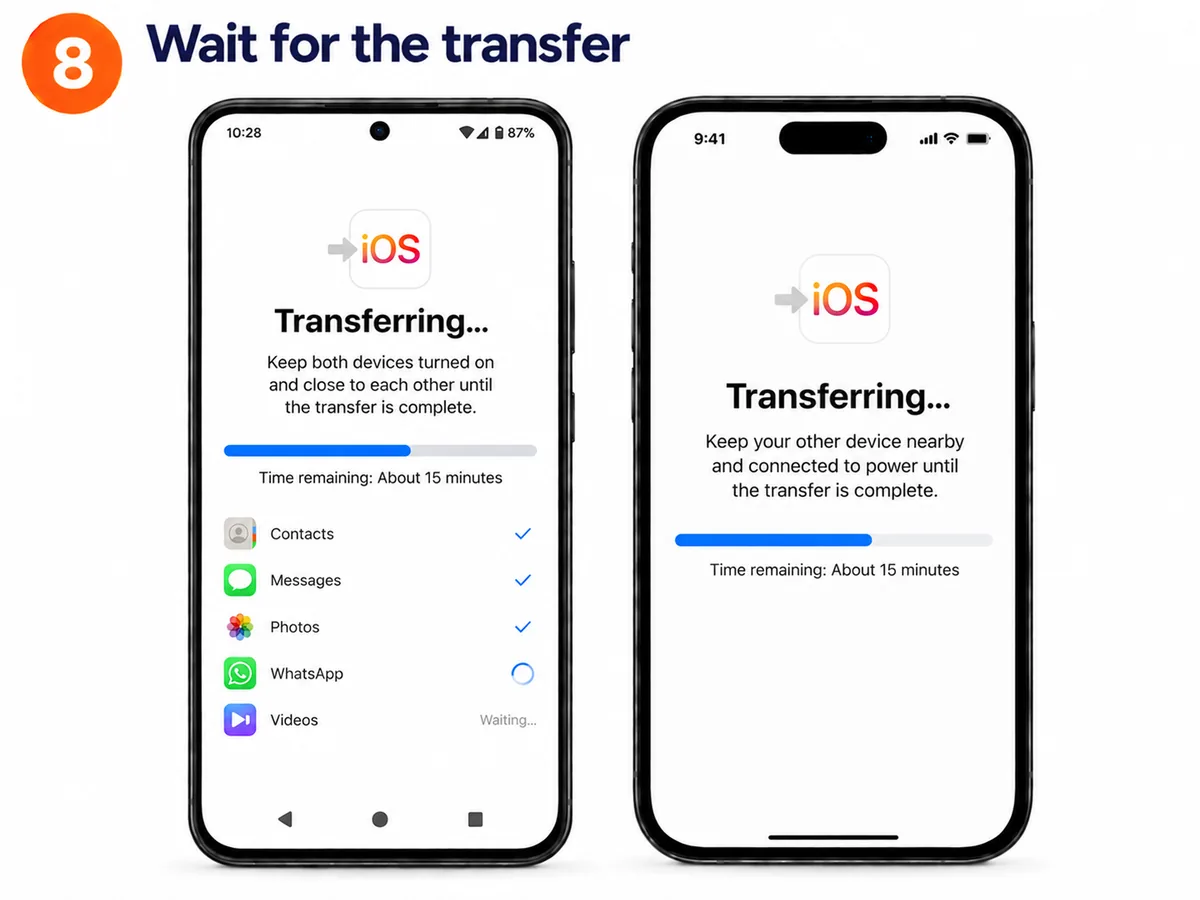
Step 8: Wait for the transfer to finish
Keep both devices powered on and connected. The process may take longer if your WhatsApp history contains many photos, videos or large conversations.
Wait until the transfer finishes on the iPhone, even if the Android phone appears to have completed its part. Then continue setting up your iPhone.
AI-generated illustration
Step 9: Install WhatsApp on your iPhone
Once iPhone setup is complete, open the App Store and install the official WhatsApp Messenger app.

AI-generated illustration
Step 10: Log in and tap Start
Open WhatsApp and verify the same phone number you used on your Android device. When you are asked to import your transferred chat history, tap Start and wait for the import to finish.

AI-generated illustration
Step 11: Check that your chats are ready
You should now be able to access your supported WhatsApp conversations and transferred media. Check that your important chats are there before you erase or sell your Android phone.

AI-generated illustration
What WhatsApp Data Can Be Transferred?
The official Android-to-iPhone migration supports several types of WhatsApp data, including personal messages, group chats, chat history, media and account information.
However, some data types, such as call history, may not transfer. Check the latest WhatsApp guidance for specific exclusions before resetting or replacing your old phone.
Can You Transfer WhatsApp Without Resetting Your iPhone?
If your iPhone is already configured, the standard Move to iOS process cannot simply be run inside the existing iPhone setup. The official approach generally requires resetting the iPhone and using Move to iOS during setup.
Be cautious with third-party tools promising transfers without resetting. Some are paid, may require computer access, and can introduce privacy or data-loss risks.
Common WhatsApp Transfer Problems
Move to iOS is not connecting
Make sure Wi-Fi is enabled, both devices are nearby, and Android is not switching away from the temporary connection. Restart the process if necessary.
WhatsApp is missing from transfer options
Update WhatsApp and Move to iOS, check compatibility, and confirm that the iPhone is still in its initial setup process.
Transfer is taking too long
Large chat histories and videos can significantly increase transfer time. Keep both devices charging and avoid using them during the process.
Chats are not appearing on iPhone
Confirm that you verified the same phone number and followed the WhatsApp import prompt. Do not erase the Android device until you have verified that your important conversations are present.
Frequently Asked Questions (FAQs)
Can I transfer WhatsApp from Android to iPhone without losing chats?
Yes. Apple’s Move to iOS app can transfer supported WhatsApp chats and media to a compatible iPhone. Follow the official process carefully and verify your conversations before deleting anything from your Android phone.
How do I transfer WhatsApp from Android to iPhone for free?
Install Apple’s free Move to iOS app on Android. During iPhone setup, select the Android transfer option, connect both phones and choose WhatsApp. After the transfer, install WhatsApp on your iPhone and import your chats.
Can I transfer WhatsApp without resetting my iPhone?
The official Move to iOS method generally requires a new or factory-reset iPhone. If your iPhone is already configured, you normally need to erase it and restart setup. Back up important iPhone data first.
Will my WhatsApp photos, videos and voice messages transfer?
Supported WhatsApp photos, videos, voice messages and chat history can transfer. Some information, including WhatsApp call history, may not transfer.
Can I restore WhatsApp chats from Google Drive to an iPhone?
No. WhatsApp on iPhone cannot directly restore an Android Google Drive backup. Use the supported Move to iOS migration process instead.
Do I need the same phone number on both devices?
Yes. The official transfer process requires you to activate WhatsApp on your iPhone using the same phone number associated with your Android WhatsApp account.
Why is WhatsApp not showing in Move to iOS?
Check that both devices meet the compatibility requirements and that WhatsApp and Move to iOS are updated. Your iPhone must also be in its initial setup process. If necessary, restart the migration.
How long does WhatsApp transfer from Android to iPhone take?
It depends on the size of your chat history, the amount of media and connection stability. Large transfers may take considerably longer. Keep both devices powered and connected until the process finishes.
Final Thoughts
The safest supported way to move WhatsApp from Android to iPhone is to use Apple’s Move to iOS app during the initial iPhone setup.
Prepare both devices, select WhatsApp during the migration, finish setting up the iPhone, and import your chats using the same phone number.
Before deleting or resetting your Android phone, verify that your important messages and media have transferred successfully.
Related MobiCircuit Guides
Sources for technical verification: Apple Support: Move from Android to iPhone or iPad, WhatsApp Help Center: How to migrate your WhatsApp data from Android to iPhone.
Editorial note: iOS and Android menu names and appearance can change between software versions.
Note: the pictures in this guide are AI-generated illustrations to show the steps. They are not screenshots from a real phone.