
How to Check iPhone Battery Health (and What the Numbers Mean)
Want to know how worn your iPhone battery really is? Follow eight simple steps to find Battery Health, read Maximum Capacity and Cycle Count, and decide whether a battery service is worth it.
Key Takeaways
- Battery Health is built into iOS, so you need no extra app
- Maximum Capacity shows how much charge the battery holds compared with when it was new
- Apple’s design target is 80% capacity after 500 cycles (iPhone 14 and earlier) or 1,000 cycles (iPhone 15 and later)
- Below 80% is a good time to consider a battery service, not an emergency
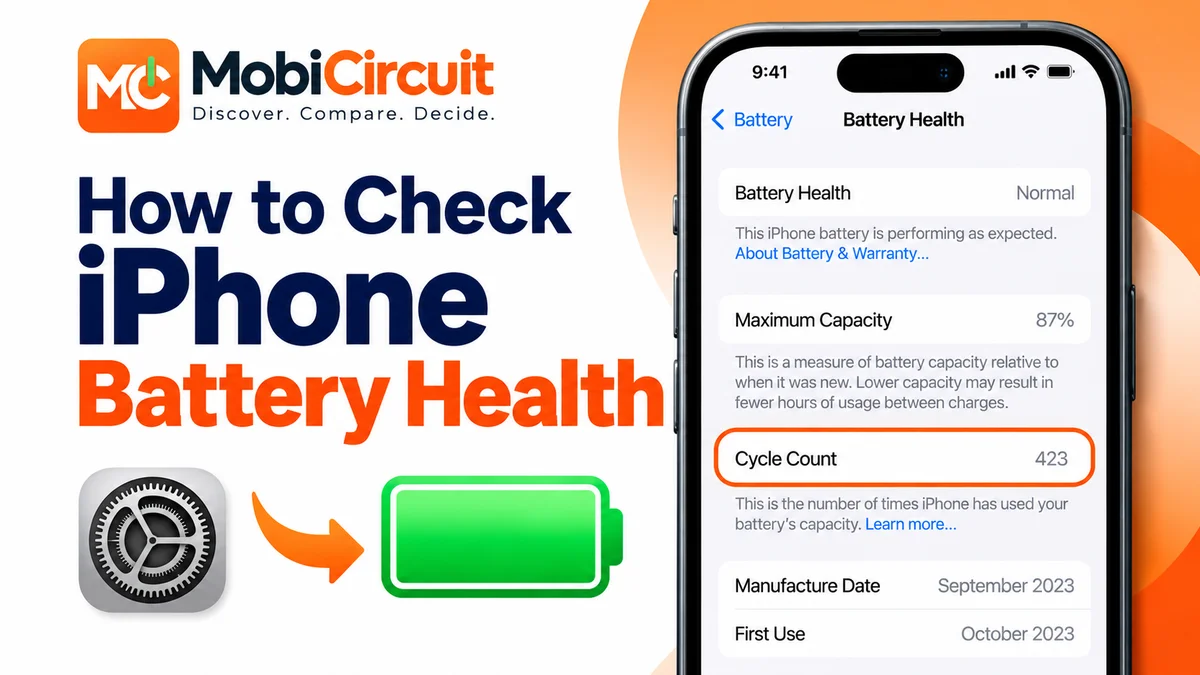
AI-generated illustration
Your iPhone’s battery health tells you how much charge the battery can hold now, compared with when it was new. Lithium-ion batteries age with use, so over time they hold less charge and your phone needs charging more often.
Apple shows this information inside iOS. Depending on your model, you can see Maximum Capacity, Peak Performance Capability, Cycle Count, and other battery details. This guide shows where to find them, what the numbers mean, and when a battery replacement is worth considering.
Tap any picture in this guide to enlarge it.
What You Need Before Starting
You only need your iPhone and the Settings app. You do not need a battery health app, because Apple provides this information directly in iOS. An internet connection helps only if you decide to look up service options later.
Menu names depend on your iPhone model and iOS version. The steps below cover both iPhone 15 and later, and iPhone 14 and earlier.
Step-by-Step Guide
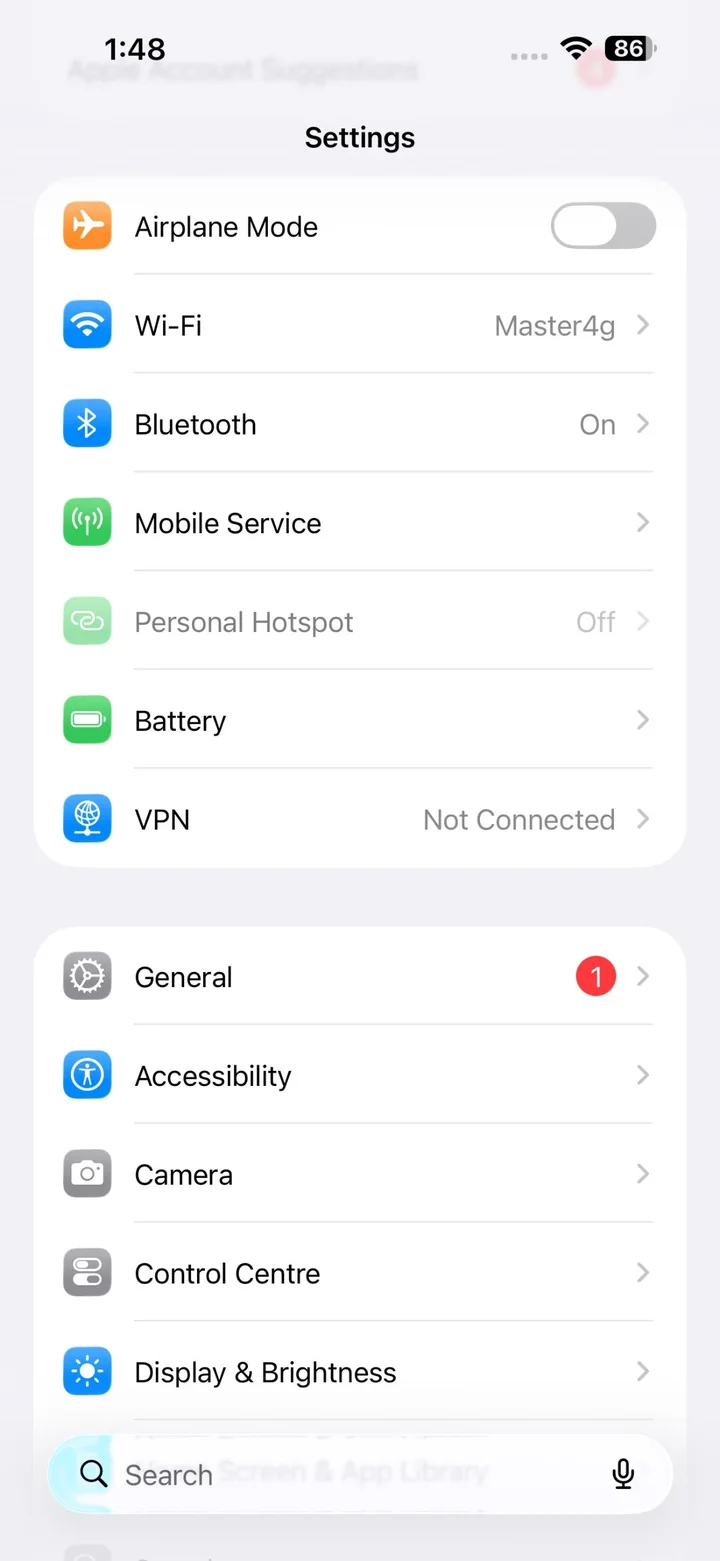
Step 1: Open Battery Health in Settings
Open the Settings app and tap Battery. Then follow the path for your model:
- iPhone 15 and later (iOS 17.4 or later): tap Battery Health.
- iPhone 14 and earlier: tap Battery Health & Charging.
If your iPhone 15 or later does not show these details, update iOS first, because this view needs iOS 17.4 or later.
Real iPhone screenshot (iOS 27), taken by MobiCircuit
Step 2: Understand Maximum Capacity
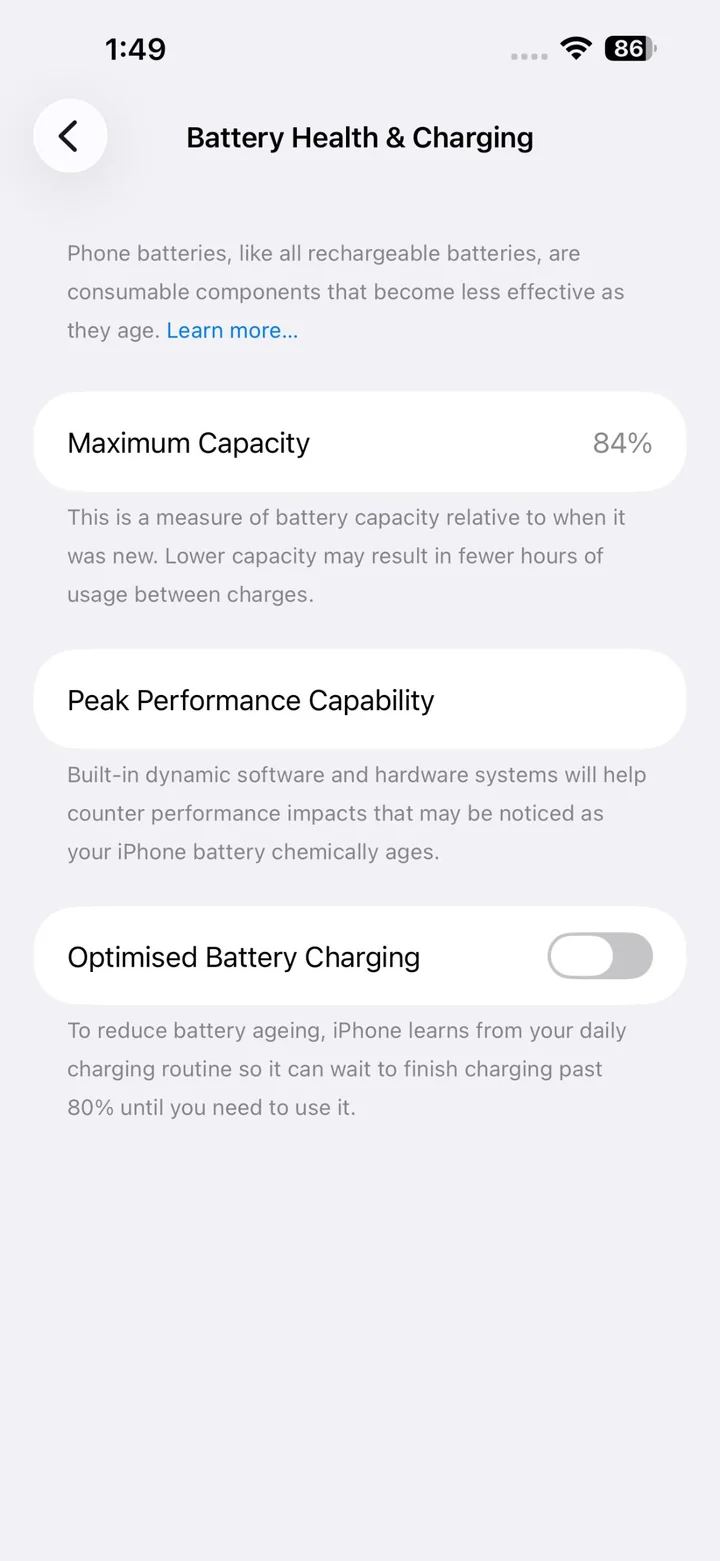
Maximum Capacity is the most useful number on the screen. It shows how much charge your battery can hold now, as a percentage of its capacity when new. For example, 87% means the battery can store about 87% as much charge as a new one.
This does not mean your phone only charges to 87%. The battery indicator still reaches 100%. The figure only shows how much the battery has aged.
Here is a practical way to read the number:
| Maximum Capacity | What it generally means |
|---|---|
| 100% | At or near original capacity |
| 95-99% | Minor capacity loss |
| 90-94% | Some normal aging |
| 85-89% | Reduced capacity, battery life may feel shorter |
| 80-84% | Noticeable wear, judge it by your daily battery life |
| Below 80% | A battery service may be worth considering |
These ranges are our practical guidance, not official Apple categories. Heat, charging habits, battery age, and usage all affect how fast capacity drops.
If your battery is above 90% and lasts through your day, no action is needed. Between 80% and 90%, watch how long the phone lasts rather than the percentage alone.
Real iPhone screenshot (iOS 27), taken by MobiCircuit
Step 3: Check Peak Performance Capability
On iPhone 14 and earlier, Peak Performance Capability sits in Settings > Battery > Battery Health & Charging. It tells you whether the battery can still deliver the power your iPhone needs for demanding tasks. When all is well, you will see: “Your battery is currently supporting normal peak performance.”
As a battery ages, it can deliver power less quickly. In some conditions, such as a low charge or cold weather, the phone may shut down unexpectedly. To help prevent repeated shutdowns, iOS can apply performance management, and the screen then explains that the battery could not deliver the necessary peak power. You may notice slower app launches or lower performance in demanding apps.
Apple notes that performance management can be turned off, but once you turn it off, it cannot be turned back on. If you see this message and have repeated slowdowns or shutdowns, get a battery check from Apple or an Apple Authorized Service Provider.
On iPhone 15 and later, the Battery Health screen shows Maximum Capacity, Cycle Count and whether a replacement is recommended, so you may not see this Peak Performance section.
Real iPhone screenshot (iOS 27), taken by MobiCircuit
Step 4: Understand the 80% Figure
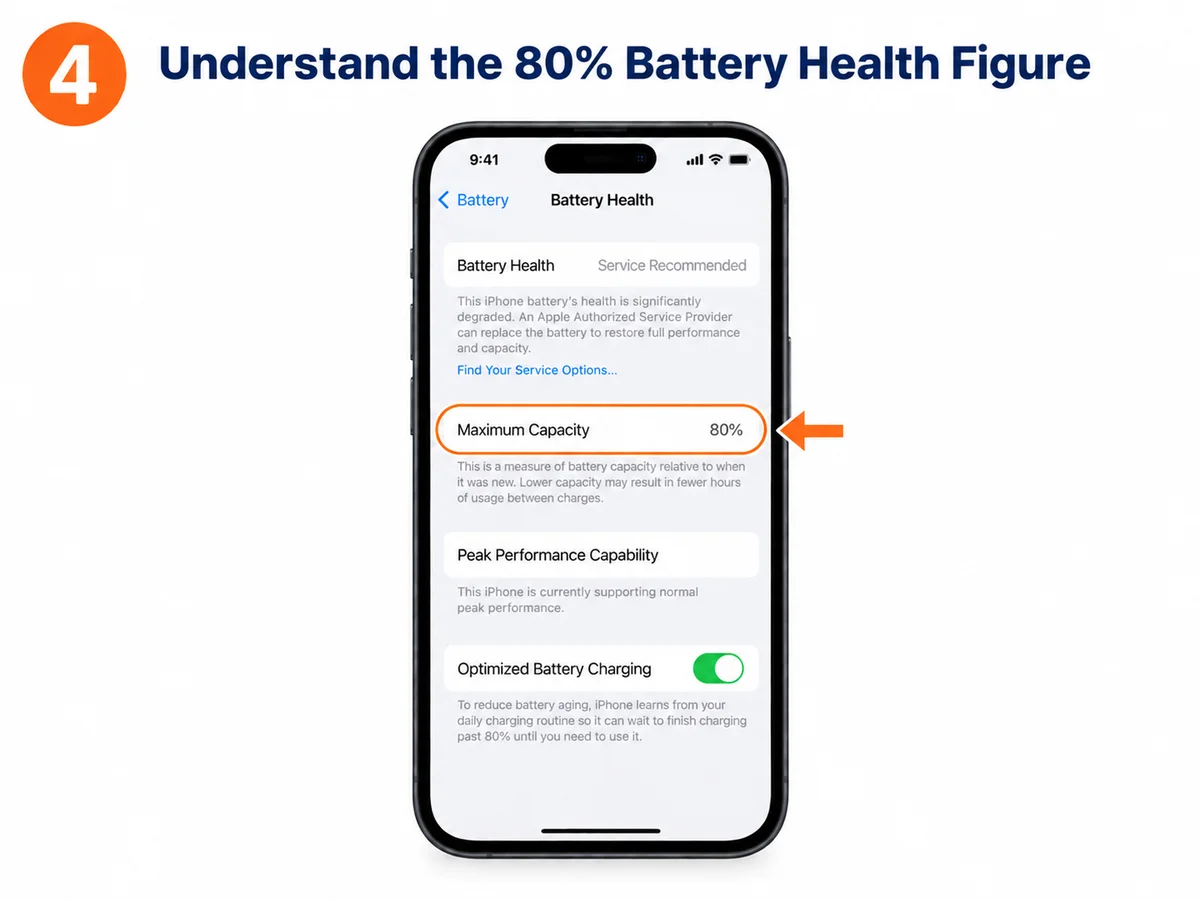
The 80% figure is often misunderstood. It is not the point where your iPhone stops working. It is the benchmark Apple uses to describe expected battery lifespan.
- iPhone 14 and earlier: designed to keep 80% of original capacity after 500 complete charge cycles under ideal conditions.
- iPhone 15 and later: designed to keep 80% of original capacity after 1,000 complete charge cycles under ideal conditions.
These are design targets, not guarantees. Your own battery may reach 80% earlier or later depending on how you charge and use the phone. A phone at 79% still works, but it may need charging more often, and a new battery would improve battery life.
AI-generated illustration
Step 5: Check Battery Cycle Count
One battery cycle equals using an amount of battery equal to 100% of its capacity. Using 60% one day and 40% the next adds up to one cycle. It does not have to be a single 0% to 100% charge.
On iPhone 15 and later running iOS 17.4 or later, open Settings > Battery > Battery Health and look for Cycle Count. The same screen also shows the battery’s Manufacture Date and First Use date.
On iPhone 14 and earlier, the standard Battery Health screen does not show the cycle count.
A higher cycle count means more accumulated use, but it does not decide on its own whether you need a new battery. A battery with 600 cycles and 88% capacity can still serve you well. No single cycle count forces a replacement.
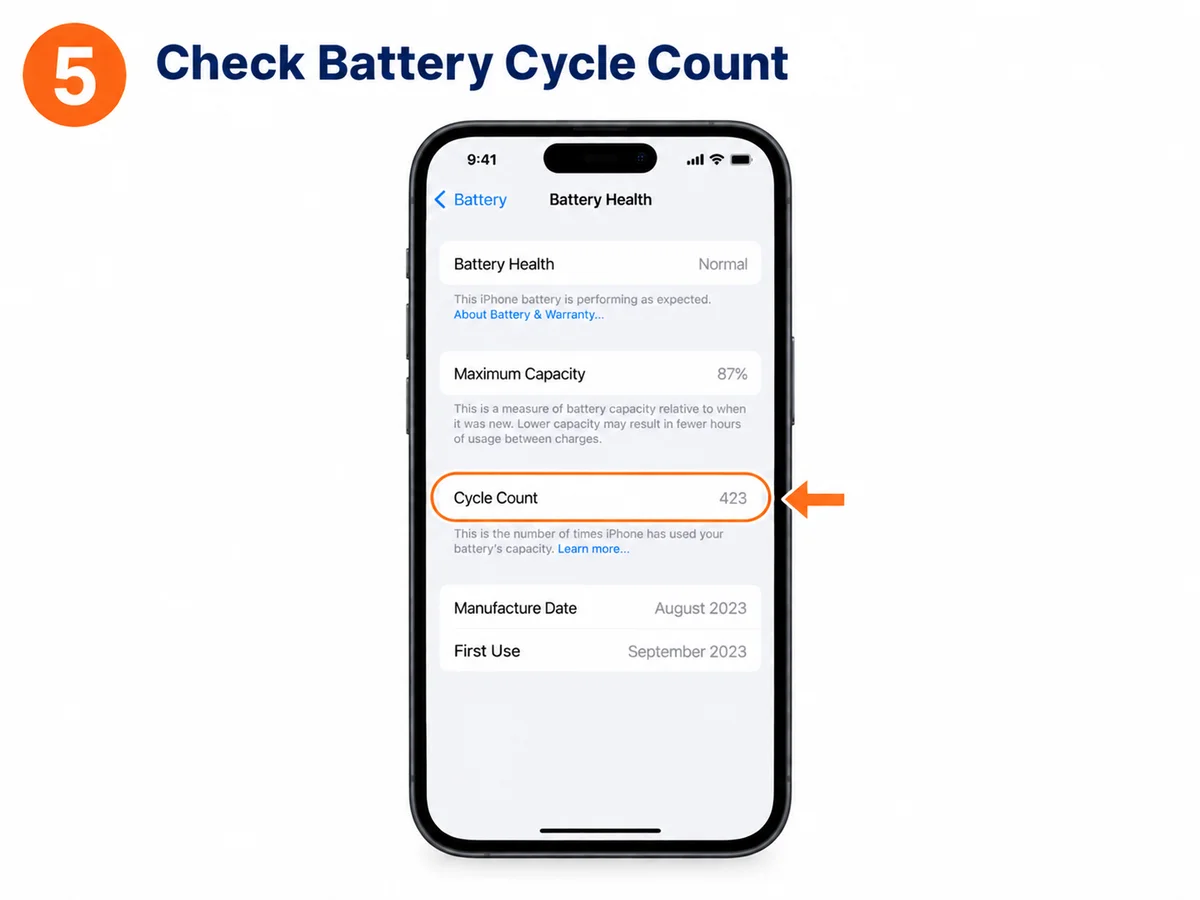
AI-generated illustration. Shows the iPhone 15 and later screen.
Step 6: Check Optimized Battery Charging and Charge Limit
Optimized Battery Charging reduces the time your battery sits fully charged. Your iPhone learns your daily routine and can wait to finish charging past 80% until you usually need it. This helps slow battery aging.
- iPhone 14 and earlier: open Settings > Battery > Battery Health & Charging and turn on Optimized Battery Charging.
- iPhone 15 and later: open Settings > Battery > Charging.
iPhone 15 and later also have a Charge Limit. You can set it from 80% to 100% in 5% steps. Optimized Battery Charging only works when the limit is set to 100%. With a limit below 100%, your iPhone still charges to 100% from time to time so its battery estimates stay accurate.
For most people, leaving Optimized Battery Charging on is a sensible choice. If you rarely need a full battery, a lower Charge Limit can reduce wear. Neither setting restores capacity that is already lost.
Real iPhone screenshot (iOS 27), taken by MobiCircuit
Step 7: Know When Apple Recommends Battery Service
The percentage is not the only sign that service may help. Your iPhone can show a message in Battery Health. When battery health is degraded, Apple’s message says an Apple Authorized Service Provider can replace the battery to restore full performance and capacity. Apple says this message does not indicate a safety issue.
On iPhone XS and later, you may instead see “Unable to verify this iPhone has a genuine Apple battery.” This is a verification message, not proof that the battery is faulty.
Consider a professional battery check if:
- Battery Health shows a service recommendation
- Maximum Capacity is below 80% and your battery life is no longer enough
- The phone shuts down unexpectedly again and again
- Battery life is unusually short despite normal use
- The phone shows signs of physical battery damage
A battery below 80% does not mean you need a new iPhone. In most cases a battery service is the right fix.
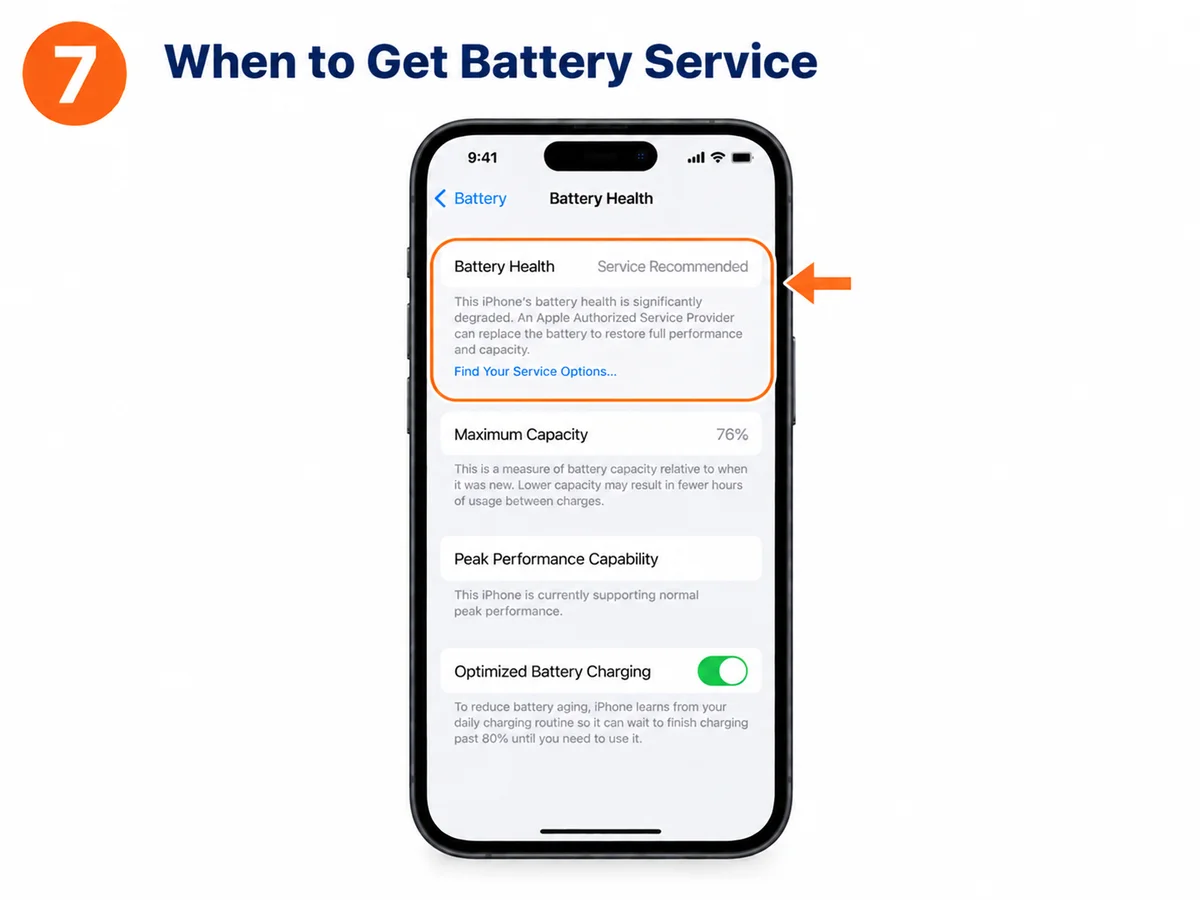
AI-generated illustration
Step 8: Find Your Service Options
If your iPhone shows a Find Your Service Options link under the Battery Health message, tap it. You can also use the Apple Support app or Apple’s support website, choose your iPhone, and pick the battery service option.
Apple’s warranty covers a defective battery for one year. Outside warranty, Apple offers battery service for a fee, and prices differ by model and country, so check the current price on Apple’s site.
Before you hand over your iPhone, Apple recommends:
- Back up your iPhone and confirm iCloud syncing has finished
- Turn off Apple Cash and remove your cards and passes from Apple Wallet
- Finish any repair marked “Finish Repair” in Parts and Service History
- On iOS 26 and earlier, turn off Find My. On iOS 27 and later, turn on Ready for Repair or Trade-In
Never share your Apple Account password or passcode with anyone who asks for it, including a repair shop. Neither Apple nor an Apple Authorized Service Provider will ask for them.
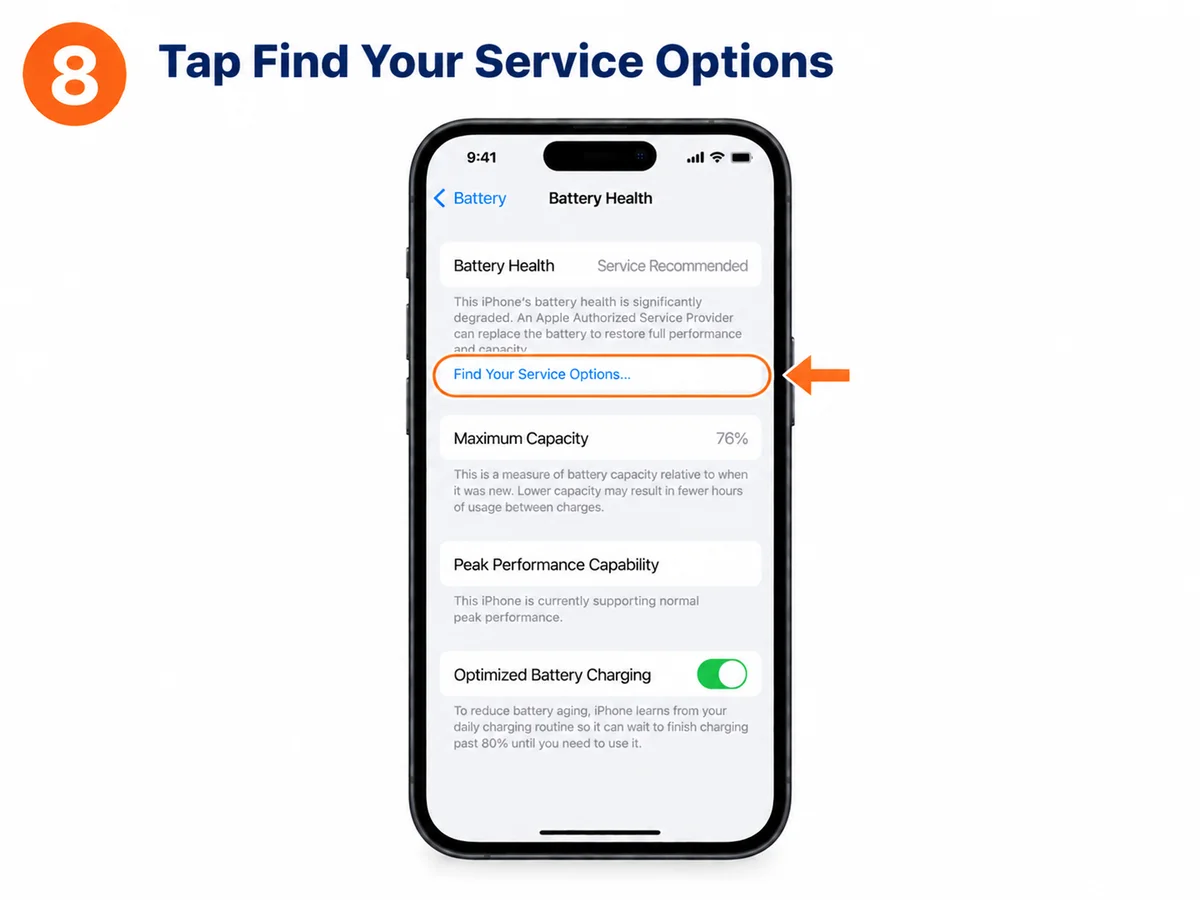
AI-generated illustration
Battery Problem or Software Problem?
Not every battery drain means a worn battery. A new iOS update, busy background apps, demanding games, or a weak signal can all raise battery use for a while. Before you assume the battery is the problem, open Settings > Battery and look for apps using unusual amounts of power. Our iPhone battery draining fast guide covers these fixes.
Some signs point more to a physical battery or hardware problem:
- The battery looks swollen, or the screen is lifting from the frame
- The phone shuts down while it still shows a reasonable charge
- The phone gets unusually hot during normal use
- Charging stays unreliable even with a known-good charger and cable
A swollen battery needs care. Stop using and charging the phone, do not press on the screen, and get professional service. Never try to puncture or flatten the battery. Repeated shutdowns can also have causes other than the battery, so a diagnostic check is worth doing before you repair anything.
Common Battery Myths
Myth 1: You must replace the battery at 80%
Not necessarily. Eighty percent is a reference point, not a failure line. A phone at 79% can still be fine for one person, while another at 85% may already be too short on battery. Let your daily battery life and any Apple message guide the decision.
Myth 2: Charging overnight always damages the battery
Modern iPhones manage charging. Optimized Battery Charging reduces the time spent fully charged, so overnight charging does not automatically harm the battery. Heat matters more, so avoid charging in a hot place or under a pillow or cover that traps heat.
Myth 3: Closing every app improves battery health
Force-closing apps does not restore battery capacity. Battery health describes the physical condition of the battery, while battery life is how long one charge lasts. Cutting background activity can help battery life, but it cannot reverse chemical aging.
Frequently Asked Questions
1. Is 85% battery health good for an iPhone?
It means the battery holds about 85% of its original capacity. That is noticeable aging but not a defect. If your phone still lasts long enough and runs normally, you may not need a replacement yet.
2. Can iPhone battery health go up again?
Capacity lost to normal aging does not come back through settings. The displayed estimate can sometimes change after an update or recalibration, but that does not mean the battery gained back its original capacity.
3. Why is my battery health still 100% after several months?
Batteries age at different speeds, depending on charging habits, heat, and use. The figure is an estimate, not a live measurement. Apple also notes that a new phone can show slightly under 100% if it sat in storage for a while before activation.
4. Does fast charging reduce battery health?
Fast charging creates more heat, and long exposure to high heat speeds up battery aging. Using proper fast-charging gear does not mean fast damage, because the phone manages charging to protect the battery.
5. How often should I check battery health?
Once every few months is enough for most people. Capacity changes slowly, so daily checks add little. Check sooner if you see unusual shutdowns, much shorter battery life, or a service message.
6. Can I see the cycle count on older iPhones?
Apple shows Cycle Count in Battery Health on iPhone 15 and later with iOS 17.4 or later. Older iPhones do not show it in the standard Battery Health screen.
7. Will a new battery make my iPhone faster?
It can, if an aged battery was limiting peak power. It will not fix every slowdown, because full storage, heavy apps, software problems, and older hardware also affect speed.
8. Does Low Power Mode improve battery health?
No. Low Power Mode cuts some background activity so your current charge lasts longer. It does not restore Maximum Capacity or repair an aging battery.
Final Thoughts
Checking battery health takes a minute and helps you choose between keeping your phone, changing your charging habits, or booking a battery service. Maximum Capacity shows how much charge the battery holds compared with new. Peak Performance Capability explains whether aging affects performance on older models. Cycle Count adds context on iPhone 15 and later.
No single number tells the whole story. A battery at 88% may be fine for you, while one at 80% may no longer last your day. Use Apple’s built-in information, pay attention to real-life battery life, and get service when Apple’s messages or physical signs point to a problem.
Related MobiCircuit Guides
Sources for technical verification: Apple Support: iPhone battery and performance, Apple Support: About the battery and performance of iPhone 11 and later, Apple Support: About Charge Limit and Optimized Battery Charging on iPhone, Apple Support: Prepare your iPhone or iPad for a service appointment.
Editorial note: iOS menu names and appearance can change between software versions.
Note: the pictures in this guide are AI-generated illustrations to show the steps. They are not screenshots from a real phone.