
How to Fix iPhone Battery Draining Fast (2026 Guide)
Is your iPhone battery draining faster than usual? Follow eight simple steps to check battery health, find what is using power, and improve battery life.
Key Takeaways
- Eight simple settings and checks, no tools needed
- Steps 1 to 7 do not delete any of your data
- Maximum Capacity below about 80% may mean the battery is worn
- Back up your iPhone before installing an iOS update
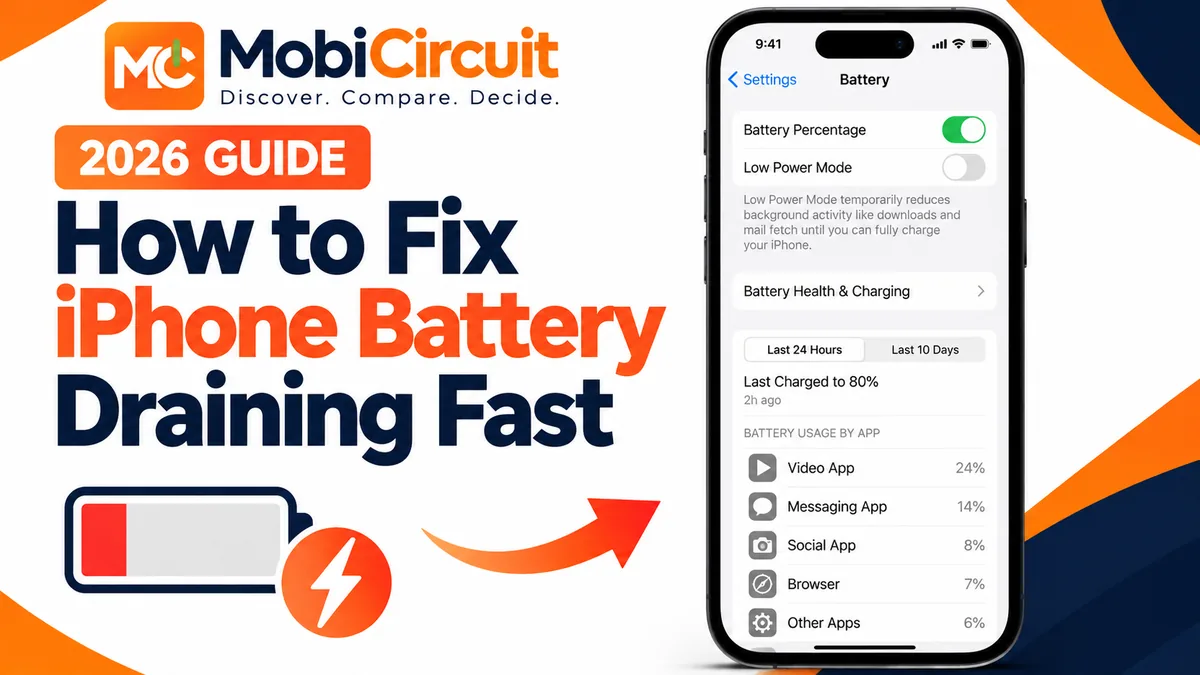
AI-generated illustration
Is your iPhone battery draining faster than usual? This can happen because of background app activity, high screen brightness, location services, software updates, or an aging battery.
The good news is that you can often improve battery life without replacing your battery. This guide explains eight practical settings and checks that can help identify what is using your battery and reduce unnecessary power consumption.
Tap any picture in this guide to zoom.
What You Need Before Starting
You only need your iPhone and access to its Settings app. These instructions apply broadly to modern iPhones running recent versions of iOS, although some battery features depend on your model. Whether you have a newer iPhone or an older model, you do not need advanced technical knowledge to follow them.
Menu names can differ slightly between iOS versions. Battery Health and charging options may also appear in different locations depending on your iPhone model.
Step-by-Step Fixes
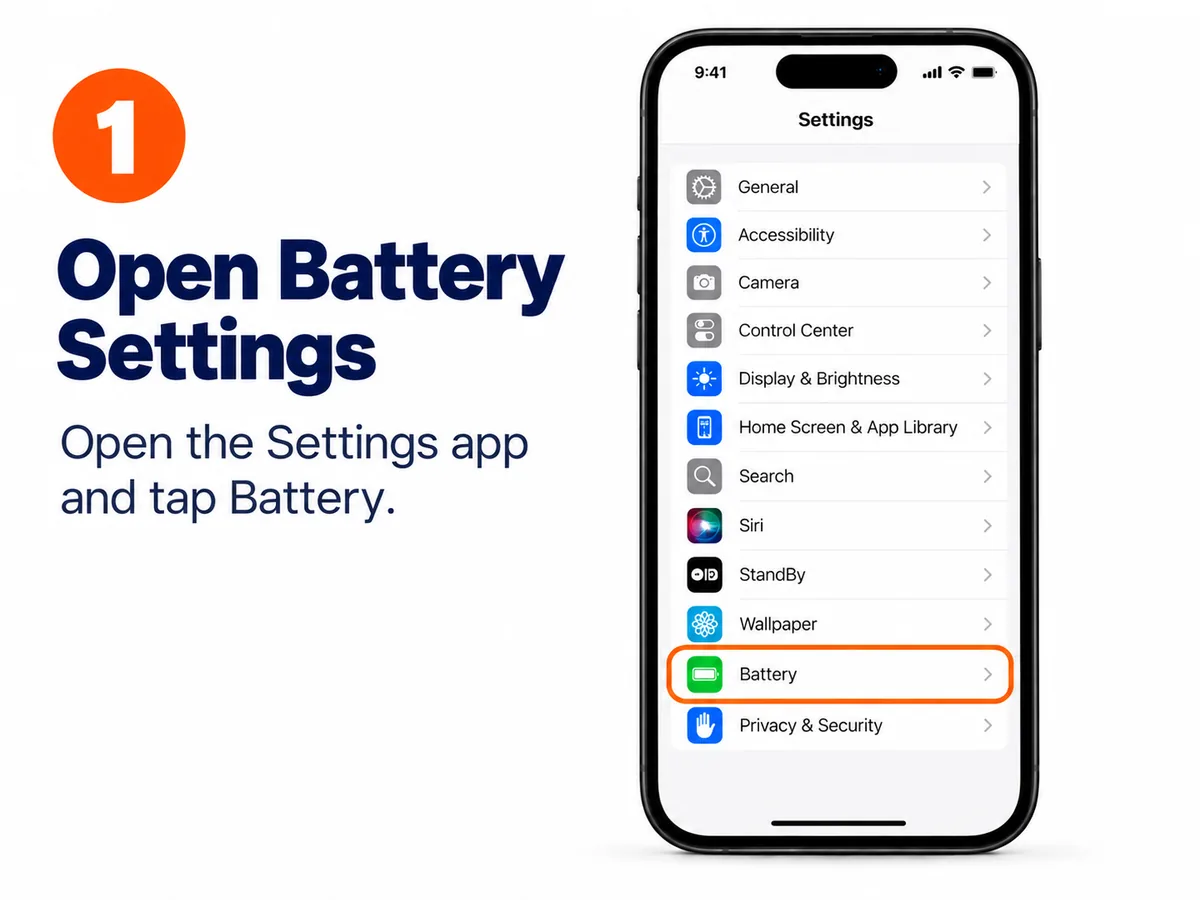
Step 1: Open Battery Settings
Open the Settings app on your iPhone and tap Battery. Here, you can check your battery level, recent usage, and information about which activities consume power.
This is the best place to start when investigating unusually fast battery drain.
AI-generated illustration
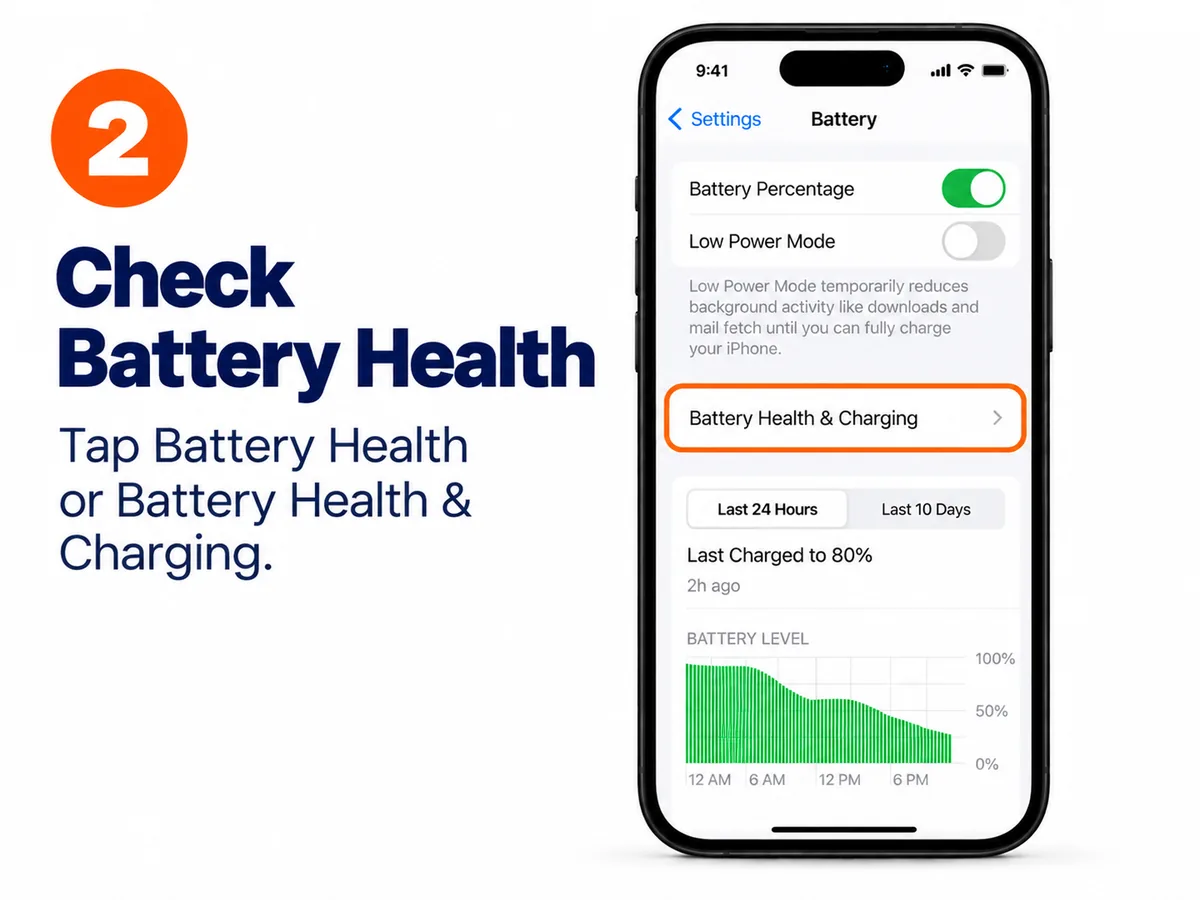
Step 2: Check Battery Health
In Settings > Battery, open Battery Health or Battery Health & Charging, depending on your iPhone model and iOS version. Look for Maximum Capacity, which indicates your battery’s capacity compared with when it was new.
You can also review charging features such as Optimized Battery Charging, where available, to help reduce long-term battery wear.
AI-generated illustration
Step 3: See Which Apps Use the Most Battery
Go to Settings > Battery and review the battery usage information. Choose Last 24 Hours or Last 10 Days to see how your usage changes. Check which apps are responsible for the largest share of battery consumption and whether they have been active in the background.
An app using a large percentage is not automatically a problem, especially if you use it frequently. Look for unusual activity from apps you rarely open.

AI-generated illustration
Step 4: Turn On Low Power Mode
Open Settings > Battery and find Low Power Mode. On some newer iPhones, this option appears under Power Mode.
Turn it on when you need your battery to last longer. Low Power Mode temporarily reduces certain background activities and other power-consuming features.

AI-generated illustration
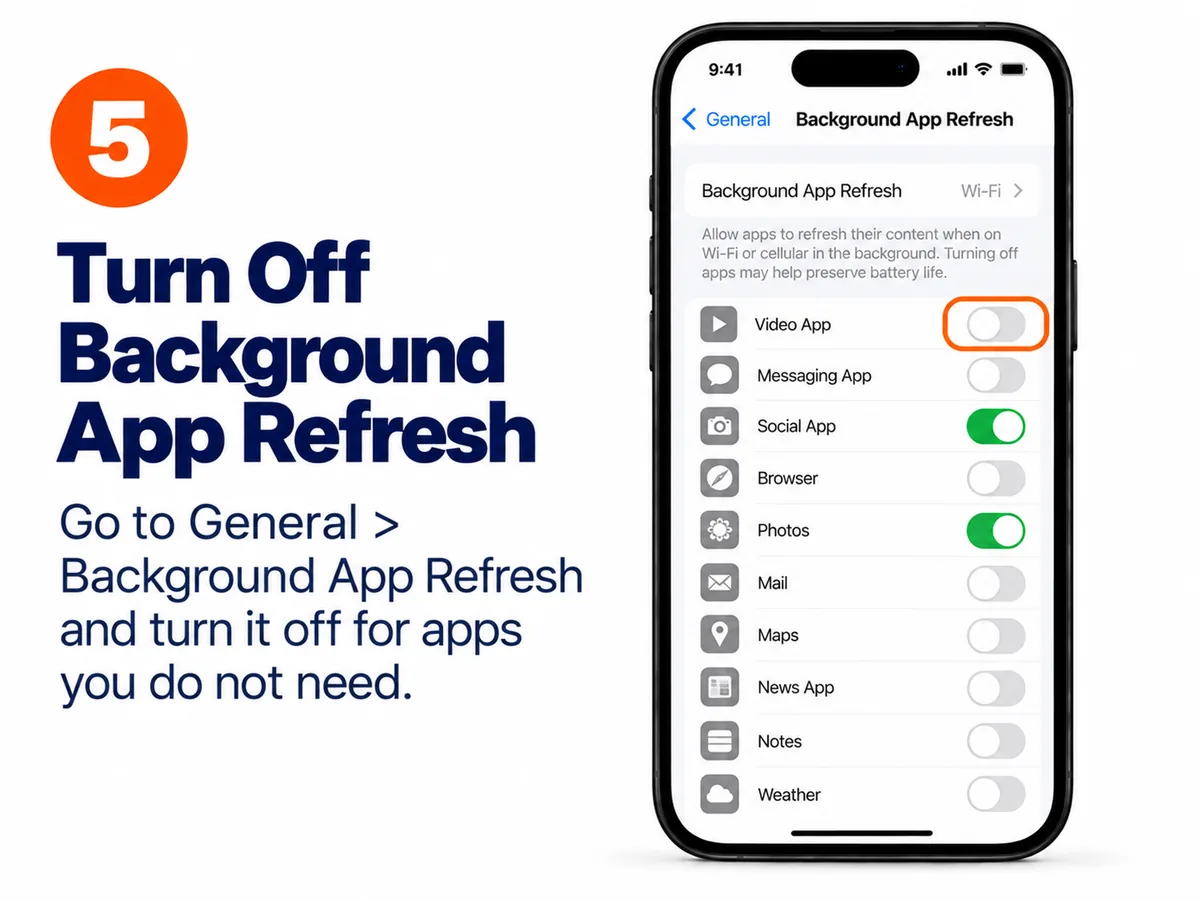
Step 5: Turn Off Background App Refresh for Apps You Do Not Need
Go to Settings > General > Background App Refresh. Review the list and disable Background App Refresh for apps that do not need to update their content when you are not using them.
You can leave it enabled for apps where background updates are useful. Turning it off for selected apps may help reduce unnecessary background activity.
AI-generated illustration
Step 6: Lower Screen Brightness and Shorten Auto-Lock
Open Settings > Display & Brightness and reduce the brightness to a comfortable level. A brighter screen generally consumes more power, especially during extended use.
Next, tap Auto-Lock and select a shorter available interval, such as 30 seconds. This helps prevent the screen from staying on unnecessarily.

AI-generated illustration

AI-generated illustration
Step 7: Check Location Services
Go to Settings > Privacy & Security > Location Services. Review which apps can access your location and select While Using the App for apps that only need location access while open.
For apps that do not need your location, you can select Never where available. Keep the permissions needed for navigation, safety, and other important functions.

AI-generated illustration
Step 8: Update iOS
Open Settings > General > Software Update. If an update is available for your iPhone, review it and follow the instructions to install it.
Software updates can include bug fixes and improvements that may affect battery performance. Remember that temporary background processing after an update can sometimes increase battery usage for a short period.

AI-generated illustration
When Is It a Battery Problem and Not a Setting?
Sometimes, battery drain is caused by an aging or damaged battery rather than your iPhone settings.
If your iPhone’s Maximum Capacity is below approximately 80%, the battery may have significantly degraded. Apple uses an 80% capacity threshold in certain battery service and performance contexts, but the percentage alone does not prove that replacement is necessary.
Other warning signs include sudden battery percentage drops, unexpected shutdowns, or a phone that becomes unusually hot during ordinary use.
If these problems continue after checking your settings and updating iOS, contact Apple Support or visit an Apple Authorized Service Provider for a battery assessment. If your iPhone displays a temperature warning, stop using it until it returns to a safe operating temperature.
Common Battery Myths
Myth 1: You should constantly close every background app.
Regularly force-closing apps is not a reliable way to save battery. Apple generally recommends closing an app only when it becomes unresponsive.
Myth 2: Charging your iPhone overnight always damages the battery.
Modern iPhones manage charging automatically. Optimized Battery Charging and other charging features help reduce battery wear, although heat and long periods at high charge levels can still affect battery lifespan.
Myth 3: Dark Mode always dramatically improves battery life.
Dark Mode can reduce display power consumption on iPhones with OLED screens, but the actual benefit depends on brightness, displayed content, and how you use your phone.
Frequently Asked Questions (FAQs)
1. Why is my iPhone battery draining so fast all of a sudden?
Sudden battery drain can result from heavy app usage, background activity, poor cellular signal, or software processing after an iOS update. Check Settings > Battery to identify possible causes.
2. How do I find out which app is draining my iPhone battery?
Open Settings > Battery and review the app battery usage information. Look at both battery consumption and background activity to understand which apps use the most power.
3. Does Low Power Mode damage iPhone battery health?
No. Low Power Mode is an Apple feature designed to reduce power consumption. It does not damage your battery.
4. Is 80% battery health bad for an iPhone?
A maximum capacity of 80% means the battery holds less charge than it did when new. You may notice shorter battery life, but replacement depends on performance, symptoms, and Apple’s service recommendations.
5. Should I turn off Background App Refresh to save battery?
You can disable it for apps that do not need background updates. This may reduce unnecessary activity, although the actual battery savings depend on how those apps behave.
6. Why does my iPhone battery drain overnight?
Background processes, network activity, notifications, and poor cellular reception can contribute to overnight drain. Check Battery settings the following morning for clues.
7. Can updating iOS improve battery life?
Yes, an update may fix software issues affecting battery performance. However, your iPhone may temporarily use more power while completing background tasks after installation.
8. When should I replace my iPhone battery?
Consider professional assessment if battery health is significantly reduced, iOS recommends service, or you experience frequent unexpected shutdowns and unusually short battery life.
Final Thoughts
An iPhone battery draining quickly does not always mean the battery needs replacing. Apps, display brightness, location permissions, and background activity can all affect how long your phone lasts between charges.
Start by checking Battery settings and Battery Health. Then try Low Power Mode, reduce unnecessary background activity, adjust screen settings, and keep iOS updated.
If your battery continues to drain unusually fast after these changes, an aging battery or hardware issue may be responsible. Apple Support or an Apple Authorized Service Provider can help determine whether battery service is needed.
Related MobiCircuit Guides
Sources for technical verification: Apple Support: If the battery in your iPhone or iPad drains too quickly, Apple Support: iPhone battery and performance, Apple Support: Charge and maintain your iPhone battery.
Editorial note: iOS menu names and appearance can change between software versions.
Note: the pictures in this guide are AI-generated illustrations to show the steps. They are not screenshots from a real phone.