
How to Free Up Storage on iPhone and Android (2026)
To free up storage on iPhone and Android, open your phone’s storage settings and find the largest apps and files. Remove unnecessary downloads, manage unused apps, and review large videos. Back up important photos before deleting anything. Use iPhone app offloading or Android cache clearing to recover additional space safely.
Key Takeaways
- Check what uses your storage first, so you do not delete the wrong things
- Downloads, old videos and unused apps are safer to remove than personal photos
- Back up photos and confirm the backup worked before you delete any
- On Android use Clear cache, not Clear data. On iPhone use Offload App to keep your data
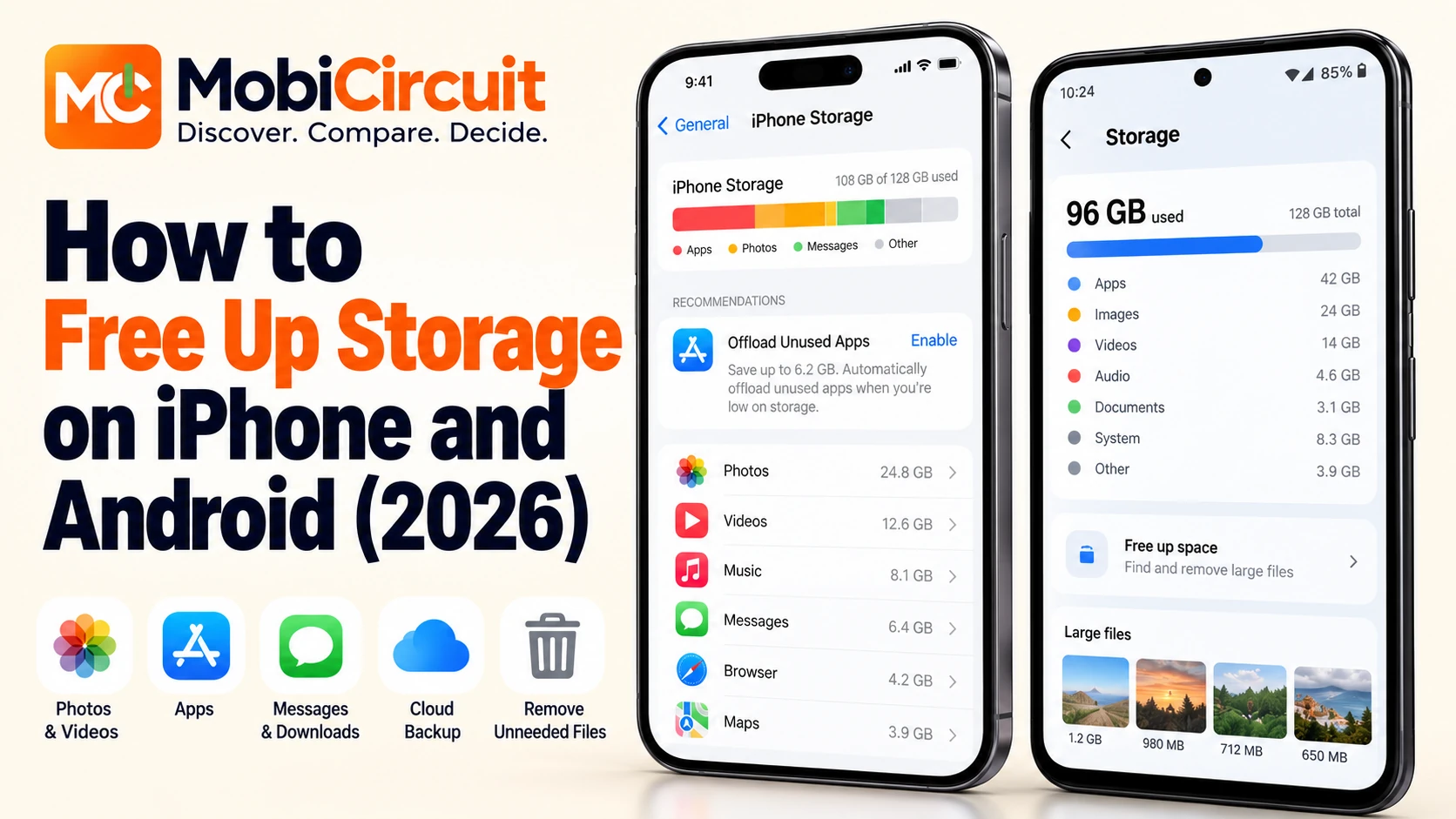
A “Storage Full” warning can appear just when you need to take a photo, install an update, or download an important document.
You may have plenty of files you want to keep, but also temporary downloads and forgotten apps that no longer serve a purpose. The safest approach is to find what occupies the most space, remove what you do not need, and protect everything important before making changes.
This guide covers both iPhone and Android, including their different storage tools.
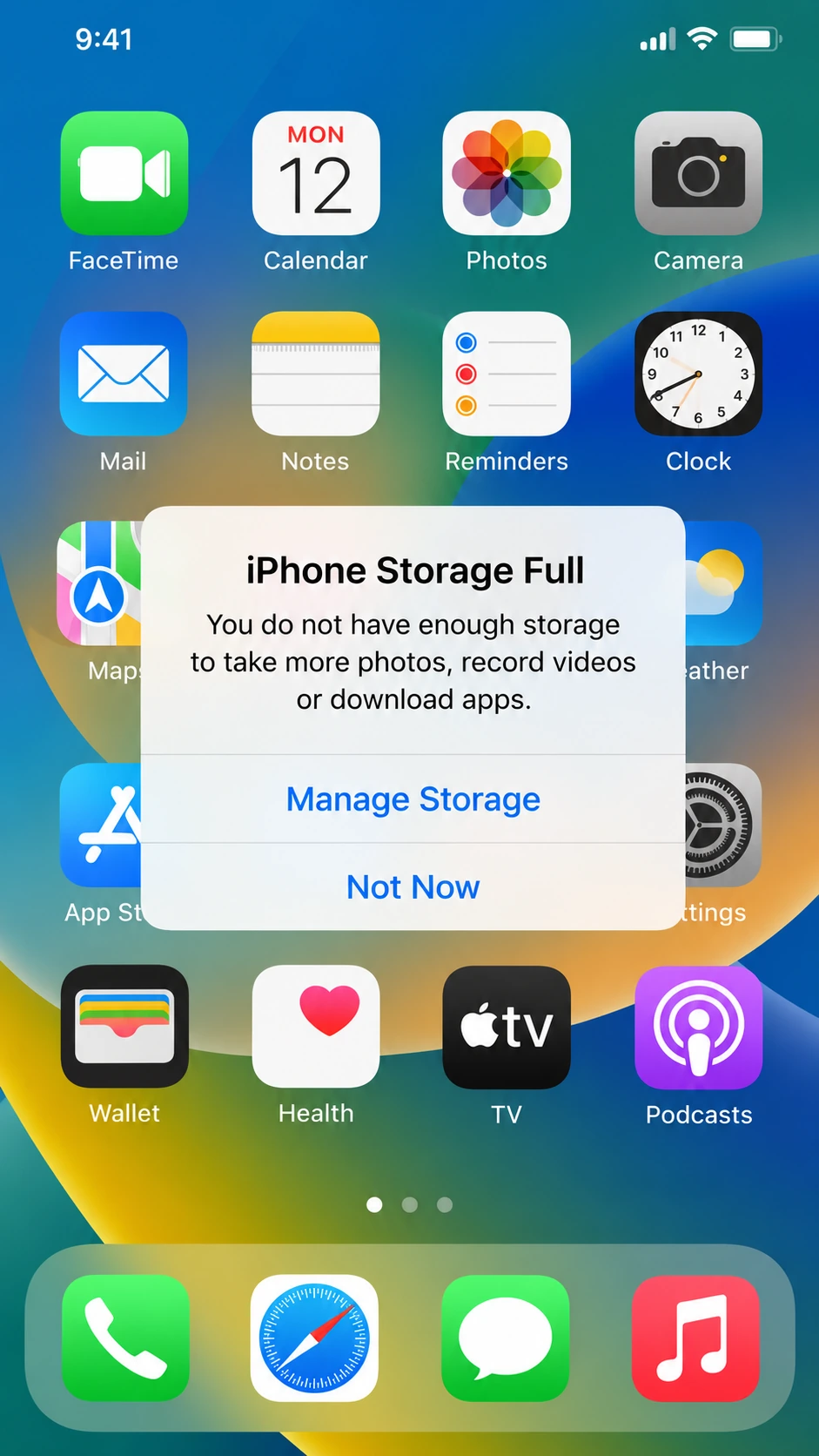
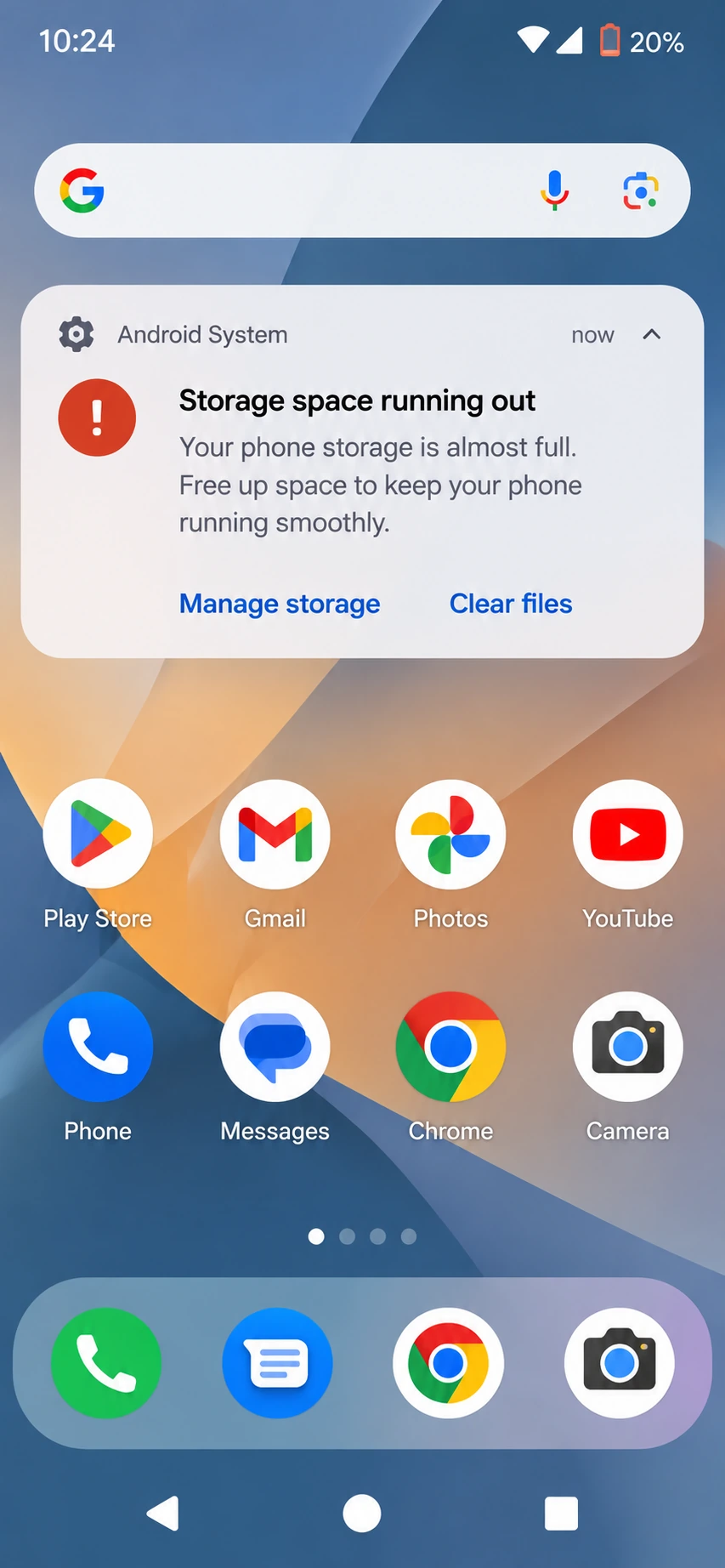
Tap any picture in this guide to enlarge it.
Quick checklist: What should you clean first?
- Check your available storage and largest categories.
- Remove old downloads and offline media.
- Review large videos and duplicate files.
- Back up important photos and documents.
- Delete apps you no longer use.
- Offload unused apps on iPhone where supported.
- Clear temporary app cache on Android where available.
- Review messaging attachments and downloads.
- Check Recently Deleted or Trash.
- Confirm how much storage you recovered.
How do you check what’s taking up storage on your phone?
Your phone can show which types of content occupy its storage. This is the best place to start because it prevents unnecessary deletion.
How to check iPhone storage
- Open Settings.
- Tap General.
- Select iPhone Storage.
- Wait for the storage chart to finish loading.
- Review the categories and apps listed below it.
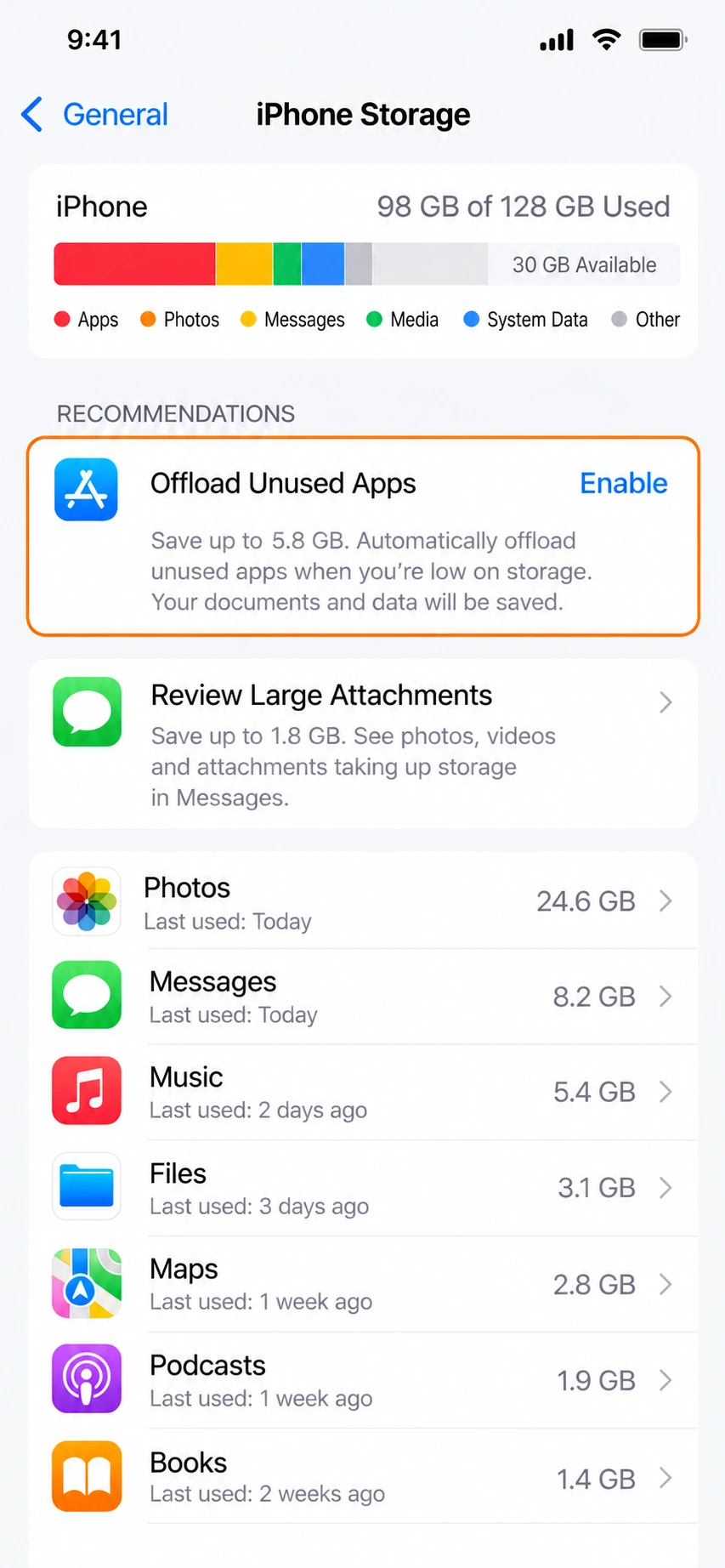
The chart shows how storage is divided between apps, photos, messages, system data, and other categories. Apps are listed with their storage usage. Tap an app to examine its size and stored documents or data.
For example, an app may occupy little installation space but contain several gigabytes of downloaded content. If your iPhone storage is full, focus on the largest categories first.
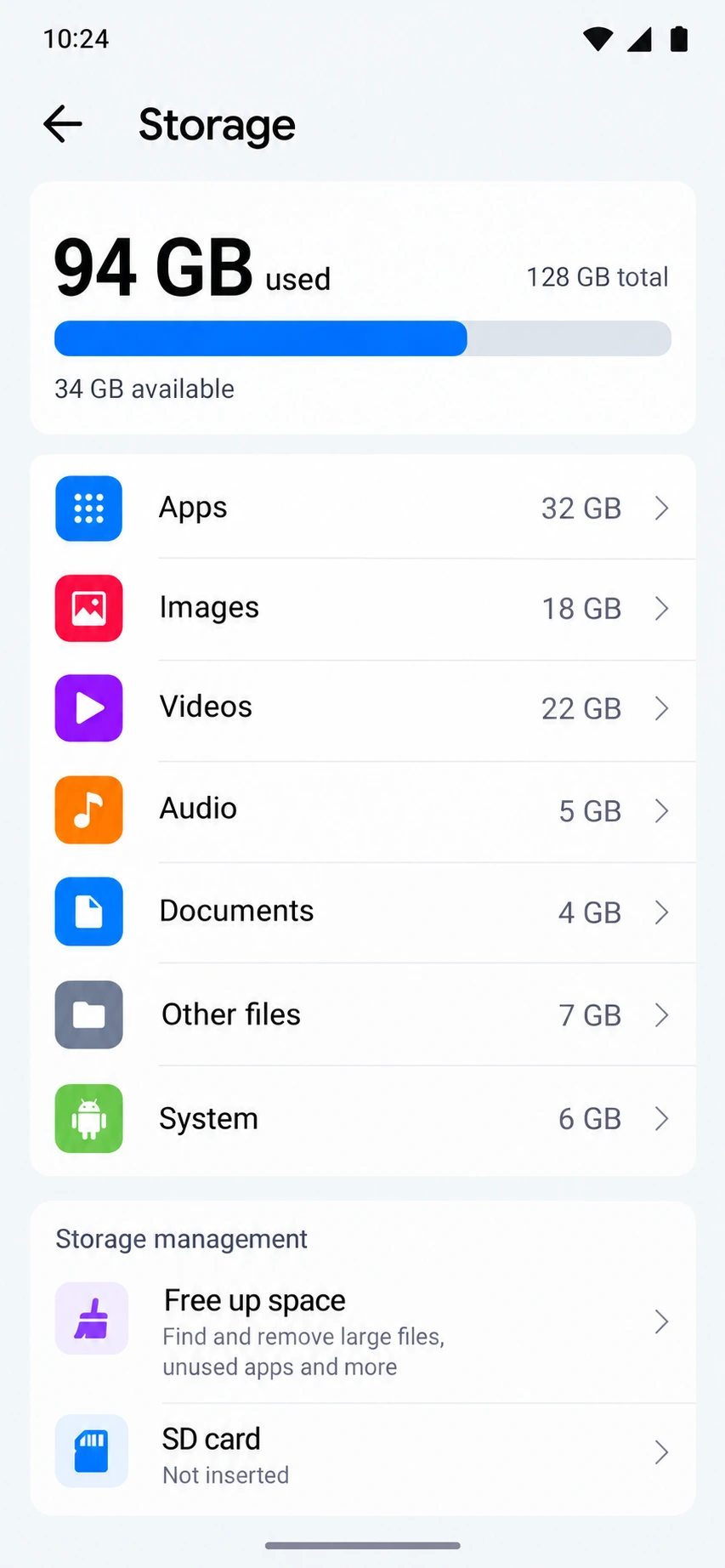
How to check Android storage
- Open Settings.
- Find Storage.
- Review the used and available space.
- Open the relevant storage category, if supported.
- Identify large apps, videos, and downloads.
On some Android phones, storage management sits inside a device care or maintenance menu. The exact wording depends on the manufacturer and software version, so use the search box in Settings if you cannot find it.

What is different between iPhone and Android storage tools?
| Task | iPhone | Android |
|---|---|---|
| View storage | Settings > General > iPhone Storage | Settings > Storage, or a device-specific menu |
| Remove apps | Delete App | Uninstall |
| Keep app data while removing the installation | Offload App | Depends on the app and device |
| Clear temporary app cache | App-specific methods | Clear cache where supported |
| Find large downloads | Files app | File manager |
| Recover deleted photos | Recently Deleted | Trash or Bin |
| Expand storage with microSD | Not supported | Supported on selected models |
Neither platform offers unlimited storage. Even when files are stored in the cloud, the phone still needs local space for apps, updates, and normal operation.
What is the fastest way to free up storage on iPhone and Android?
Start with content you can identify easily. Old downloads and offline media are often safer to remove than app data or personal photos.
Remove unnecessary downloads
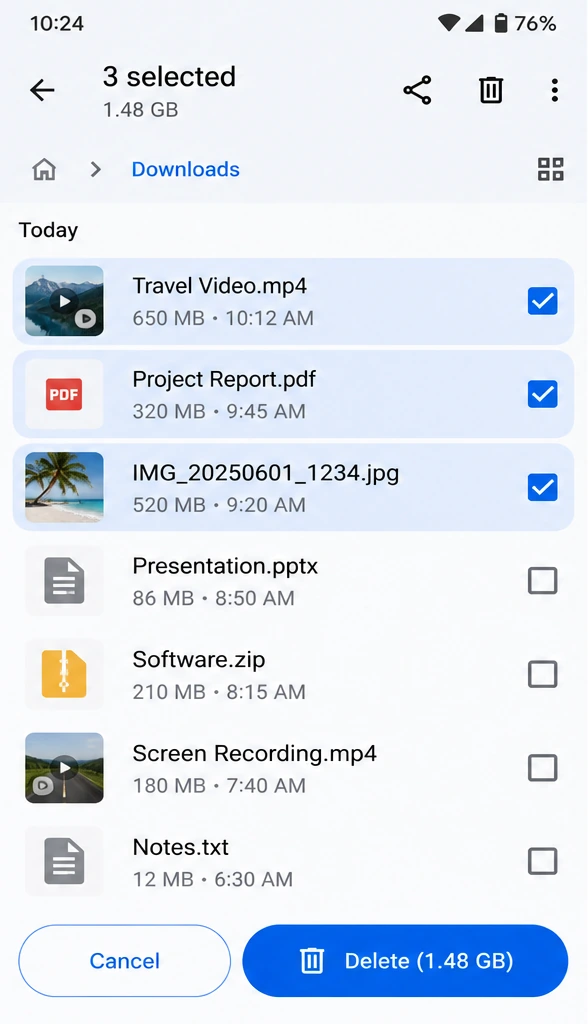
Open the Files app on iPhone or your file manager on Android. Check the Downloads folder for:
- Documents you no longer need.
- Old PDF files.
- Duplicate downloads.
- Installation packages.
- Downloaded videos.
- Temporary files you recognize.
Open unfamiliar files before deleting them. Some documents may still be important. Also check the download sections inside streaming and music apps, because offline content may be stored inside the app rather than in the main Downloads folder.
Review large videos and screenshots
Open your photo library and find videos you no longer need. Long recordings and high-resolution clips can occupy substantial space. Screenshots are another useful category to review, since you may have saved temporary information that is no longer relevant.
Delete only what you recognize. If a video or screenshot is important, back it up first.
Check for duplicate files
Some file managers and photo apps can identify duplicate content. Review the results before removing anything. Two files with similar names may contain different versions or edits, so do not assume they are identical without checking.
How can you free up photo and video storage without losing anything?
Photos and videos are often among the largest personal storage categories. They also deserve the most care. Back up important files before deleting them, because a mistake here can be much more serious than accidentally removing an app.
Back up photos before removing local copies
Follow this order:
- Choose a supported cloud backup service, computer, or external storage device.
- Start the backup or file transfer.
- Wait until it finishes.
- Open the destination and confirm that the expected files are present.
- Test several recent photos and videos.
- Make sure important originals can be downloaded or restored.
- Only then use a supported method to remove unnecessary local copies.
Do not treat a progress indicator alone as proof that every file is protected. For especially important memories, keeping an independent second copy is sensible. Our guide How to Back Up Your iPhone shows the full process.

Use Optimize iPhone Storage
If you use iCloud Photos, you can reduce the amount of space used by locally stored full-resolution media. On supported iOS versions:
- Open Settings.
- Tap your Apple Account name.
- Select iCloud.
- Open Photos.
- Enable synchronization if appropriate.
- Select Optimize iPhone Storage.
Your iPhone can keep smaller versions locally while storing full-resolution originals in iCloud. This happens automatically as needed. It does not immediately remove every original from the phone. Make sure your iCloud library has finished syncing and has enough available space.
Free up backed-up photos on Android
Android phones can use supported cloud photo services, computers, or external drives. Google Photos offers a feature to free up space on the device by removing local copies of photos and videos that are already backed up.
- Open Google Photos.
- Check the backup status.
- Confirm your important files are backed up.
- Look in the app’s menu or settings for the option to free up space on the device.
- Read the information on screen before you confirm.
The name and location of this option can change between app versions. Do not use ordinary Delete or Move to Trash if you intend to keep a synchronized photo in your cloud library. The deletion behavior depends on the app and how the library is configured.
Lower video quality and clear duplicate photos
Video is one of the biggest storage users. A minute of 4K video takes much more space than the same minute in 1080p, so lower the setting if you do not need the extra detail.
- On iPhone, open Settings > Camera > Record Video and choose a lower option, such as 1080p HD at 30 fps.
- On iPhone, open Settings > Camera > Formats and choose High Efficiency to save new photos and videos in smaller files.
- On Android, open the Camera app, go to its settings and choose a lower video resolution. The names differ between brands.
On iPhone you can also remove copies you do not need. Open Photos > Albums > Utilities > Duplicates and tap Merge on the duplicates you find. This album is available on recent versions of iOS.
Should you delete unused apps or clear their cache?
Apps use storage for installation files, downloaded media, saved documents, and temporary data. Removing an unused app can recover space, but deleting its data may have consequences.
Delete or offload unused apps on iPhone
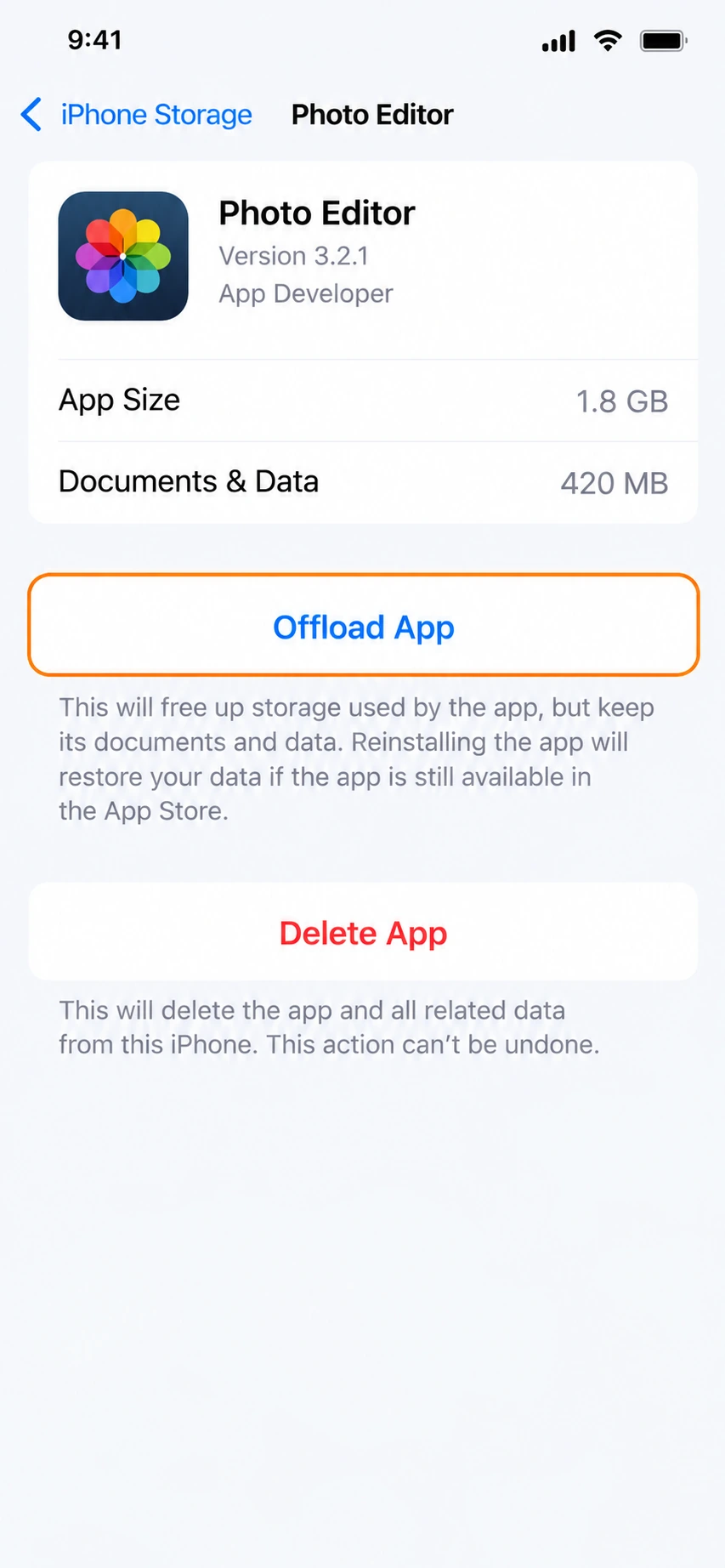
Open Settings > General > iPhone Storage, select an app and review its storage usage. Then choose one of two options:
- Offload App removes the app but keeps its documents and data. You can download the app again if it is still available.
- Delete App removes the app and its local data.
Before you delete a game, editing app or document app, confirm that important progress or projects are backed up. Offloading may save less space than expected if an app’s documents and downloads use most of its storage, and your preserved data may still depend on the app’s account or online service.
Clear app cache on Android
On many Android phones:
- Open Settings.
- Select Apps.
- Choose the app you want to clean.
- Open Storage or Storage & cache.
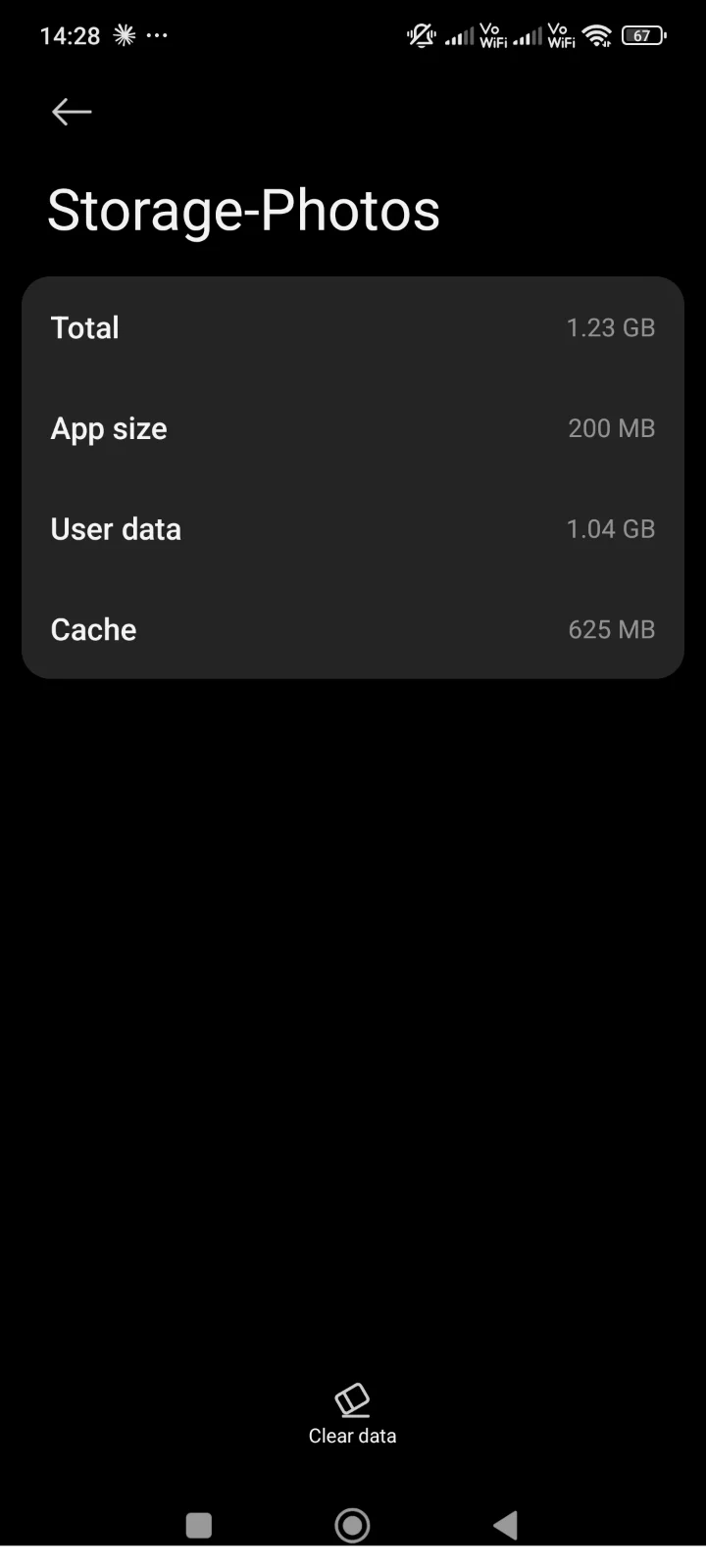
- Tap Clear cache if your phone shows it.
Some phones, including some Xiaomi models, show only the cache size on this screen and a Clear data button. Do not tap Clear data, because it deletes the app’s data and sign-in. If there is no Clear cache button, use your phone’s own Cleaner or Storage settings instead.
This usually removes temporary files that the app can create again. It may help when an app has accumulated unnecessary cached content. However, the app may need to download some information again.
What should you never clear without checking?
Be especially careful with Clear data or Clear storage on Android. These options can reset an app and remove locally stored information, including downloaded files or unsynchronized data. They may also sign you out. Do not use them simply because they appear next to Clear cache.
On iPhone, there is no universal Clear Cache button for every app. Some apps have their own cache management settings. For Safari, see How to Clear Cache on iPhone.
How do you remove large messages, attachments, and offline files?
Messaging apps can accumulate photos, videos, voice recordings, and documents. These files may remain on your phone long after you have finished viewing them.
Review media-heavy conversations
Open your messaging app and look for storage or media management tools. WhatsApp, for example, provides a Manage Storage feature where you can review large files and content shared in conversations.
Check attachments before deleting them. Some may be important records or memories. If you plan to delete a conversation, confirm that anything valuable has been saved elsewhere.
Review downloaded entertainment
Check apps used for:
- Offline movies and shows.
- Music playlists.
- Podcasts.
- Audiobooks.
- Maps downloaded for offline use.
Remove downloads you no longer need. For many services, removing an offline download does not delete the item from your account, but check the app’s wording before confirming.
Check the Files app and email downloads
Files saved from browsers and email attachments can remain in local storage. On iPhone, check Files > Browse and the available local locations. On Android, use your file manager.
Be aware that cloud-connected folders may synchronize deletions. Check the file’s location before removing it.
Clear WhatsApp media
WhatsApp photos, videos, voice notes and forwarded files can take up many gigabytes. Clear them from inside the app so you remove only what you choose.
- Open WhatsApp and go to Settings > Storage and data > Manage storage.
- Open the biggest chats first. The list is sorted by size.
- Select the photos, videos and files you do not need and tap Delete.
Save anything you want to keep before you delete. On iPhone you can also stop WhatsApp from filling your Photos app: open WhatsApp Settings > Chats and turn off Save to Camera Roll. In Settings > Storage and data you can change Media auto-download so large files do not download by themselves.
Delete old messages automatically on iPhone
Open Settings > Messages > Keep Messages and choose 1 Year or 30 Days instead of Forever. The iPhone then deletes older messages and their attachments. Check that you do not need the older ones first, because deleted messages may not be recoverable.
Can cloud storage help when your phone says Storage Full?
Cloud storage is useful for keeping certain files accessible without storing full copies on your device. However, it does not increase your phone’s built-in storage capacity. Apps and operating-system updates still need physical space.
Choose between cloud backup and external storage
Cloud services can help with photos, videos, and documents. A computer or external drive can provide another place to store original files. Your choice depends on how often you need access to those files, your internet connection, and whether you want an ongoing subscription.
Before deleting local files, always confirm that your backup is complete and accessible.
Understand the difference between backup and sync
A backup is intended to preserve recoverable information. Synchronization keeps content consistent between devices or services. With synchronization, deleting a file in one place may remove it elsewhere. This distinction matters most for photos and documents.
Use official local-space management features where available, and maintain an independent copy of anything you cannot afford to lose.
What extra storage options do Android phones have?
Android storage tools vary by manufacturer. Some phones offer built-in cleanup suggestions, while others rely on a separate file manager.
Use a file manager or cleanup tool
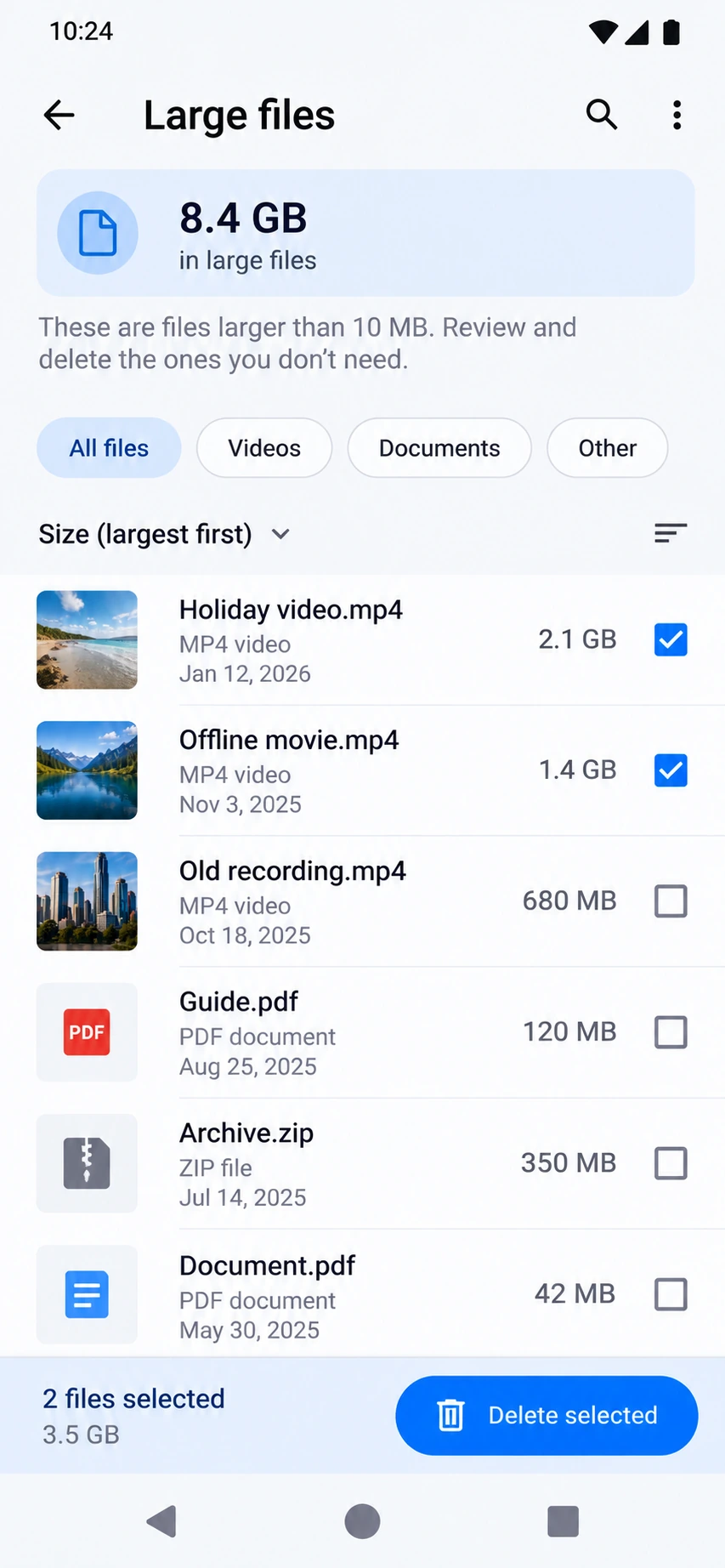
A file manager or cleanup tool, for example Files by Google, can help identify large files, downloads, and unnecessary content. Open the tool and review the available categories, then check the suggested files before removing them.
A cleanup suggestion is not proof that a file is unimportant. Some phone manufacturers also provide their own storage management features.
Move files to an SD card where supported
Some Android phones include a microSD card slot. If yours does, you may be able to move compatible photos, videos, and documents to external storage.
Before buying a card, check your phone’s official specifications. Many phones do not support expandable storage, and some apps cannot be moved to an SD card. Do not remove the card while files are being transferred.
Use Files by Google
Files by Google is a free app from Google. It is often already on Android phones, and you can install it from the Play Store.
- Open Files by Google and tap the Clean tab.
- Review the suggestion cards, such as junk files, large files, duplicate files and unused apps.
- Open a card, select only the items you do not need and tap Delete or Clear.
The layout can change between versions, and some phones have their own cleaner in Settings > Storage. Review every file before you delete it.
What extra storage tools are available on iPhone?
iPhone has several built-in features that can help recover space without deleting everything.
Review large attachments
Open Settings > General > iPhone Storage. Depending on your iOS version and stored content, you may see recommendations such as reviewing large attachments in Messages. Whether a recommendation appears depends on what is stored on your phone.
You can also review attachments directly inside supported messaging apps.
Offload unused apps automatically
If your iPhone offers automatic app offloading, it can remove installations of apps you rarely use while keeping their documents and data. It may appear as a recommendation on the iPhone Storage screen, as shown below. Where the setting sits can differ between iOS versions.
This is useful when you want to preserve information but do not need every app installed. Review your storage again afterward to see how much space was recovered.
Empty Recently Deleted carefully
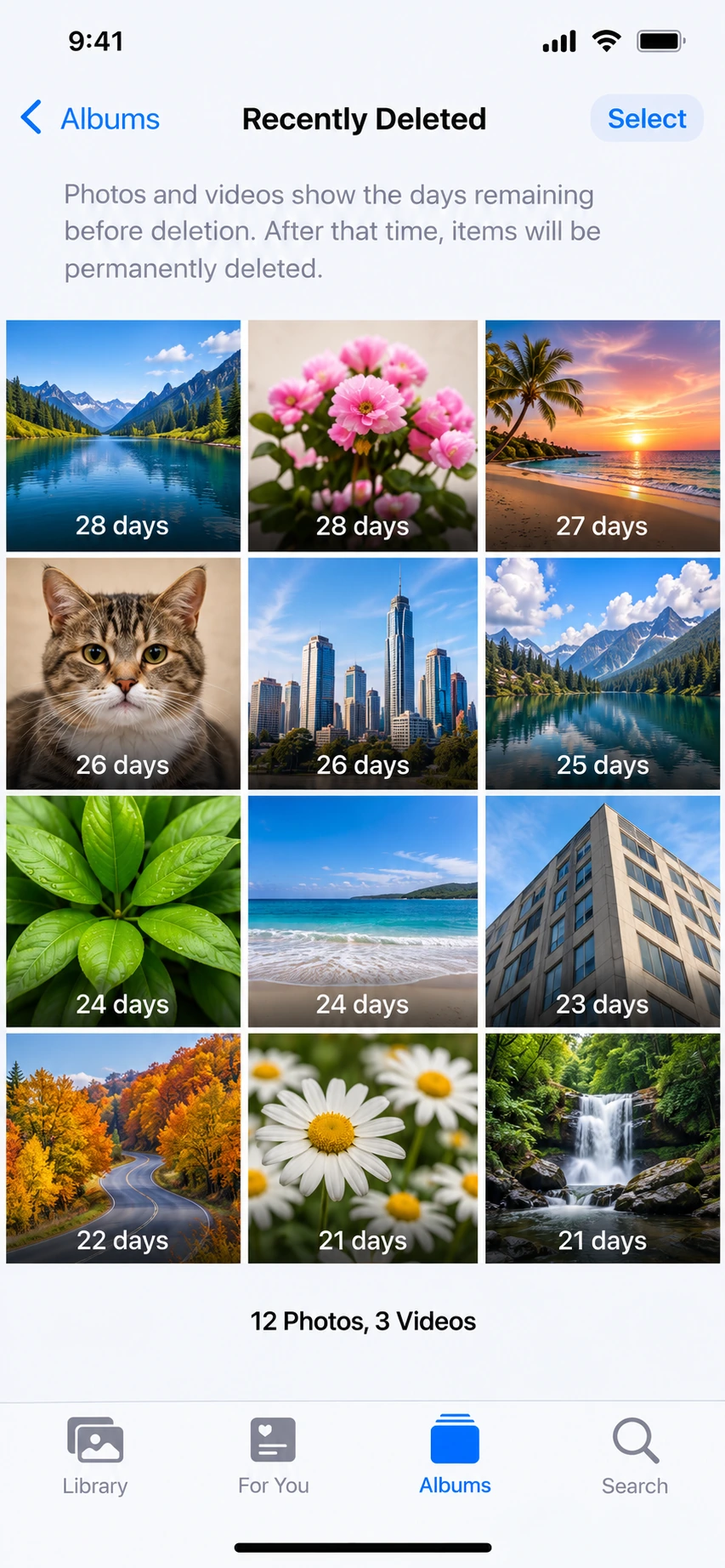
When you delete photos, they may remain in the Recently Deleted album for a limited recovery period. To review them:
- Open Photos.
- Find Recently Deleted in the Albums tab, usually near the bottom under utilities.
- Unlock the album if prompted.
- Review the contents.
- Permanently delete only items you no longer need.
The layout can vary by iOS version. Permanent deletion may make recovery impossible, so check backups first.
What mistakes should you avoid when cleaning phone storage?
Installing random cleaner apps
Be cautious with apps that promise to recover huge amounts of space instantly. Some request broad permissions or provide little benefit beyond your phone’s existing tools. Use built-in storage management features or trusted utilities.
Deleting photos before backup
Never remove the only copy of an important photo or video. Verify that your backup is complete, that the files open correctly, and that you understand the service’s deletion behavior.
Removing system files
Do not manually delete system folders or files you do not recognize. Your phone needs system data for normal operation, updates, and temporary processing. Avoid unofficial methods that claim to remove protected operating-system files.
Clearing app data instead of cache
Clear cache and Clear data are different operations. Cache clearing usually removes temporary files. Data clearing can reset the app and remove locally stored information. Read every confirmation message carefully.
When should you pay for cloud storage or buy a bigger phone?
Cleaning storage can help, but the problem may return if your daily needs exceed your device’s capacity.
Choose cloud storage if your files are the main problem
A cloud plan may be useful if most of your storage is occupied by photos, videos, and documents. Look for a service that supports convenient access, suitable backup options, and local storage optimization. Consider the ongoing cost and how much internet access you need.
Choose a higher-capacity phone if apps and offline content are the problem
A phone with more internal storage may be better if you frequently use large games, record high-resolution videos, or work with files offline. Cloud storage cannot replace the space needed for app installations and many types of local data.
Before upgrading, check whether removing unused content would solve the problem. If you decide to upgrade, use our Phone Finder to compare phones by storage and other specs.
Conclusion: What’s the safest way to recover storage?
You can often recover useful space without resetting your phone or deleting valuable memories. Start with the storage overview, remove unnecessary downloads, manage unused apps, and review large files. Use cloud storage and built-in optimization features carefully.
Frequently asked questions
Why is my iPhone storage full even after deleting photos?
Deleted photos may still occupy space in the Recently Deleted album. Apps, downloaded videos, and system data can also use significant storage. Open Settings > General > iPhone Storage to identify the largest categories. If you use iCloud Photos, check synchronization before deleting more pictures, because deletions may affect your cloud library.
How can I free up Android storage without deleting photos?
Remove unnecessary downloads, offline videos, and apps you no longer use. Clear temporary app cache where supported, and check your file manager for large or duplicate files. You can also move eligible files to an SD card on supported devices. Avoid clearing app data unless you understand what will be removed.
Does clearing cache delete photos, messages, or accounts?
Clearing an app’s cache on Android generally removes temporary files rather than personal photos, messages, or account details. However, app behavior can vary. Clear data or Clear storage is different and may remove locally saved information or reset the app. Always read the confirmation message before selecting a cleanup option.
What happens when I offload an unused app on iPhone?
Offloading removes an app’s installation but keeps its documents and data on your iPhone. You can reinstall the app later if it remains available. Offloading is useful when you rarely use an app but want to preserve its information. It may recover little space if the app stores large documents or downloads.
Can I delete photos after uploading them to cloud storage?
Only after confirming the upload succeeded and understanding how the service handles deletion. Some cloud photo services synchronize deletions across devices. Use a supported local-space recovery feature instead of ordinary deletion when appropriate. For important photos, keep an independent backup and verify that you can open or restore the originals.
Why does System Data take up so much storage on iPhone?
System Data includes files used by iOS and its supporting processes, including certain caches and temporary resources. Its size can change over time. Avoid unofficial tools that promise to delete protected system files. Check available software updates, restart your iPhone if needed, and focus first on storage categories you can safely manage.
Is Files by Google safe for cleaning Android storage?
Files by Google is an official Google file management app. It can help you review downloads, large files, and other content. However, you are still responsible for deciding what to delete. Review every file before confirming removal, especially documents and personal media. Available cleanup features may vary by app version and device.
Should I buy more cloud storage or a phone with more storage?
Cloud storage is useful for photos and documents that do not need to remain fully downloaded. A higher-capacity phone is better for large apps, games, and offline files. Compare your storage categories before deciding. Cloud storage does not increase the internal space available for installing apps or operating-system updates.
How do I clear WhatsApp storage on my phone?
Open WhatsApp, go to Settings > Storage and data > Manage storage, open the biggest chats, select large photos, videos and files, and tap Delete. Save anything you want to keep first.
Is Files by Google a good way to free up storage on Android?
It is a free app from Google. Open the Clean tab and review the suggestions, such as junk files, large files and duplicates. Check every file before you delete it, because deleted files may not be recoverable.
This guide gives general advice. Menu names and features differ by phone model and software version, so check the manufacturer’s official instructions for your device. The screenshots are illustrative mock-ups that show where each option typically appears.