
How to Fix Android Battery Draining Fast (2026 Step-by-Step Guide)
Is your Android phone losing battery power faster than usual, even when you are barely using it? Background apps, screen settings, weak mobile signals, and software issues can all contribute to faster battery drain. This guide explains five practical ways to improve battery life on Google Pixel, Samsung Galaxy, and other Android phones.
Key Takeaways
- Check battery usage first to identify the apps or system activities using the most power
- Limit unnecessary background activity and adjust display settings to reduce battery consumption
- Turn on Battery Saver and adaptive battery features where available
- Keep Android and your apps updated, and check battery health if the problem continues
Quick Steps: How to Fix Fast Battery Drain on Android
Fast battery drain does not always mean your phone needs a new battery. Often a few apps, display settings, or a pending update are the cause. Work through the five steps below in order, and check after each one whether your battery lasts longer.
Tap any picture in this guide to enlarge it.
How to Fix Android Battery Drain: Detailed Steps
Step 1: Check What Is Using Your Battery
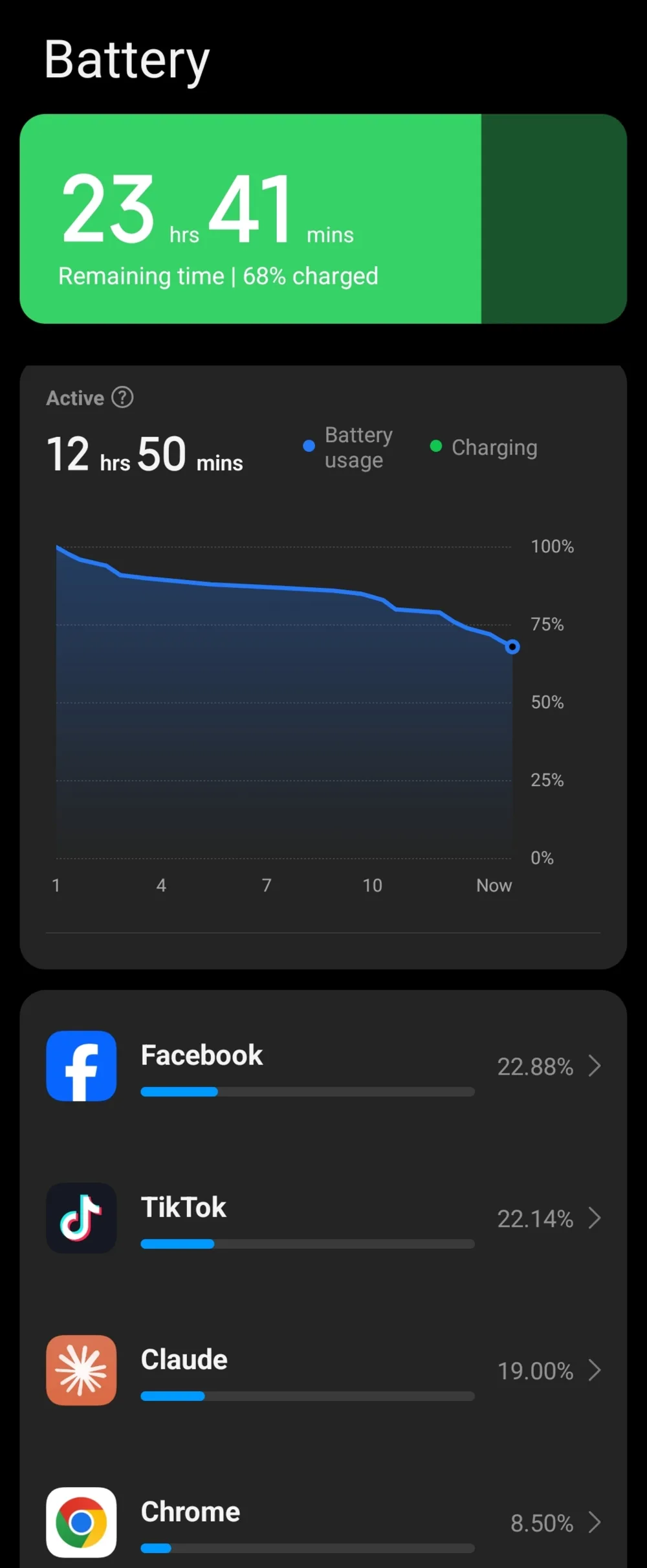
Before changing settings, find out what is consuming your battery. Android shows battery usage information that helps you identify apps using power in the foreground or in the background.
Menu paths
- Xiaomi / Redmi (HyperOS): Settings → Battery. The usage chart and the app list are on this screen.
- Google Pixel: Settings → Battery → Battery usage
- Samsung Galaxy (One UI): Settings → Battery → View details on supported recent versions. On some versions, use Settings → Battery and device care → Battery and open the battery usage graph.
- Other Android phones: Settings → Battery → Battery usage, or a similarly named option
What to look for
- Apps using a large share of battery compared with how much you use them
- Apps running in the background longer than expected
- Unusual battery use after installing a new app or a system update
- High screen usage, especially during gaming, video streaming, or navigation
Step 2: Restrict Background Activity for Heavy Apps
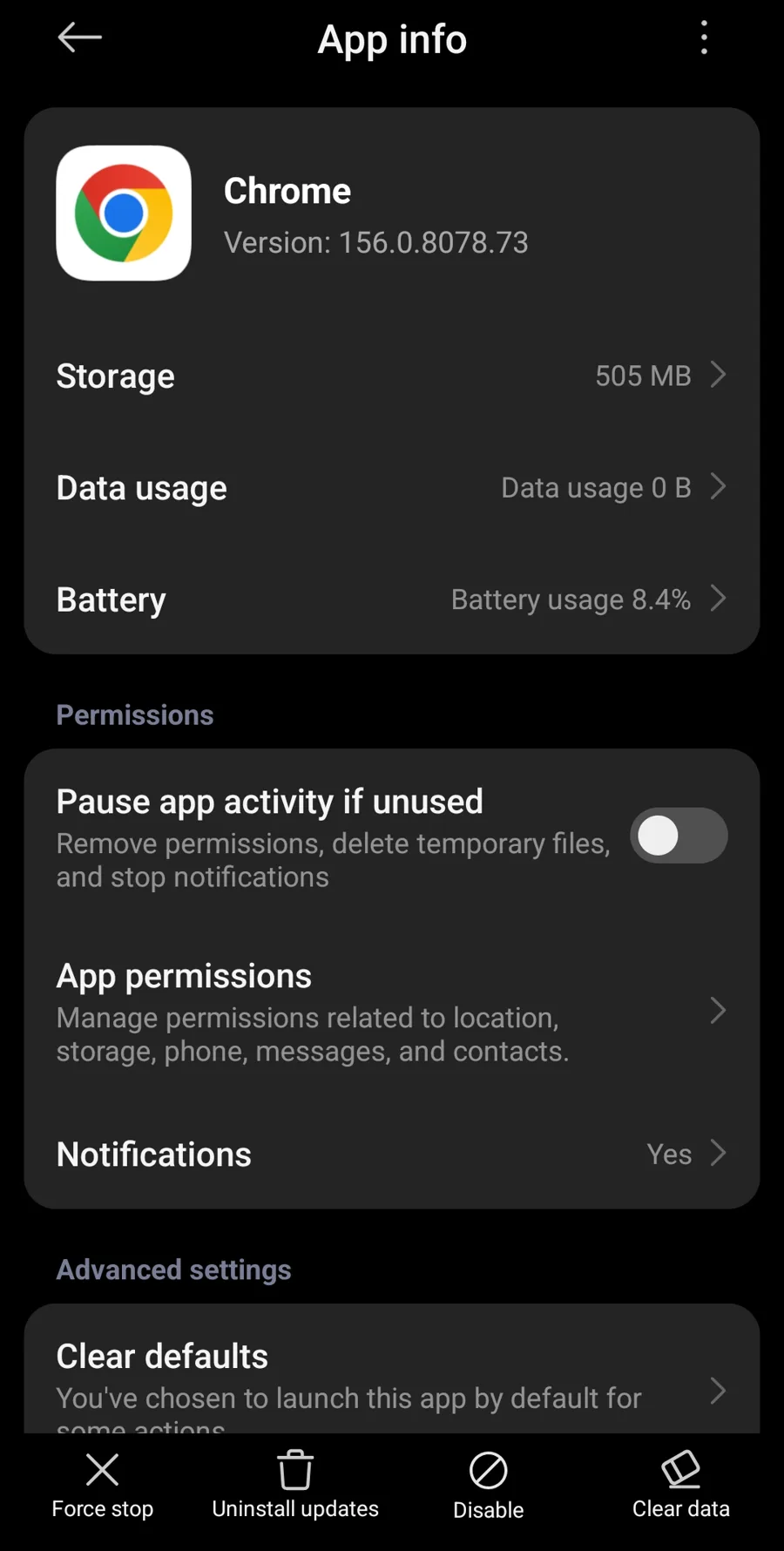
Some apps keep working when you are not using them. Limiting unnecessary background activity can reduce battery drain, particularly for apps you rarely open.
Menu paths
- Xiaomi / Redmi (HyperOS): Open the app’s App info page and tap Battery to see its usage and background settings.
- Google Pixel: Settings → Apps → See all apps → select an app → App battery usage. Depending on your Android version, you may see an Allow background usage switch or battery optimization options.
- Samsung Galaxy: Settings → Battery → Background usage limits → Sleeping apps or Deep sleeping apps. On older One UI versions, start from Settings → Battery and device care → Battery.
- Other Android phones: Settings → Apps → select an app → Battery or App battery usage
What to look for
- Apps using battery while you are not actively using them
- Background usage controls or optimized battery settings
- Samsung’s Sleeping apps and Deep sleeping apps lists
- Apps that do not need frequent background updates
Step 3: Adjust Screen Brightness, Refresh Rate, and Screen Timeout
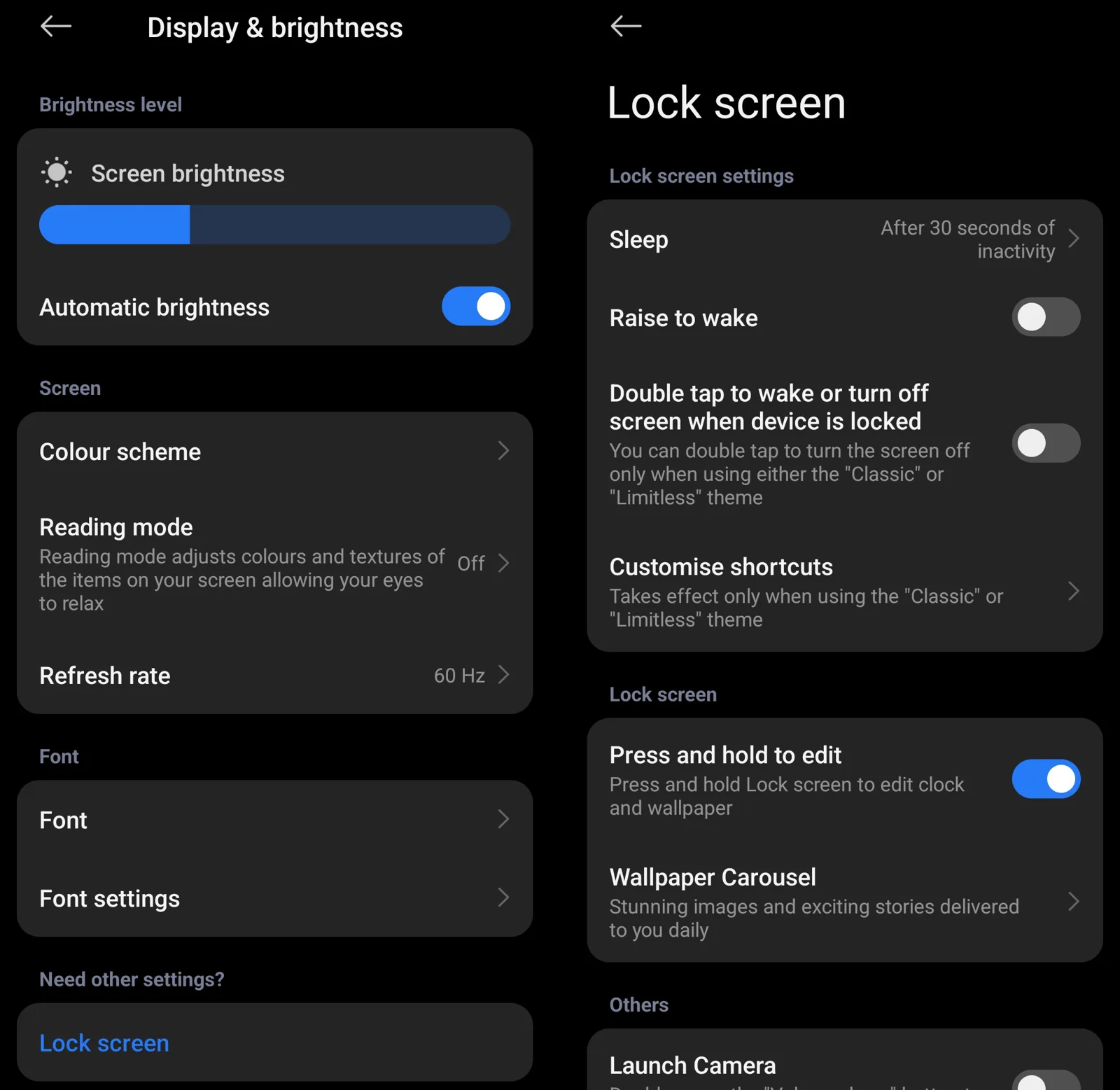
Your display can use a lot of battery, especially at high brightness or when the screen stays on for a long time.
Menu paths
| Setting | Google Pixel | Samsung Galaxy |
|---|---|---|
| Brightness | Settings → Display & touch → Brightness level | Settings → Display → Brightness |
| Screen timeout | Settings → Display & touch → Screen timeout | Settings → Display → Screen timeout |
| Refresh rate | Settings → Display & touch → Smooth Display, on supported models | Settings → Display → Motion smoothness, on supported models |
Xiaomi / Redmi (HyperOS): Settings → Display & brightness for brightness and refresh rate. For screen timeout, open Settings → Lock screen → Sleep.
On older Pixel software, display options may appear under Settings → Display. Other Android makers may use different names.
What to look for
- Brightness set higher than you need for comfortable viewing
- Screen timeout set to several minutes instead of 30 seconds or one minute
- Smooth Display or a high refresh rate, which you can reduce if you prefer longer battery life
- Adaptive brightness, which adjusts brightness to the lighting around you
Step 4: Turn On Battery-Saving and Adaptive Features
Android includes battery management features that reduce background activity and help your battery last longer between charges.
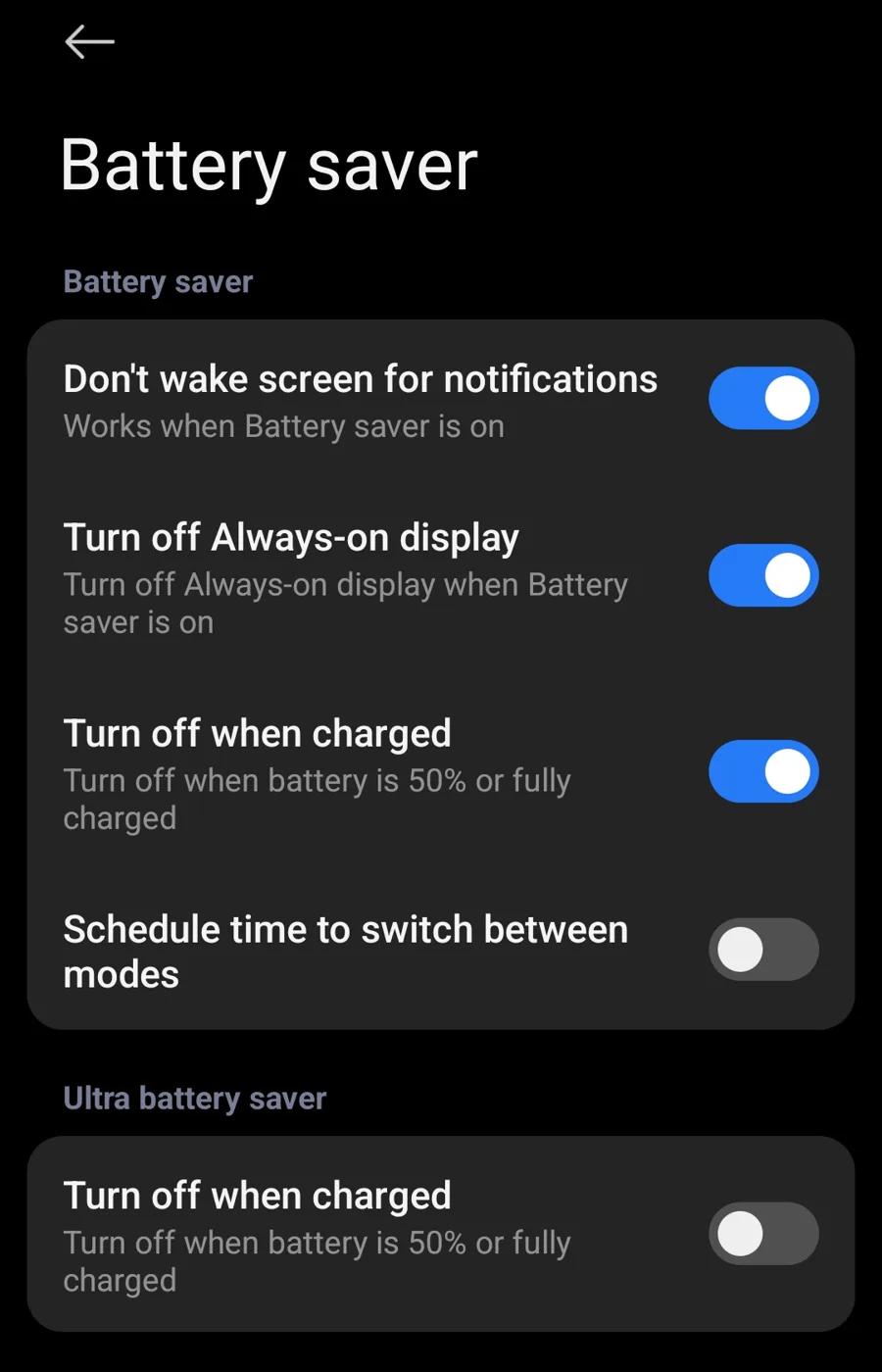
Menu paths
- Xiaomi / Redmi (HyperOS): Settings → Battery → Battery saver.
- Google Pixel Battery Saver: Settings → Battery → Battery Saver
- Google Pixel Adaptive Battery: Settings → Battery → Battery Saver → Adaptive Battery on supported versions. The location may differ by Android release.
- Samsung Galaxy Power saving: Settings → Battery → Power saving
- Samsung Galaxy Adaptive battery: On some Galaxy phones it appears under Settings → Battery → More battery settings. Whether it is available, and where, depends on your phone and One UI version.
What to look for
- Battery Saver or Power saving mode and the restrictions it applies
- Options to turn on battery saving automatically at a battery percentage you choose
- Adaptive Battery, where available, which manages battery use based on how you use your apps
- Samsung background usage limits for apps you rarely use
Step 5: Update Software and Apps, Then Restart
Software bugs, app compatibility problems, or background processes can sometimes cause unexpected battery drain. Updating your phone and restarting it may fix temporary issues.
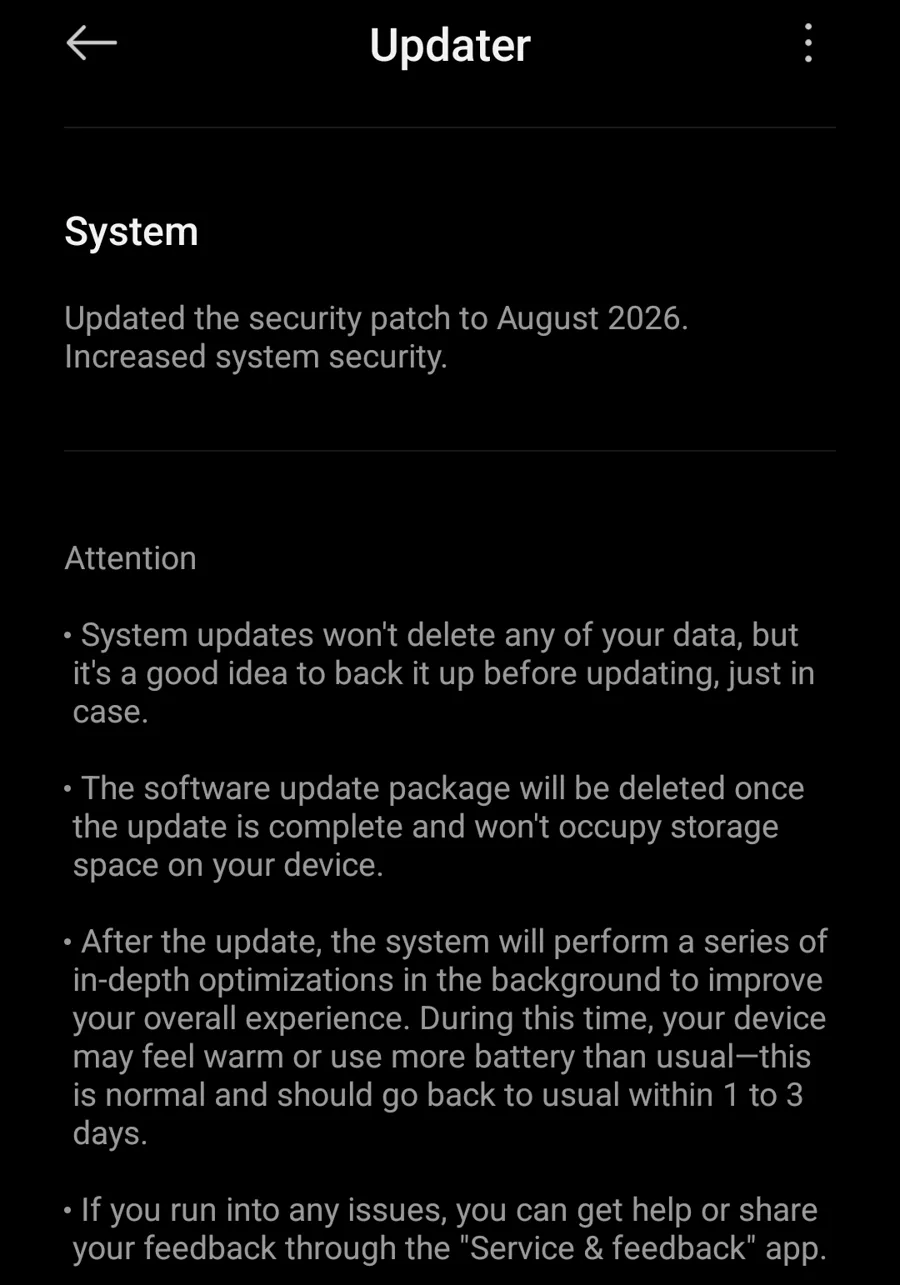
Menu paths
- Xiaomi / Redmi (HyperOS): Settings → About phone, then open the system update (Updater).
- Google Pixel system updates: Settings → System → Software updates
- Samsung Galaxy system updates: Settings → Software update → Download and install
- App updates: Google Play Store → profile picture → Manage apps & device → Updates available
On older Pixel versions, the path may be Settings → System → System update.
What to look for
- Pending Android security, system, or maintenance updates
- Updates for apps that show unusually high battery usage
- Whether battery use improves after a restart
- Whether the problem began right after a major software update
After a major update, your phone may use extra power for a while as it finishes background tasks. If battery drain stays unusually high, keep investigating rather than assuming the update is the cause.
What Is Draining My Android Battery?
To see what is draining your Android battery, open Settings, then Battery, then Battery usage. This list shows which apps used the most power since the last full charge. On Samsung phones, open Settings, then Battery, then Battery usage, and switch the view to apps. If one app uses far more than the rest, update it, restrict its background use, or remove it. If the screen is at the top, brightness, screen timeout and refresh rate are the first things to change.
Battery Draining Fast After an Android Update
Battery drain right after a system update is common. For the first day or two the phone re-indexes files, re-optimizes apps and finishes background tasks, so it uses more power. Leave the phone charging on Wi-Fi overnight and check again after two days. If the drain continues, update your apps in the Play Store, restart the phone, and check whether one app now uses unusual power in Battery usage. If the drain started only after the update and stays high after a few days, check for a newer update from the manufacturer, because later patches often fix battery bugs.
Google Play Services and Other System Apps
Google Play Services, Google Photos and Android System can appear high in the battery list. This is often because the phone is syncing, backing up photos or checking location. Open Settings, then Accounts, and turn off sync for accounts you do not need. Pause photo backup until you are on Wi-Fi and charging. Turn off Location for apps that do not need it, or set it to “While using the app”.
Screen, 5G and Always-On Display
The screen is usually the biggest battery user. Lower the brightness, shorten the screen timeout and use a 60 Hz refresh rate if your phone offers it. Always-on display keeps the screen lit in a small way all day, so turn it off if battery life matters more to you. In areas with weak signal, the phone works harder to stay connected, so turn on Wi-Fi calling if available, or use 4G instead of 5G when 5G is weak.
Safe Mode and Factory Reset: Last Steps
To check whether a downloaded app is the cause, restart the phone in Safe Mode. Press and hold the power button, then touch and hold Power off, and choose OK. In Safe Mode only built-in apps run. If battery life is normal there, a third-party app is causing the drain, so remove recently installed apps one by one. Use a factory reset only as the last step, after you back up your data, and only if the drain stays high in Safe Mode and the battery health is normal.
Samsung Galaxy Battery Drain After a One UI Update
Some Samsung Galaxy owners report faster battery drain after a One UI software update. First restart the phone, then leave it charging on Wi-Fi overnight so it can finish its background work. Next open Settings, then Battery, then Background usage limits, and put apps you rarely use to sleep. Open Settings, then Battery, then Battery usage, and check whether one app is using unusual power. If the drain is still high after two or three days, check Settings, then Software update, for a newer patch.
Common Causes of Fast Battery Drain
| Common cause | Why it affects battery life | What you can do |
|---|---|---|
| High screen brightness | A brighter display generally needs more power | Lower brightness or turn on adaptive brightness |
| Background apps | Apps may sync or run tasks while not in use | Review battery usage and restrict unnecessary background activity |
| High refresh rate | More frequent screen refreshes can increase display power use | Use a lower refresh rate if your phone supports it |
| Weak cellular signal | The phone may use more power to keep a connection | Use reliable Wi-Fi when available or move to better coverage |
| GPS and navigation | Continuous location tracking and screen use consume power | Stop navigation when you are finished |
| Gaming and video streaming | Heavy processing, graphics, and display activity increase power demand | Lower brightness and graphics settings where possible |
| Hot environment | Heat can affect battery performance and speed up aging | Keep the phone out of direct sunlight and extreme heat |
| Software or app problems | Unexpected background activity may increase power use | Update apps, restart, and review usage |
| Aging battery | Batteries gradually lose capacity through use and age | Check battery health and consider a professional battery replacement |
When It’s the Battery, Not the Settings
If your Android phone still loses charge quickly after you have adjusted the settings, the battery itself may be wearing out.
Rechargeable lithium-ion batteries gradually lose capacity as they age. A phone with reduced battery capacity may need charging more often, even when its software works normally.
Signs worth looking into include:
- Battery life becoming noticeably shorter over time
- The phone shutting down unexpectedly while still showing charge
- Battery percentage dropping unusually fast during light use
- Excessive heat during ordinary use
- A battery health warning or reduced capacity reading, where supported
Some Google Pixel models show battery health in Settings, while Samsung Galaxy phones may offer battery diagnostics through Samsung Members. Availability varies by model, region, and software version.
Read our related guide: How to Check Battery Health on Android.
Frequently Asked Questions
1. Why is my Android battery draining so fast all of a sudden?
A recently installed app, a software update, more screen use, poor cellular reception, or unexpected background activity may be responsible. Start by checking Settings → Battery → Battery usage, or the equivalent menu on your phone.
2. Does Battery Saver really improve battery life?
Yes. Battery Saver can extend battery life by limiting some background tasks, visual effects, and other power-hungry activity. How much it helps depends on your phone and how you use it.
3. Should I close all background apps to save battery?
Not necessarily. Android manages memory and background processes automatically. Force-closing apps again and again is generally unnecessary. Focus on apps that show unusual battery use instead.
4. Does 5G drain more battery than Wi-Fi?
Battery use depends on signal strength, network conditions, your phone’s hardware, and what you are doing. A weak cellular connection can use more power, so a reliable Wi-Fi connection may be more efficient in some situations.
5. Can an Android update cause battery drain?
Sometimes battery use rises for a while after an update because the phone is finishing background work. Drain that persists may point to an app or software problem that needs investigating.
6. When should I replace my Android phone battery?
Consider a replacement when battery life has become impractical, diagnostics show significant wear, or the phone shuts down unexpectedly. A qualified service technician can help you decide whether replacement is appropriate.
7. What is draining my battery on my Android phone?
Open Settings, then Battery, then Battery usage. The apps at the top used the most power. Screen use, a social or streaming app, or Google services syncing in the background are the most common causes.
8. Why is my Android battery draining fast after an update?
After an update the phone re-optimizes apps and files in the background, which uses extra power for a day or two. If the drain continues after a few days, update your apps, restart the phone and check for a newer system update.
9. Is Google Play Services draining my battery?
It can, usually when it is syncing accounts, backing up photos or using location. Turn off sync for accounts you do not need and limit location access for apps that do not need it.
10. Does Safe Mode help with battery drain?
Safe Mode shows whether a downloaded app is the cause. If the battery lasts normally in Safe Mode, remove recently installed apps one at a time until the drain stops.
11. Why is my Samsung battery draining fast after an update?
After a One UI update the phone finishes background work and re-optimizes apps, which uses extra power for a day or two. Restart the phone, put rarely used apps to sleep in Background usage limits, and check for a newer update if the drain continues.
12. Is wireless charging bad for my phone battery?
Wireless charging creates a little more heat than a cable, and heat slowly wears out a battery. For normal use it is safe. Remove thick cases that trap heat and avoid charging in a hot place.
13. Why is my battery draining so fast?
A phone battery drains fast when the screen, background apps, weak signal or a recent update use more power than usual. Check Settings, then Battery, then Battery usage to see which app or setting uses the most, then follow the steps above. If the phone is more than two years old, the battery itself may be worn out.
14. Why does my battery drain fast even when I am not using my phone?
Apps keep working in the background when the screen is off. Syncing, location, weak signal and a stuck app can use power while the phone sits idle. Restrict background use for the top apps in Battery usage, restart the phone, and check again after a few hours.
Final Thoughts
Fast Android battery drain does not always mean you need a new battery or a new phone. Start by reviewing battery usage, limiting unnecessary background activity, adjusting display settings, turning on battery-saving features, and installing updates.
If battery life is still poor after these changes, check your battery health and consider a professional diagnosis. Small, practical changes can make your Android phone more reliable through the day.
Related MobiCircuit Guides
- How to Check Battery Health on Android
- How to Make Your Android Battery Last Longer
- How to Stop Your Android Phone From Overheating
Sources for technical verification: Google Pixel Phone Help, Samsung Support.
Editorial note: menu names and appearance can change between software versions and manufacturers.