
How to Check Used Phone Before Buying in 2026: Complete Safety Guide
To check used phone before buying, verify its IMEI, confirm it is not reported lost or stolen, and make sure all activation locks are removed. Inspect the screen, battery, cameras, speakers, and charging port. Test a SIM card and wireless connections. Complete setup yourself before paying, and always request a receipt.
Key Takeaways
- Verify the IMEI and confirm the phone is not lost, stolen or blacklisted
- Complete setup yourself to prove there is no Activation Lock or Google account lock
- Check the battery, screen, cameras and charging before you pay
- Get a receipt and clear warranty or return terms

AI-generated illustration
Buying a used phone can save money, but a good-looking device is not always a good purchase. Some phones have hidden screen damage, weak batteries, blocked IMEIs, or account locks that make them difficult or impossible to use.
This guide explains how to inspect a secondhand iPhone or Android phone, recognize common seller tricks, and decide whether the device is worth buying.
Tap any picture in this guide to enlarge it.
Quick checklist: What should you check before buying a used phone?
Keep this used phone checklist open while inspecting the device.
- Match the IMEI shown in Settings with the device and any available packaging.
- Check whether the IMEI is reported lost, stolen, or blacklisted.
- Confirm that the phone is not restricted by an unpaid financing agreement.
- Check for iPhone Activation Lock or Android Factory Reset Protection (FRP).
- Inspect the screen, frame, back glass, cameras, and charging port.
- Test touch response, display brightness, and screen colors.
- Check battery health and charging performance.
- Test cameras, microphone, speakers, Wi-Fi, Bluetooth, and mobile data.
- Verify fingerprint or face recognition.
- Ask about repairs, replacement parts, and warranty coverage.
- Complete setup and confirm the phone works before paying.
What should you ask before meeting the seller?
Start your inspection before leaving home.
A trustworthy seller should be able to answer basic questions about the phone’s history and condition. Unclear answers do not always mean fraud, but they are a reason to investigate further.
Ask these questions first
- What is the exact model and storage capacity? Request a screenshot of the device information screen.
- Is the phone fully paid off? Ask whether it has an outstanding installment plan or carrier restriction.
- Has it been repaired? Find out whether the display, battery, camera, or back glass has been replaced.
- What is the battery condition? Request a battery health screenshot where supported.
- Can I test it before paying? Ask whether you can insert your SIM, inspect the settings, and complete a factory-reset setup.
- Is there a receipt or warranty? Ask what proof of purchase or return protection is available.
Request fresh photographs of the actual phone, including its front, back, sides, and any visible damage. Avoid relying entirely on polished promotional images.
Warning signs in a used phone listing
Be cautious if the seller refuses to provide the model number, insists that the phone cannot be switched on, or claims that account locks can easily be removed later.
Another warning sign is a listing that says the device is in perfect condition while showing cracks, dents, or missing parts.
A low price is not proof of fraud. However, a price far below comparable devices deserves additional questions. Compare the listing with current market prices and similar models, and use the MobiCircuit phone comparison tool to check the specifications of the model you are considering.
How to check a used phone with an IMEI check
Every cellular phone has an International Mobile Equipment Identity, commonly called an IMEI. It is a device identifier used by mobile networks. Phones with multiple SIM capabilities may have more than one IMEI.
An IMEI check can help identify certain network restrictions and reports of lost or stolen devices.
However, an IMEI is not proof of ownership. A clean result does not guarantee that the phone is genuine, fully paid off, or free from future restrictions.
How to find the IMEI on an iPhone
- Open Settings.
- Select General.
- Tap About.
- Scroll to IMEI.
- Record all displayed IMEI numbers.
You can also dial *#06# on many phones to display device identifiers.
Compare the number in Settings with the SIM tray or original packaging if an IMEI is printed there. Some models do not have an externally printed IMEI.
How to find the IMEI on Android
- Open Settings.
- Select About phone.
- Find the IMEI or device identifier section.
- Record every listed IMEI.
The exact menu varies by manufacturer. On many Android phones, dialing *#06# also displays the IMEI.


Real Android screenshot: dial *#06# (IMEI and SIM numbers blurred), taken by MobiCircuit
What should the IMEI result show?
Use an IMEI status service supported by the relevant mobile operator or regional reporting system. Look for the following information:
| IMEI result | What it means | What to do |
|---|---|---|
| No reported block | No block is shown in that database | Continue checking |
| Lost or stolen | Device has been reported missing | Walk away |
| Blacklisted | Device may be blocked from mobile networks | Walk away |
| Carrier locked | Device may only accept certain networks | Confirm compatibility |
| Financing restriction | Unpaid balance or contractual restriction may exist | Request proof of settlement |
| No record found | Database may not contain the device | Investigate further |
Not every IMEI service can identify financing problems, carrier locks, or blacklist reports across all networks. Ask the original carrier to verify relevant restrictions where possible.
How do you check iCloud Lock and Google account lock?
A phone can pass every hardware test and still be unusable because it remains linked to someone else’s account. This is one of the most important checks before buying.
iPhone: Check Activation Lock
Apple’s Activation Lock is linked to Find My and the owner’s Apple Account. It helps prevent unauthorized use after a device is erased.
To verify that a used iPhone is ready for a new owner:
- Ask the seller to back up any personal data.
- Have the seller sign out and erase the iPhone using Apple’s normal transfer process.
- Wait until the Hello setup screen appears.
- Begin setup with the seller present.
- Confirm that the iPhone does not request the previous owner’s Apple Account.
- Complete activation and reach the Home Screen.
If the phone displays iPhone Locked to Owner, do not buy it. Do not accept a promise that the seller will remove the lock after payment.
A phone displaying the Hello screen is not enough by itself. You must confirm that activation can proceed.
Android: Check Google account lock (FRP)
Factory Reset Protection, or FRP, is designed to protect an Android phone after an unauthorized reset. On supported devices, a reset may require credentials associated with a previously synchronized Google Account.
To check safely:
- Ask the seller to remove their Google Account and any manufacturer accounts using the phone’s normal Settings menus.
- Ask them to perform a factory reset from Settings.
- Wait for the welcome screen.
- Connect to Wi-Fi and begin setup.
- Confirm that setup does not demand the previous owner’s credentials.
- Complete setup and check that the phone is usable.
A phone may also have manufacturer-specific activation or security locks. If the device requests an unknown account or cannot complete setup, stop the purchase.
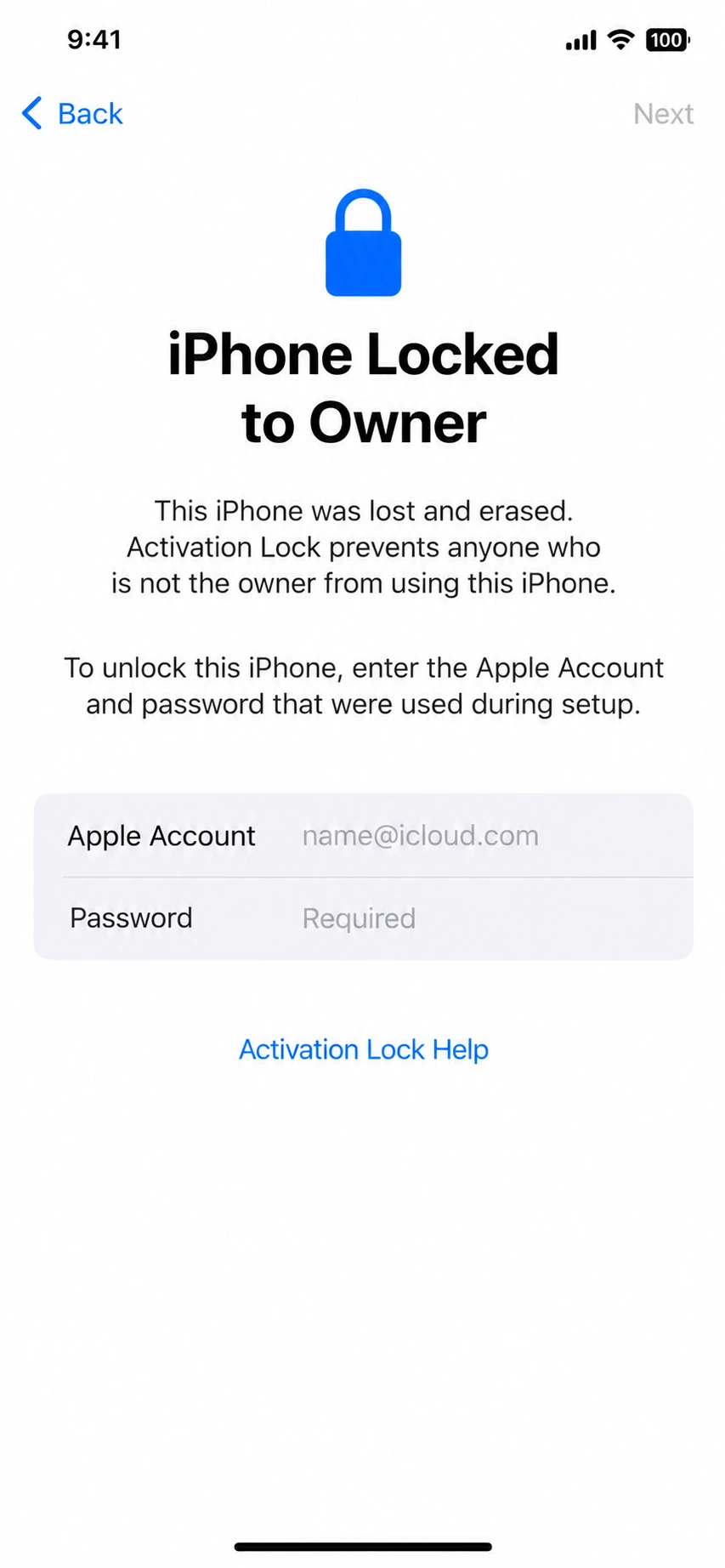
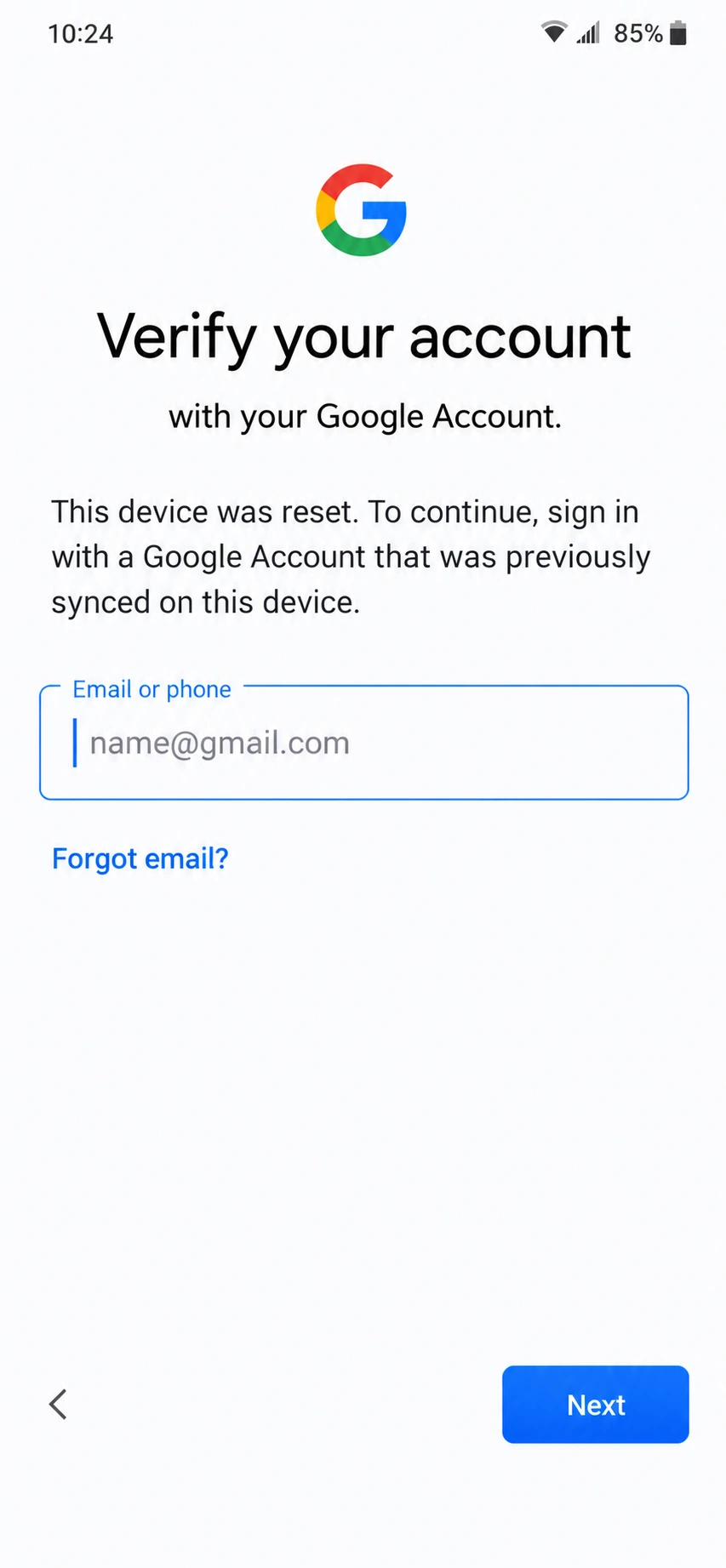
AI-generated illustration.
How do you inspect a used phone for physical damage?
Take the phone out of its case before inspecting it. Good lighting helps reveal scratches, dents, cracks, and poorly fitted replacement parts.
Inspect the frame and back
Look closely at the corners and edges. Small cosmetic marks are common on used phones. Deep dents, bent frames, or gaps between the screen and body are more concerning.
Check whether the back glass sits evenly against the frame. Uneven gaps, lifting panels, or bulging areas may indicate previous repairs, adhesive problems, or battery swelling.
Check the ports, buttons, and SIM tray
Press every physical button. The power and volume buttons should respond consistently without sticking.
Inspect the charging port for bent contacts, corrosion, or excessive looseness. Avoid inserting sharp objects into the port.
Check the SIM tray if the model has one. It should fit correctly and close flush with the frame. Some phones use eSIM only, so a missing physical SIM tray is not automatically a defect.
Look for water damage
Possible warning signs include corrosion around connectors, fogging beneath camera lenses, or moisture indicator changes.
On some models, a liquid contact indicator is visible inside the SIM slot. Its location and interpretation vary by device.
Water resistance can deteriorate with age or after repairs. Never test a used phone by putting it in water.
How do you test a used phone screen?
The display is one of the most expensive components to replace. A quick screen inspection can reveal faults that ordinary browsing might hide.
Test dead pixels, burn-in, and colors
- Increase screen brightness to a comfortable level.
- Display a solid white image.
- Look for dark spots, uneven brightness, or unusual color patches.
- Repeat with black, red, green, and blue images.
- Look for faint outlines of keyboards, navigation bars, or icons that remain visible.
Permanent ghost images may indicate OLED burn-in. A small number of defective pixels may not affect basic operation, but replacement can be costly.
Check touch response
Open a drawing app or another screen that supports continuous touch input. Slowly draw lines across the display, including the corners and edges. Watch for gaps where touch input stops registering.
Test typing across the entire keyboard and try common gestures. A screen that looks perfect can still have damaged touch sensors.
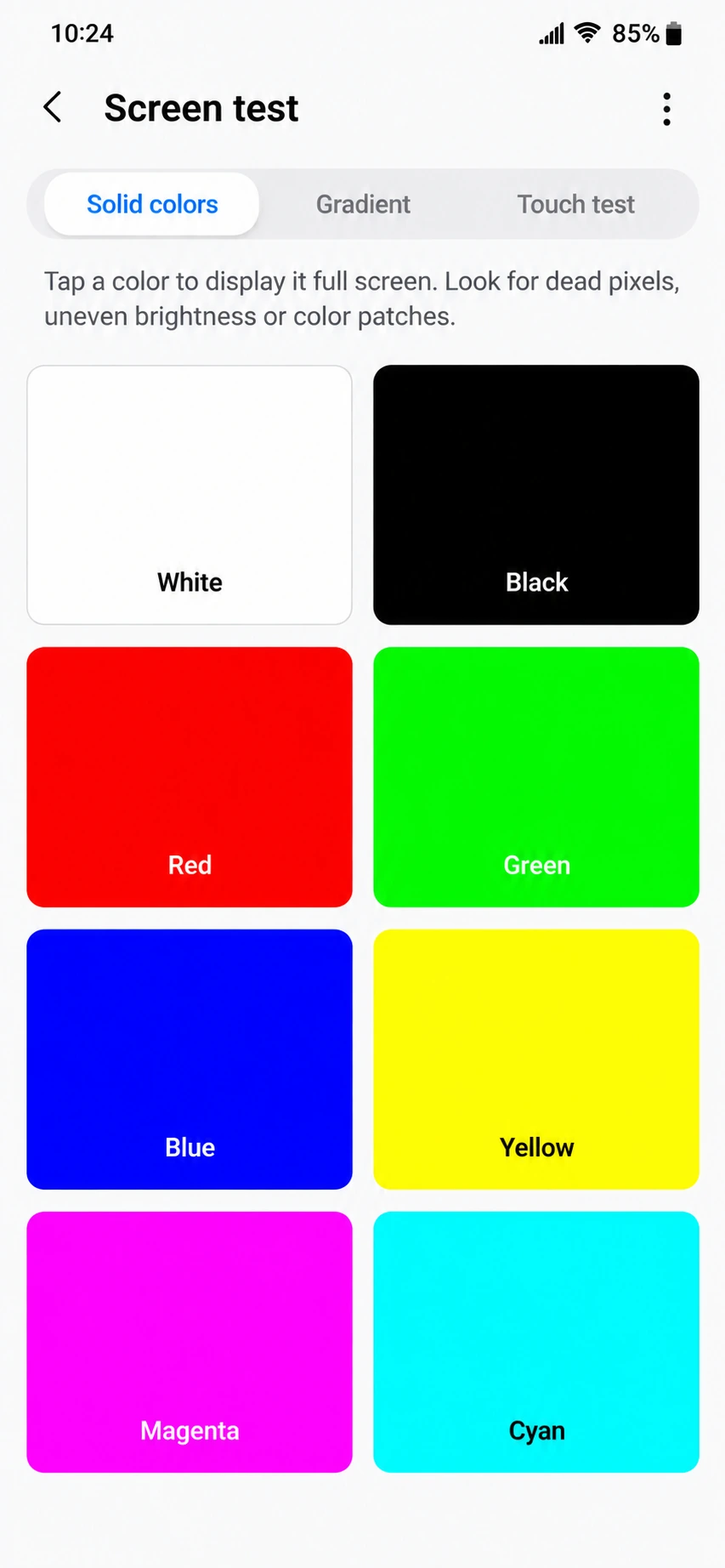
AI-generated illustration.
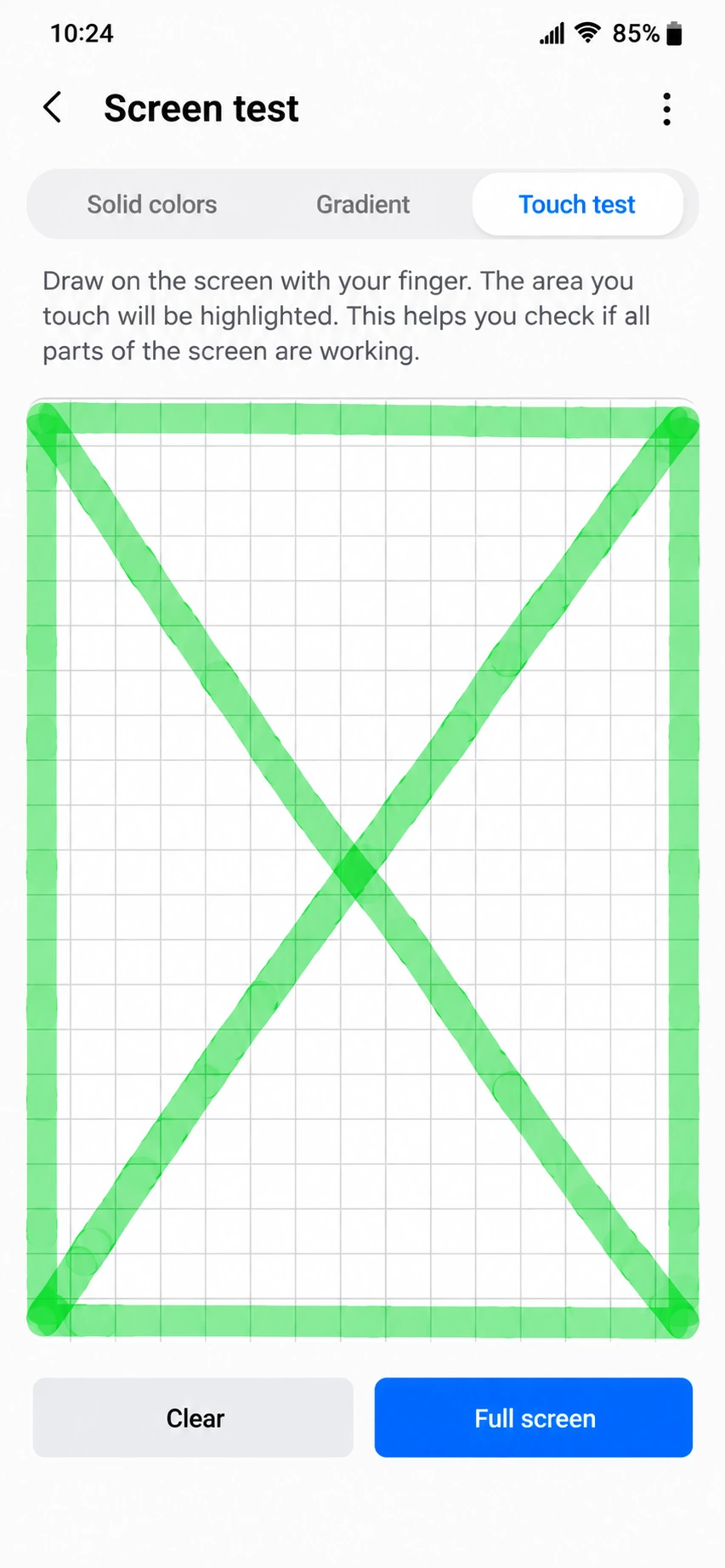
AI-generated illustration.
Check brightness and display behavior
Move the brightness slider from low to high. Look for flickering, sudden changes, or uneven lighting.
If the device supports a high refresh rate, check whether scrolling feels smooth. Be aware that some display behavior changes automatically with temperature, power-saving settings, or ambient lighting.
How do you check battery health on iPhone and Android?
Battery health tells you how much capacity remains compared with the battery when it was new. A worn battery can reduce daily runtime and may eventually need replacement.
Check battery health on iPhone
On many supported iPhones:
- Open Settings.
- Tap Battery.
- Open Battery Health & Charging or Battery Health, depending on the model and iOS version.
- Check the maximum capacity percentage.
- Review any battery service or performance warnings.
A battery showing 100% maximum capacity is not automatically proof that it is original. Check the phone’s parts and service information where supported.
Check battery health on Android
Android battery health menus vary considerably by brand, model, and software version. Some phones display battery capacity or health information in Settings. Others only show battery usage or diagnostics, or use the manufacturer’s own diagnostic app.
Do not confuse battery usage percentages with battery health.

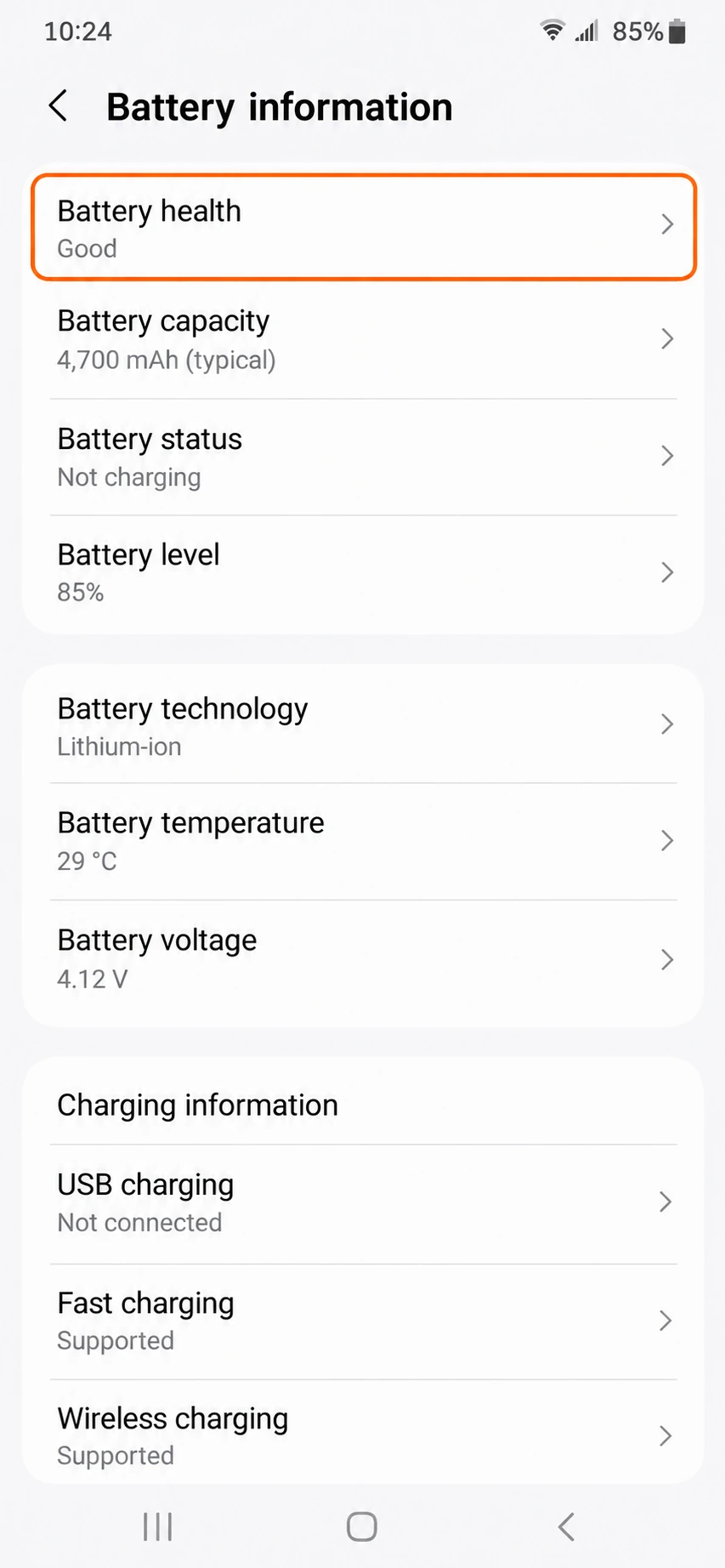
What battery health percentage is acceptable?
These are practical buying guidelines, not official manufacturer grading standards.
| Battery health | Buying advice |
|---|---|
| 90–100% | Generally desirable |
| 85–89% | Usually reasonable if the price is fair |
| 80–84% | Consider replacement cost |
| Below 80% | Negotiate significantly or avoid |
| Not available | Test carefully and request diagnostics |
Battery capacity is only one part of the decision. Also watch for unexpected shutdowns, excessive heating, or unusually fast battery drain.
If the phone does not show battery health, ask for a reputable diagnostic report or allow enough time for a practical battery test. A short inspection cannot accurately measure full-day battery endurance.
What phone features should you test before paying?
Hardware problems often appear only when a specific feature is used. Run these quick tests while the seller is present.
Cameras and video
Open every available camera mode. Take photographs with the main, ultrawide, telephoto, and selfie cameras where available. Check autofocus, image clarity, and switching between lenses.
Record a short video and play it back. Look for unusual blur, camera shaking, spots, or error messages.

Microphone, speakers, and connectivity
Record a voice memo and listen to it. Play audio through the loudspeaker. If possible, make a test call to check the earpiece and microphone.
Connect to Wi-Fi and open a webpage. Pair a Bluetooth accessory. Test mobile calling or data with a compatible SIM or eSIM if possible.
Open a maps app and check whether the phone can determine its location. GPS accuracy may be limited indoors.
Fingerprint and face unlock
Register your own fingerprint or face temporarily, with the seller’s permission. Check whether biometric unlocking works consistently.
If registration fails repeatedly, investigate whether the sensor, camera, or replacement display is causing the problem.
Charging test
Connect a compatible charger and cable. Confirm that charging begins and remains stable. Gently check whether the cable sits securely, without forcing or bending it.
A charging icon alone does not prove that fast charging works. Where supported, check the phone’s charging status and whether it reports any warnings.
How can you tell an original phone from a refurbished or fake one?
A used phone and a refurbished phone are not necessarily the same thing.
A used phone is generally sold after previous ownership. It may be completely original or previously repaired.
A refurbished phone has usually undergone some inspection, repair, cleaning, or component replacement before resale. The quality of that work can vary significantly.
| Type | What to expect |
|---|---|
| Used | Previous ownership; condition varies |
| Refurbished | Inspected or repaired before resale |
| Manufacturer-certified refurbished | Refurbished under the manufacturer’s stated program |
| Counterfeit | Device falsely presented as a genuine model |
How to identify replacement parts
Commonly replaced components include batteries, displays, cameras, charging ports, and back panels.
On supported iPhones, check: Settings → General → About → Parts & Service History. This section may identify certain replaced components and their status. Availability depends on the iPhone model and iOS version.
Android phones do not have one universal replacement-parts history screen. Ask the seller for repair invoices and examine whether the device operates normally.
How to spot a fake phone
Check the exact model name and model number in Settings. Compare the hardware design, display, camera arrangement, and specifications with the manufacturer’s official product information. You can also compare the model on the MobiCircuit phone comparison page.
Inspect the operating system and app store. A counterfeit phone may display misleading specifications, so a Settings screenshot alone is not enough. Test real performance and important features.
An IMEI that matches a legitimate model is not conclusive proof of authenticity because identifiers can be copied.
Extra checks if you are buying in Pakistan
In Pakistan, a used phone must also be registered with the PTA, or it can stop working on local networks. Do these checks before you pay:
- Get the IMEI. Dial *#06# on the phone. If it has two SIM slots or an eSIM, note every IMEI shown.
- Check it with the PTA. Send the 15-digit IMEI by SMS to 8484, or use the PTA DVS website (dvs.pta.gov.pk) or the DVS app.
- Read the result. “Compliant” means the phone is PTA registered or approved; make sure the IMEIs in the reply belong to the same phone. “Stolen” or “non-compliant” means walk away. “GSMA valid, not registered” means the buyer must register it within 60 days of first use on a local network and pay the duties and taxes.
- Ask for proof. Ask for the original box and invoice, and take the seller’s name and CNIC copy details on the receipt.
- Ask about installments. Ask whether the phone is still on an installment plan, and do not pay until that is cleared in writing.
For the full PTA check with every result explained, read our guide to checking if a phone is PTA approved. PTA rules and tax rates can change, so confirm them on the official PTA and FBR websites before you buy.
How should you pay safely for a used phone?
Arrange the transaction in a safe, public location where you can inspect the device without rushing. Avoid sending full payment before checking the phone.
For online refurbished purchases, read the seller’s return conditions before ordering.
Ask for written proof of the sale
A useful receipt should include:
- The device model and storage capacity.
- The IMEI or serial number, handled securely.
- The purchase date and agreed amount.
- The seller’s business details or appropriate contact information.
- Any stated warranty or return terms.
Check whether the seller offers a return window for hidden faults. A warranty is only valuable if its terms are clear and the provider can actually honor it.
Use a payment method that provides suitable transaction records or buyer protection when available. Avoid sharing account passwords, one-time verification codes, or unnecessary personal documents.
Final decision: Buy, negotiate, or walk away?
After completing your inspection, place the phone into one of three categories.
The phone passes activation and IMEI checks, its main features work, battery condition is acceptable, and the seller provides reasonable proof of the transaction.
The phone has minor scratches, a moderately worn battery, or a disclosed repair. The issues are understood, the phone remains safe and usable, and the price reflects potential repair costs.
The phone has an unresolved activation lock, a reported stolen or blacklisted IMEI, a swollen battery, serious display faults, unexplained account restrictions, or a seller who refuses basic testing.
The 10-minute used phone inspection plan
When you have limited time in a shop, follow this order.
| Time | What to check |
|---|---|
| Minute 0–2 | Model, IMEI, network restrictions, ownership |
| Minute 2–4 | Account locks and activation |
| Minute 4–5 | Frame, glass, buttons, and ports |
| Minute 5–6 | Display colors, brightness, and touch |
| Minute 6–7 | Battery health and charging |
| Minute 7–9 | Cameras, audio, wireless connections, and biometrics |
| Minute 9–10 | Receipt, warranty, return terms, and final decision |
Conclusion: Is it safe to buy a used phone?
Buying a used phone can be a smart decision when the device has a clear ownership history and passes important safety and hardware checks.
Start with IMEI and account-lock verification. Then inspect the display, battery, cameras, charging system, and connectivity. Never let an attractive price distract you from a serious warning sign.
A safe used phone is one you can verify, activate, test, and document before paying. Ready to shop? Browse phone specs on MobiCircuit’s Phone Finder before you decide.
Frequently Asked Questions (FAQs)
How do I check if a used phone is stolen?
Find the phone’s IMEI in Settings or by dialing *#06#. Check it through a recognized network or device-status service. Look for lost, stolen, or blacklist reports. Also request proof of purchase. A clean IMEI result is helpful, but it cannot guarantee that the phone was legally obtained.
Can a blacklisted phone still work on Wi-Fi?
Yes. A blacklisted phone may still connect to Wi-Fi and run apps, even when mobile network access is blocked. However, network restrictions vary. Buying a blacklisted phone is risky because you may be unable to make calls, use mobile data, or resolve the restriction.
How can I check iCloud Lock before buying an iPhone?
Ask the seller to erase the iPhone using Apple’s normal transfer process. Begin setup and connect to the internet. If the phone requests the previous owner’s Apple Account or displays an ownership-lock message, do not buy it. Complete activation before making payment rather than relying on the Hello screen alone.
What is Google account lock (FRP) on Android?
Factory Reset Protection is an Android security feature that can require a previously linked Google Account after certain resets. Before buying, ask the seller to remove their accounts and reset the device through Settings. Complete the initial setup yourself. Avoid phones that request unknown account credentials.
Is 85% battery health good for a used iPhone?
An iPhone with 85% maximum battery capacity can still be a reasonable purchase if its price and overall condition are good. However, it will generally offer less runtime than a comparable phone with a newer battery. Check for service warnings and consider future battery replacement costs.
How do I check whether a used phone screen is original?
On supported iPhones, look for Parts & Service History under Settings → General → About. Android phones may not provide equivalent information. Check repair records, display brightness, touch accuracy, colors, and fingerprint functionality. A normal-looking screen does not guarantee that the original panel is installed.
Is a refurbished phone better than a used phone?
Not necessarily. A properly refurbished phone with documented repairs, testing, and a meaningful warranty may be a safer purchase than an untested used device. However, refurbishment quality varies. Compare battery condition, replacement parts, seller reputation, return terms, and total cost rather than relying on the refurbished label.
What is the biggest red flag when buying a used phone?
An unresolved activation lock or a reported stolen IMEI is a major warning sign. Other serious problems include a swollen battery, hidden financing restrictions, and a seller who refuses testing. Cosmetic scratches can sometimes justify a lower price, but ownership and security problems should not be negotiated away.
This guide gives general advice. Menu names and features differ by phone model and software version, so check the manufacturer’s official instructions for your device.